Using Conditional Fields for Elementor Form plugin, you can easily integrate Conditional Whatsapp Redirection in your Elementor forms.
What is Conditional WhatsApp Redirect?
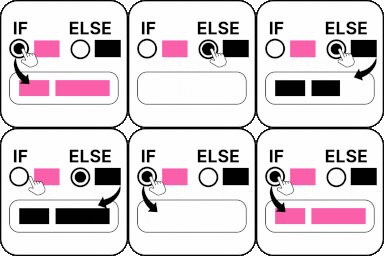
Conditional WhatsApp Redirect allows you to automatically send users to the most relevant WhatsApp chat based on the information they provided in form.
For example, imagine you have a service request form on your website where users select the service they are interested in, such as Website Development, SEO Services, or Graphic Design.
Instead of sending every user to the same WhatsApp number, you can redirect them to different WhatsApp chats based on their selection. If someone selects Website Development, they can be redirected to the development team’s WhatsApp. If they choose SEO Services, they can be connected with the SEO team. And if they select Graphic Design, they can be redirected to the design team.
Enable Conditional WhatsApp
Follow these simple steps to add a conditional WhatsApp redirect in your Elementor Forms:
* Firstly, make sure you have turned on the Conditional WhatsApp feature in the WordPress Admin Panel >> Elementor >> Editor >> Cool FormKit >> Form Elements Tab.
- Navigate to the Action after submit section below the Form Fields.
- Select “Conditional WhatsApp” from the list. A new panel called Conditional WhatsApp will appear.
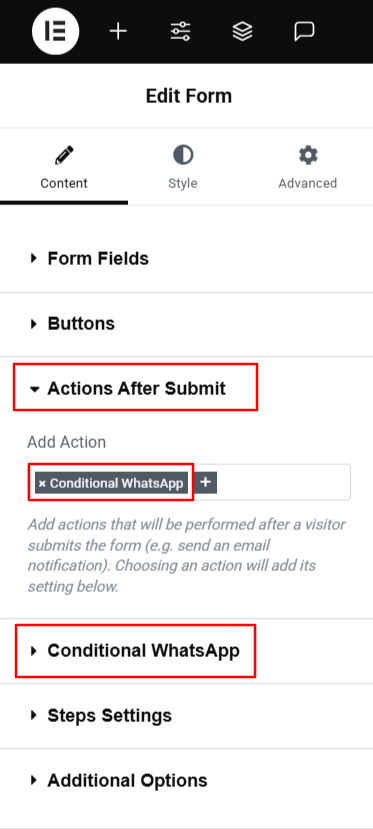
- After adding the Conditional WhatsApp section, let’s set up conditions for it:
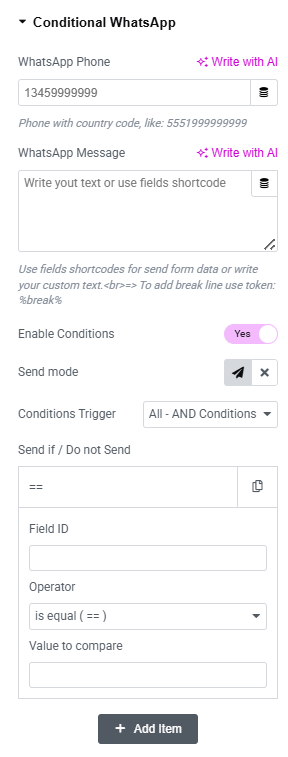
- Enter the WhatsApp number (including the country code) where the form data or message will be sent after submission.
- Next, write the message text you want to send automatically when the user is redirected to WhatsApp.
- Toggle the Enable Conditions switch to Yes to activate conditional logic.
- Use the Send Mode icons to decide what happens when a condition is met:
- Send: WhatsApp redirection will be triggered when the condition matches.
- Do Not Send: WhatsApp redirection will not trigger when the condition matches.
- Under Condition Trigger, you can combine multiple conditions using:
- AND Logic – All conditions must be true
- OR Logic – At least one condition must be true
- Enter the Field ID of the form field that will trigger the condition.
- Choose a comparison operator (e.g., Equals, Not Equals, Contains, etc.) and enter a value to compare.
- Click Publish.
That’s it! Conditional WhatsApp Redirection has been successfully set up in your Elementor form.
Add Any Number of Conditional WhatsApp Redirect
You can add multiple conditional WhatsApp redirects to your form by selecting “Conditional WhatsApp 1,” “Conditional WhatsApp 2,” and so on from the Actions After Submit list. To increase the number of available conditional WhatsApp actions, follow these simple steps:
- Go to your WordPress dashboard.
- Navigate to Elementor > Editor > Cool FormKit > Settings.
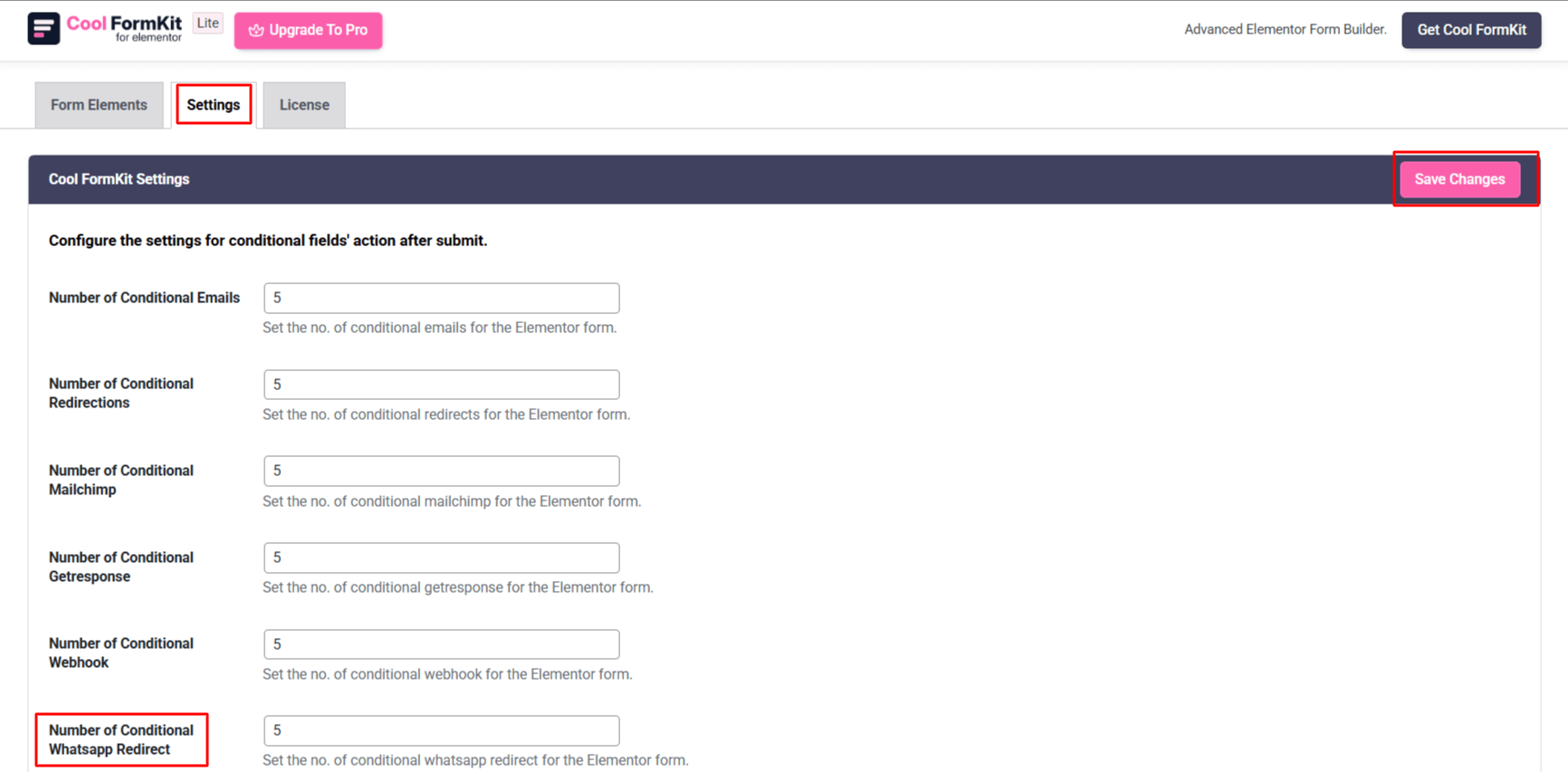
- Under the settings panel, you’ll see the section labeled: Configure the settings for conditional fields’ action after submit.
- In the field labeled “Number of Conditional WhatsApp”, define how many conditional WhatsApp actions you want to configure for your forms.
- Once you’ve added your desired numbers, save the Changes.