


To ensure the Chrome Translator AI functions correctly, follow the steps below to enable the Translation API and install the required language packs:
Step 1: Use a Secure Connection
First, make sure that your connection is secure; otherwise, Translation API will not work properly. If you’re using a non-secure (http://) site or localhost:
- Please switch to a secure connection (HTTPS) or add this URL to the list of insecure origins treated as secure by visiting chrome://flags/#unsafely-treat-insecure-origin-as-secure. Click on the URL to copy it, then open a new window and paste this URL to access the settings.
Step 2: Enable the Translation API
- Open this URL in a new Chrome tab: chrome://flags/#translation-api.
- Set the Experimental translation API option to Enabled.
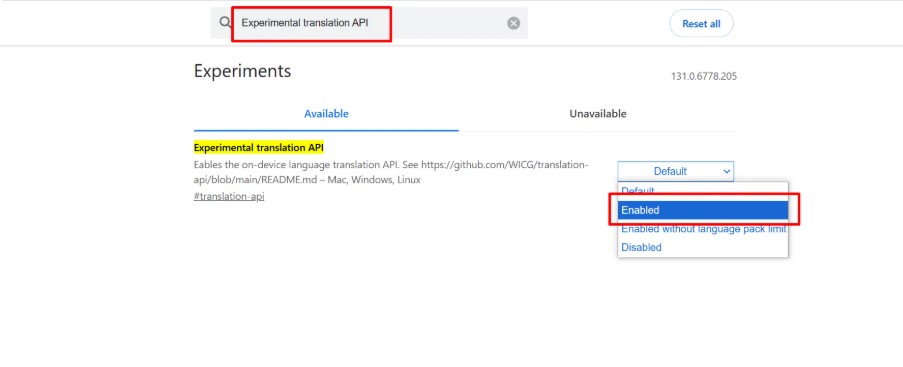
- Click on Relaunch Chrome to apply the changes.
- The Translator AI model will now be enabled and ready for use.
Secondly, to translate between English (en) and Hindi (hi) or any other supported language, alternative language packs must be installed and supported. To view the list of supported languages:
- Please visit chrome://on-device-translation-internals .
- Ensure your Chrome browser is updated to the latest version for optimal performance.
Step 3: Install Language Packs
- You can install languages by visiting the following link: chrome://on-device-translation-internals.
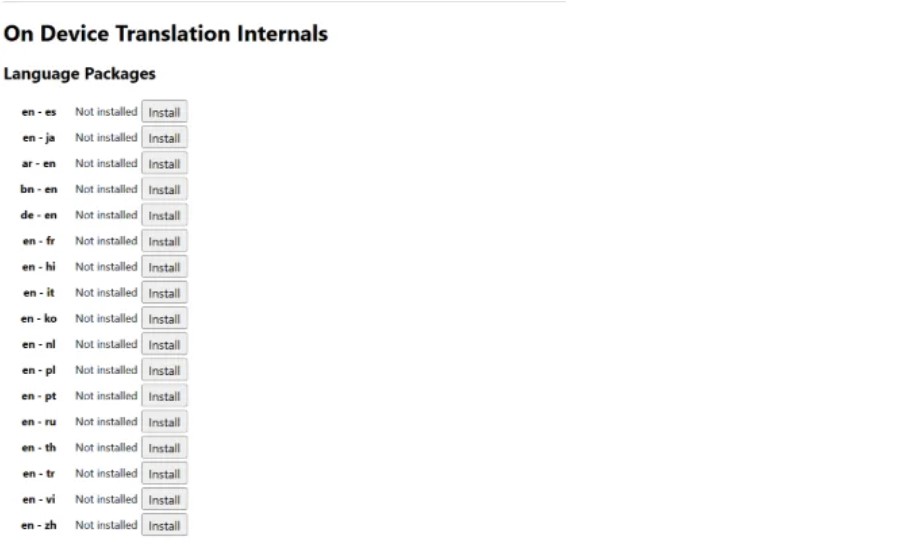
- Please check if both your source (
en) and target (hi) languages are available in the language packs list. - You need to install both language packs for translation to work. You can search for each language by its language code: en and hi. After the language pack is installed, reload or restart your browser.
- Now, let’s add this language to your browser’s system languages in Chrome settings.
- Go to Settings > Languages > Add languages and add हिन्दी or English to your preferred languages list & reload the page.