

If you want to add a date picker field to your native Divi contact form, then you can add it easily using Contact Form Extender for Divi plugin.
Why Use Date Field?
A date field is used to let users select a date from a calendar instead of typing it manually. When users type dates manually, the chances of mistakes, like entering the wrong format or invalid dates, become higher.
But, using a date field helps avoid these problems by giving a ready-to-use calendar where users can simply pick the correct date. It keeps all dates in the same format without any need to fix or check incorrect date entries later.
Follow the steps below to add a date field to your form:
Add a Date Picker Field
* Firstly, make sure you have “Turned on“ the date field feature in the WordPress Admin Panel >> Divi >> Contact Form Extender >> Form Elements Tab.
- From the Elements section, click on the edit (pencil icon) of the field.
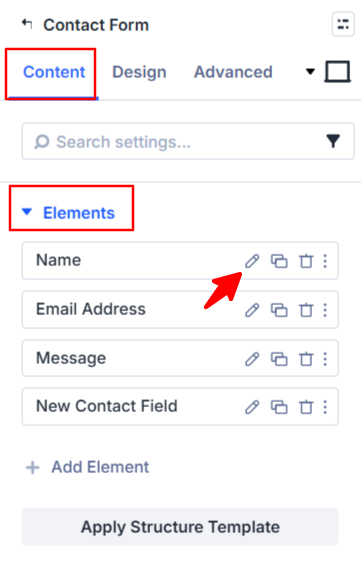
- Field settings will open.
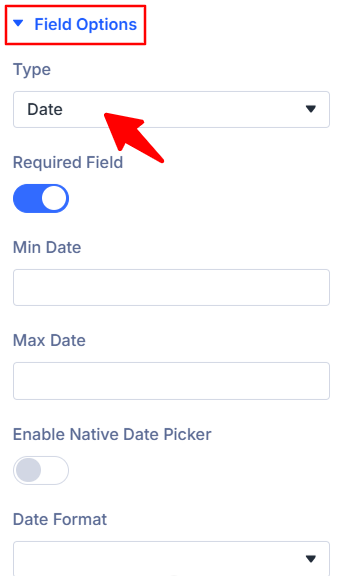
- Scroll down to the Field Options section.
- Type: Select date as the field type.
- Min Date: Set the min date that users can select. For example, setting
2025-06-04will prevent users from selecting any earlier week or month. - Max Date: Set the max selectable date. For instance,
2025-06-06restricts users from choosing a date beyond this point. - Enable Native Date Picker: Turn this on to use the default date picker of the user’s device or browser.
- Date Format: Choose date format according to your requirements (for example,
DD/MM/YYYYorMM/DD/YYYY).
- After being satisfied with all the changes, click Save to apply the changes to your form.