

Plugin Compatibility
Q1. Is Contact Form Extender compatible with all Divi versions?
Ans: Yes, the plugin is fully compatible with the latest version of Divi. It is updated to ensure smooth performance with new Divi releases.
Q2. Does this plugin work with the Divi Contact Form module?
Ans: The plugin extends the functionality of the default Divi Contact Form module by adding advanced fields and features like file upload field, country code dropdown, range slider field, and more.
Q3. Can I use this plugin with other page builders like Elementor or WPBakery?
Ans: No, this plugin is specifically built for the Divi Contact Form module, so it is not compatible with other page builders.
Q4. Is it compatible with all WordPress themes?
Ans: The plugin is designed to work with the Divi theme. It may not function properly with other themes that do not support Divi modules.
Common Issues & Solutions
Q1. The new fields are not showing in the form. What should I do?
Ans: If the newly added fields are not visible in your form, it is usually because they are not enabled in the plugin settings. Go to Divi > Contact Form Extender > Form Elements and make sure the required fields (such as Date, Toggle, Signature, etc.) are turned ON. After enabling them, click the Save Changes button and refresh the page.
Q2. Form submissions are not being saved in the database.
Ans: To save form entries in the database, you must enable the Save Submission feature from Divi > Contact Form Extender > Form Elements. Don’t forget to click the Save Changes button after enabling it.
Once activated, all form submissions will be stored in the database and can be accessed from the Form Submissions tab. If entries are still not being saved, check for plugin conflicts or ensure your database is functioning correctly and not restricted by hosting limitations.
Q3. I am not receiving email notifications after form submission.
Ans: This issue is usually related to email configuration rather than the plugin itself. First, check the email settings inside the Divi Contact Form module and ensure the correct email address is entered.
If everything looks correct, the problem may be with your website’s email delivery system. WordPress often requires an SMTP plugin to send emails reliably. Configure an SMTP service (like Gmail SMTP or any email provider) to ensure emails are properly delivered. Also, check your spam/junk folder, as emails may sometimes be filtered there.
Q4. The date picker or other fields are not working properly.
Ans: If fields like the date picker, toggle, or slider are not functioning correctly, it is often due to JavaScript conflicts or caching issues. So, clear your browser cache and any caching plugin used on your site. If it’s still not resolved, temporarily deactivate other plugins to check for a conflict. Also, ensure that your Divi theme and Contact Form Extender plugin are updated.
Q5. The toggle or range slider is not working correctly.
Ans: If the toggle or range slider is not working as expected, check the field configuration settings. For example, ensure that the minimum and maximum values for the range slider are set correctly. If everything is set correctly but the issue persists, test your form by temporarily disabling other plugins to rule out conflicts. Also, check responsiveness on different devices, as some issues may appear only on mobile or specific screen sizes.
License & Account Queries
Q1: Where can I find my license key?
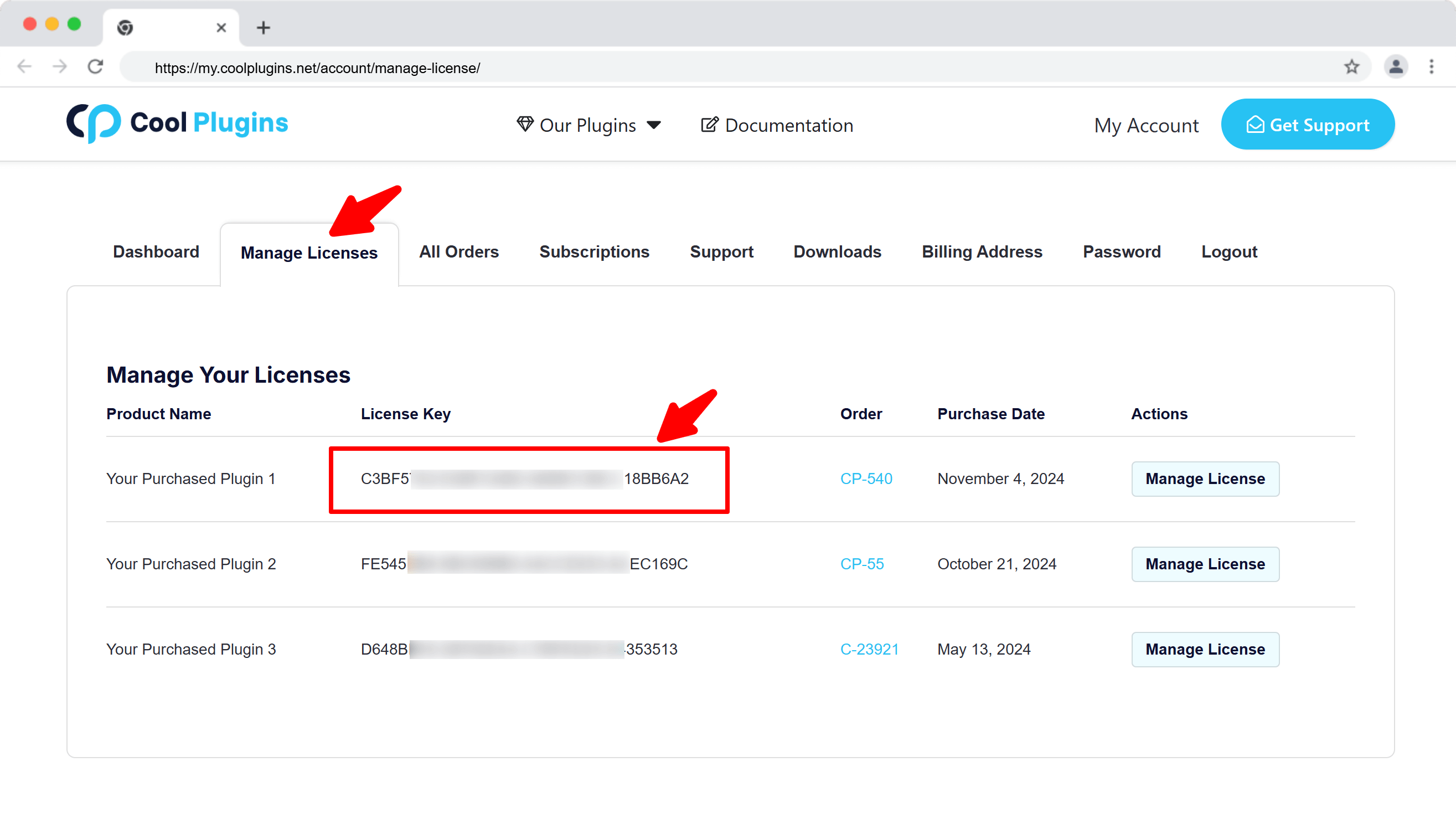
Ans: You can find your license key by logging into your account at my.coolplugins.net. Once logged in, navigate to the Manage Licenses section. There, you will see a list of your purchased plugins along with their license keys displayed next to each plugin name.
Q2: How do I activate my license on a site?
Ans: After installing the plugin, go to Divi > Contact Form Extender > License in your WordPress dashboard and enter your license key in the License section.
Q3: Can I move my license to a different website?
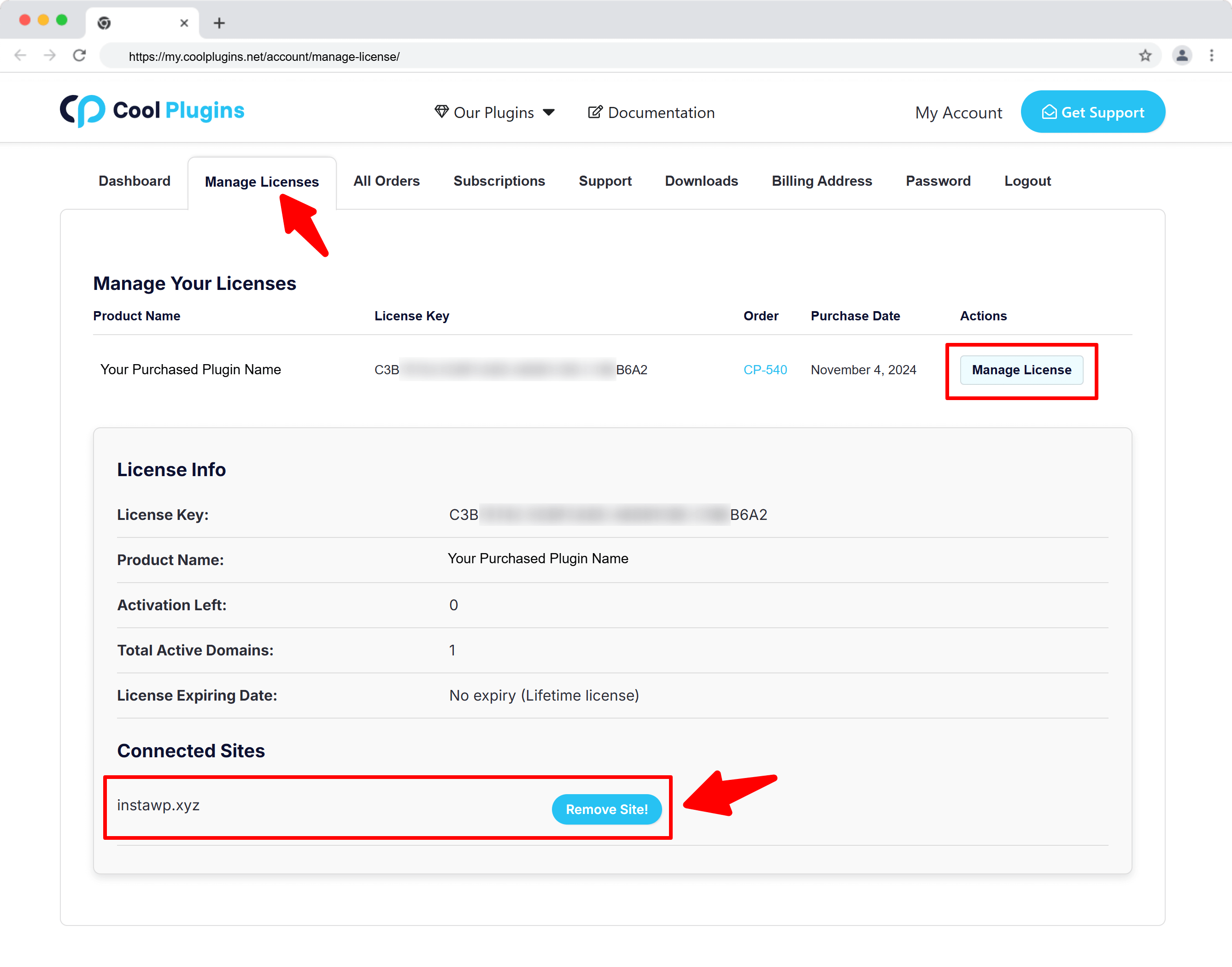
Ans: Yes, you can transfer your license from one website to another. But to do this, make sure to deactivate the license on your old domain first, and then activate it on the new website.
Q4: How can I cancel the auto-renewal of my license key?
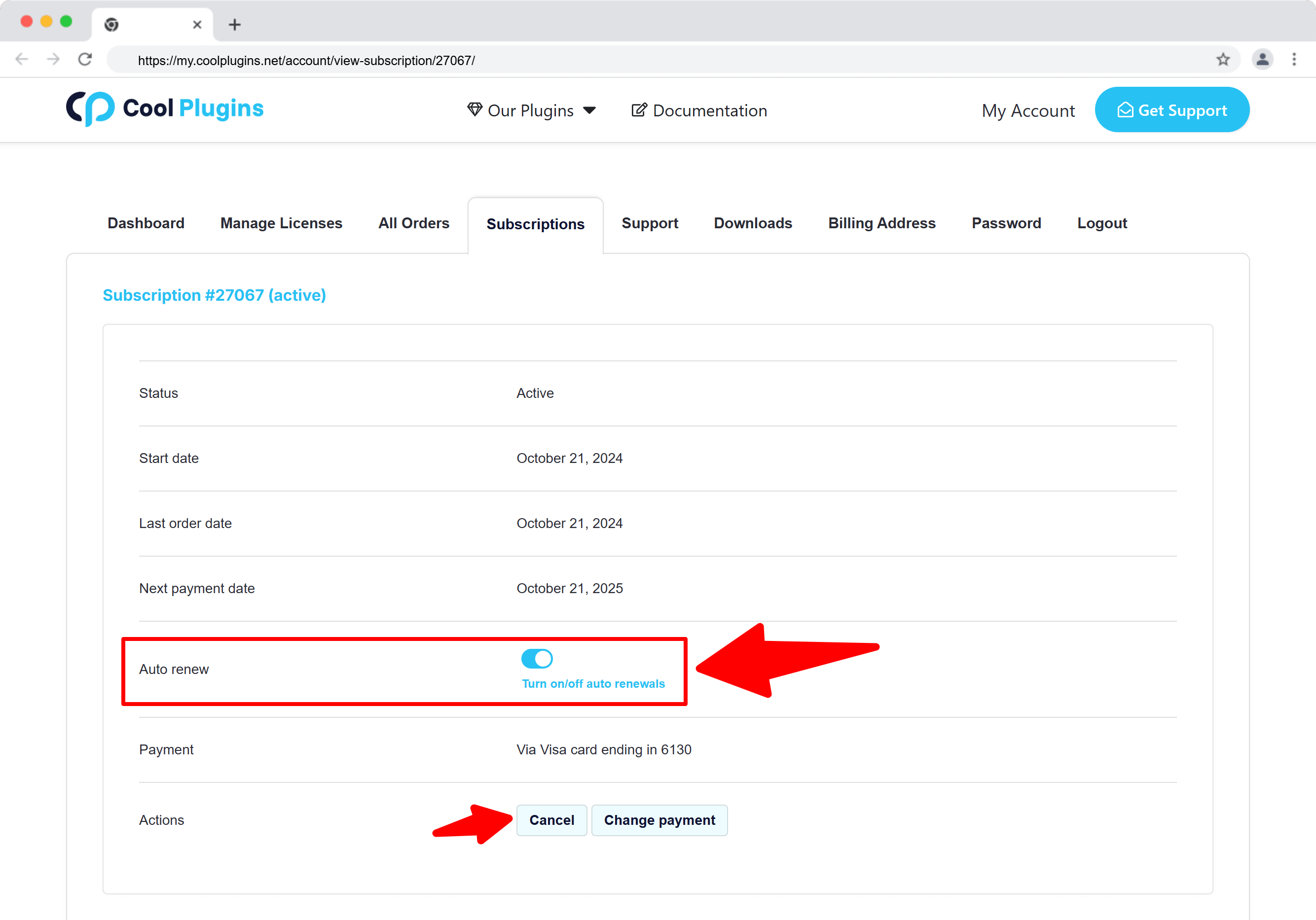
Ans: You can cancel the auto-renewal at any time by logging into your account on our website. Go to the Subscriptions section, find your active license, and click on the Cancel Auto-Renewal button. This will stop future charges, but your license will remain active until the end of the current billing period.
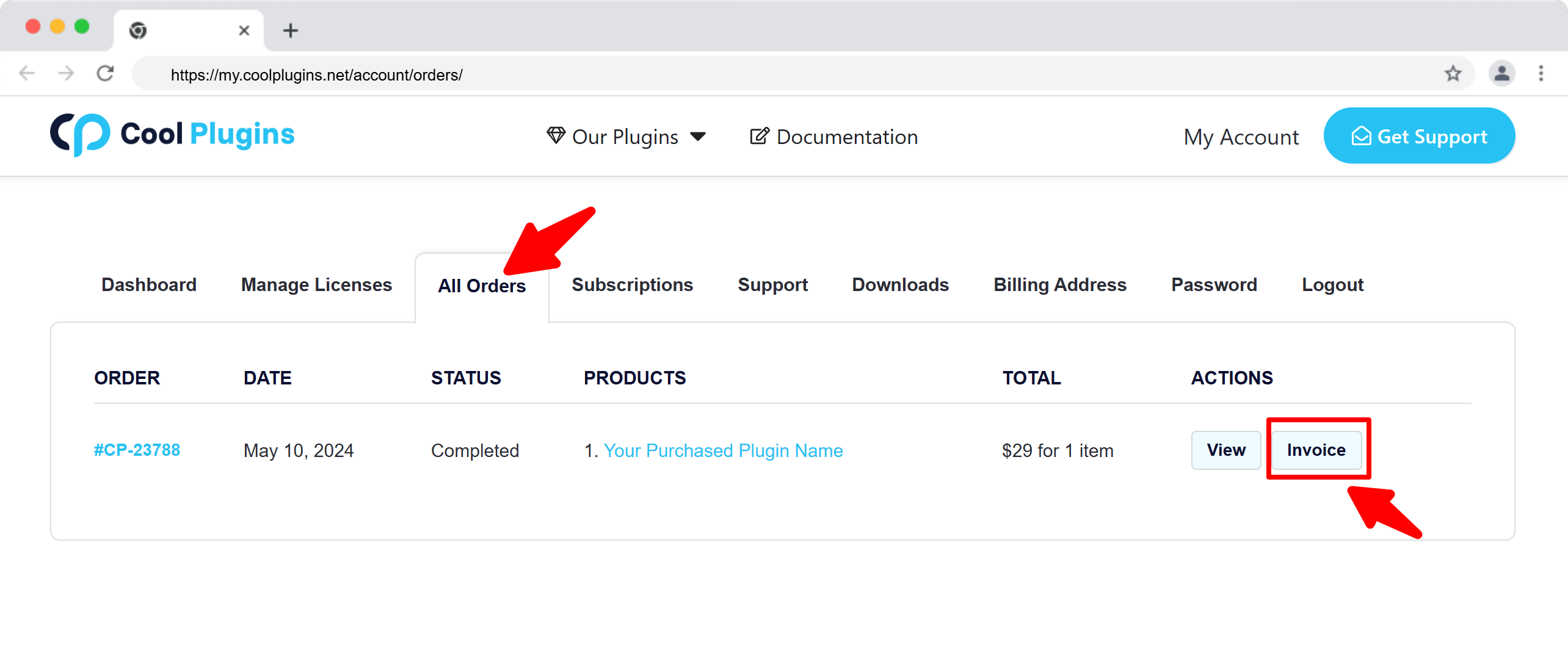
Q5: How can I download my invoice?
Ans: To download your invoice, log in to your account on our website. Navigate to the Orders section. Find the order you want the invoice for, and click the Invoice button to download it.
Contact Support
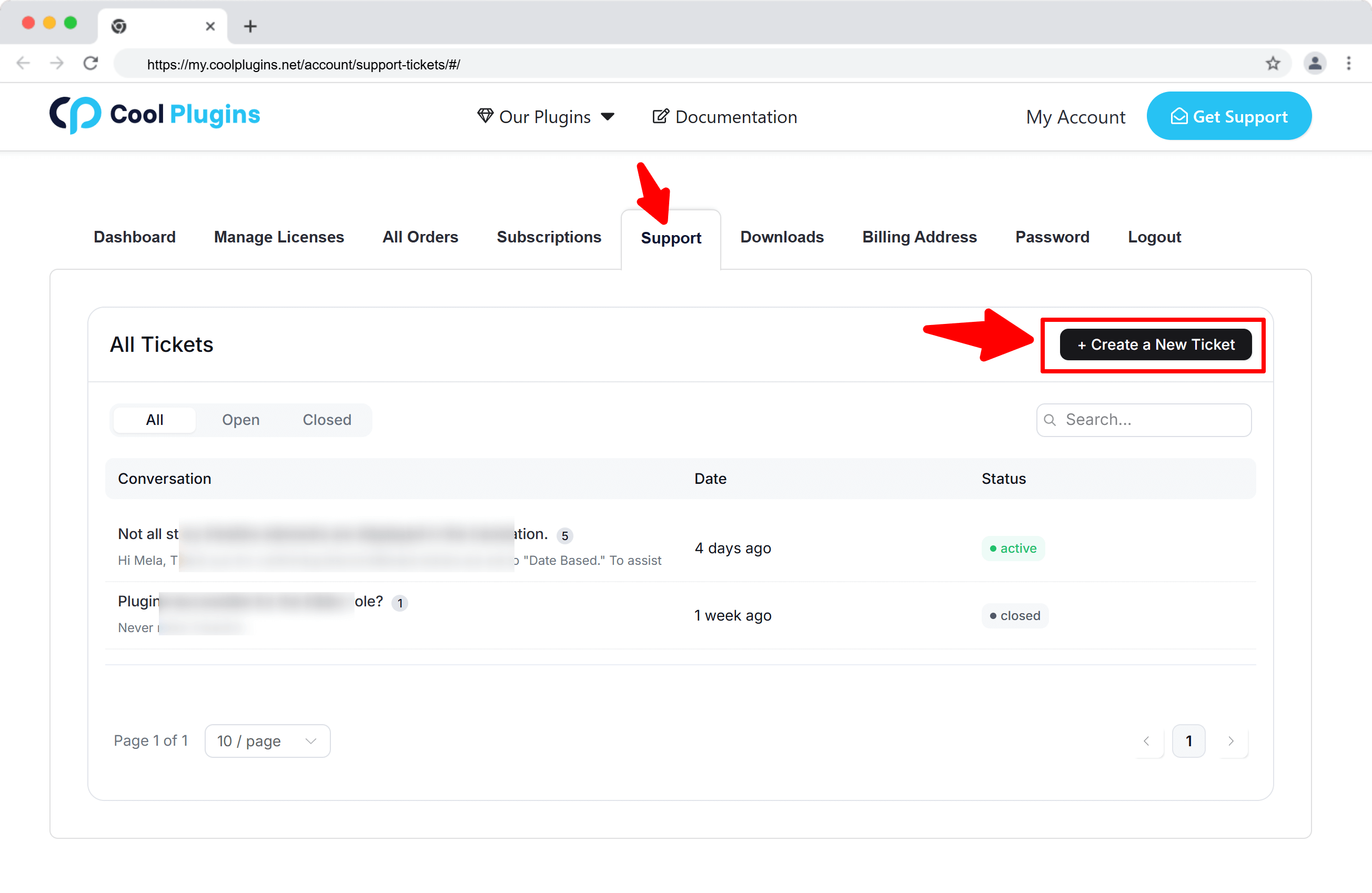
Q1: I need help with an issue not listed here. How can I get support?
Ans: If you have a question or issue not covered in the FAQ, you can contact our support team by logging into your account at my.coolplugins.net and submitting a support ticket. Our team typically responds within 24–48 business hours to help resolve your issue.
Q2: Is support available for free plugin users?
Ans: If you are a free plugin user, you can get help by raising a ticket through the WordPress.org support forum.