

You can easily add a Rating Field directly inside the Divi contact form, which allows you to easily collect user feedback, reviews, or satisfaction scores using the Contact Form Extender for Divi plugin.
Why Add a Rating Field?
Adding a rating field makes it easier and faster for users to share feedback. Without a rating field, collecting user feedback often relies on questions like “How was your experience?” that many users skip because typing a response takes time.
For example, after completing a purchase on your website, instead of writing a detailed review, a customer can simply select 5 out of 5 stars to show they’re happy with the product or service. It’s quick, effortless, and gives you clear insight into customer satisfaction.
Follow these simple steps to add a rating field to your form:
Add Rating Field
* Firstly, make sure you have “Turned on“ the rating field feature in the WordPress Admin Panel >> Divi >> Contact Form Extender >> Form Elements Tab.
- From the Elements section, click on the edit (pencil icon) of the field.
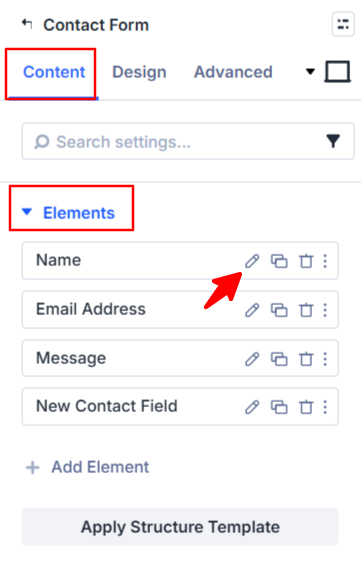
- Field settings will open.
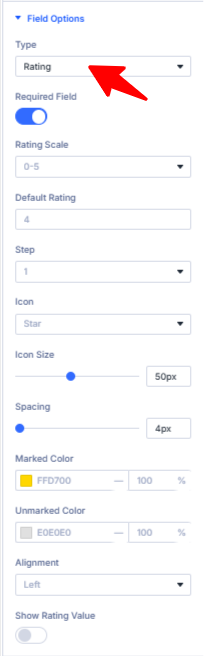
- Scroll down to the Field Options section.
- Type: Select Rating as the field type.
- Rating Scale: Choose the rating range (e.g., 0–5 or 0–10) to define how many icons should be displayed.
- Default Rating: Pre-select an initial value that appears when the form loads.
- Step: The Step setting allows you to specify the intervals at which the selection can increase or decrease as you hover over the icons.
- Icon Size & Spacing: Adjust the size of the rating icons and the space between them.
- Marked Color: Set a color for the selected portion of the icons.
- Unmarked Color: Set a color for the unselected portion of the icons.
- Alignment: Adjust the horizontal alignment of the rating icons (left, center, or right).
- Show Rating Value: Enable this option to display the numeric score (e.g., “4.5”) along with icons.
- After being satisfied with all the changes, click Save to apply the changes to your form.