

The File Upload field allows users to submit files directly through your form. You can easily add a file upload field to your contact form module using Contact Form Extender for Divi plugin.
Why Use a File Upload Field?
A file upload field helps you collect files directly through your form, instead of collecting files separately by email.
For example, if you are running a job application form on your website, you can ask users to upload their resume, CV, or Portfolio while applying. This way, you don’t need to check emails for attachments because all applications and files are stored together in one place.
Follow these simple steps to add a File Upload field:
Add File Upload Field
* Firstly, make sure you have “Turned on“ the file upload field feature in the WordPress Admin Panel >> Divi >> Contact Form Extender >> Form Elements Tab.
- From the Elements section, click on the edit (pencil icon) of the field.
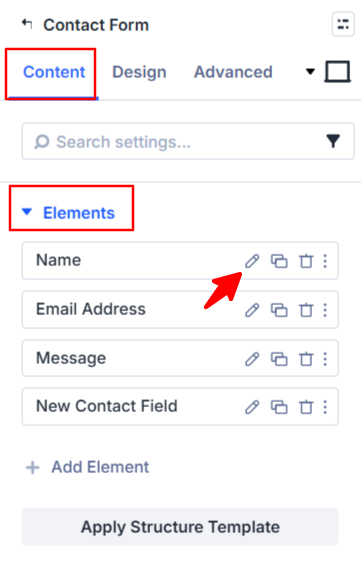
- Field settings will open.
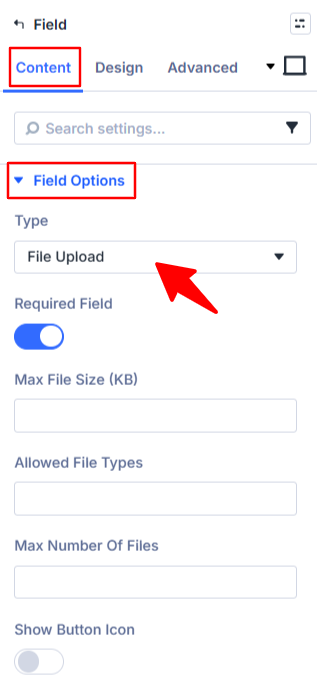
- Scroll down to the Field Options section.
- Type: Choose File Upload as the field type.
- Max File Size (KB): Set the maximum file size that users can upload.
- Allowed File Types: Here you can define which file formats are allowed. For example: JPG, PNG, PDF, and more.
- Max Number of Files: Set how many files a user can upload at once.
- Show Button Icon: Enable this option if you want to display an icon on the upload button.
- After being satisfied with all the changes, click Save to apply the changes to your form.