


A Range Slider allows users to select a numeric value or a value within a defined range using a draggable slider. Using the Contact Form Extender for Divi plugin, you can easily add a range slider field.
Why Use Range Slider?
A range slider allows you to define a fixed minimum and maximum value based on your requirements. Instead of asking someone to type a number, the slider lets them drag and pick a value instantly, which reduces errors.
For example, if your form contains a pricing field, you can define a range from 1 to 100. While filling the form, the user can simply select any value within this range, just by moving the slider.
Follow the steps below to add a range slider field to your form:
Add Range Slider Field
* Firstly, make sure you have “Turned on“ the range slider field feature in the WordPress Admin Panel >> Divi >> Contact Form Extender >> Form Elements Tab.
- From the Elements section, click on the edit (pencil icon) of the field.
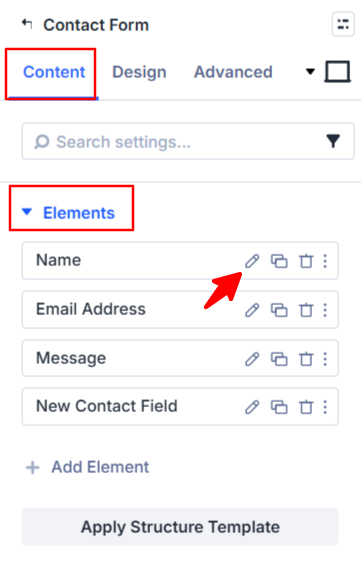
- Field settings will open.
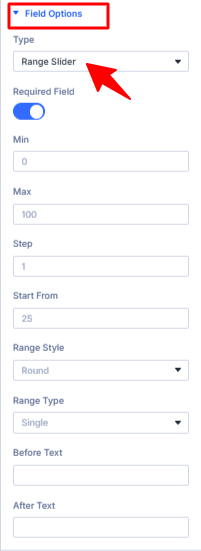
- Scroll down to the Field Options section.
- Type: Choose range slider as the field type.
- Min: Set the minimum value of the slider.
- Max: Set the maximum value of the slider.
- Step: Specify the intervals at which the slider value increases or decreases as the handle is dragged (e.g., 1, 5, 10).
- Start From: Set a default value to define the initial position of the slider handle when the form loads.
- Range Style: Choose from available style options to change the visual appearance of the slider.
- Range Type: Select Single if you want users to choose only min value value, and Double if you want users to choose both min and max value.
- Before / After: Add a prefix or suffix to your slider values (e.g., $, %, kg) to display before or after the current value, min, and max indicators.
- After being satisfied with all the changes, click Save to apply the changes to your form.