
Protect your Elementor forms from spam submissions and bots by via spam blocker feature using Cool FormKit.
What is Spam Blocker?
A Spam Blocker is a protection system that helps prevent unwanted or fake form submissions on your website.
When you create forms using Elementor, anyone on the internet can submit them including bots, spammers, or users sending irrelevant or promotional content. These spam entries can clutter your inbox, waste your time, and make it harder to find genuine inquiries.
The Spam Blocker in Cool FormKit helps solve this problem by acting like a filter. It checks the information users submit and stops entries that look suspicious or irrelevant before they are even submitted.
Follow the steps below to add a spam blocker to Elementor Forms:
Add Spam Blocker
- From your WordPress dashboard, navigate to WordPress Admin Panel >> Elementor >> Cool FormKit >> Settings.
- Scroll down to the Spam Blocker section.
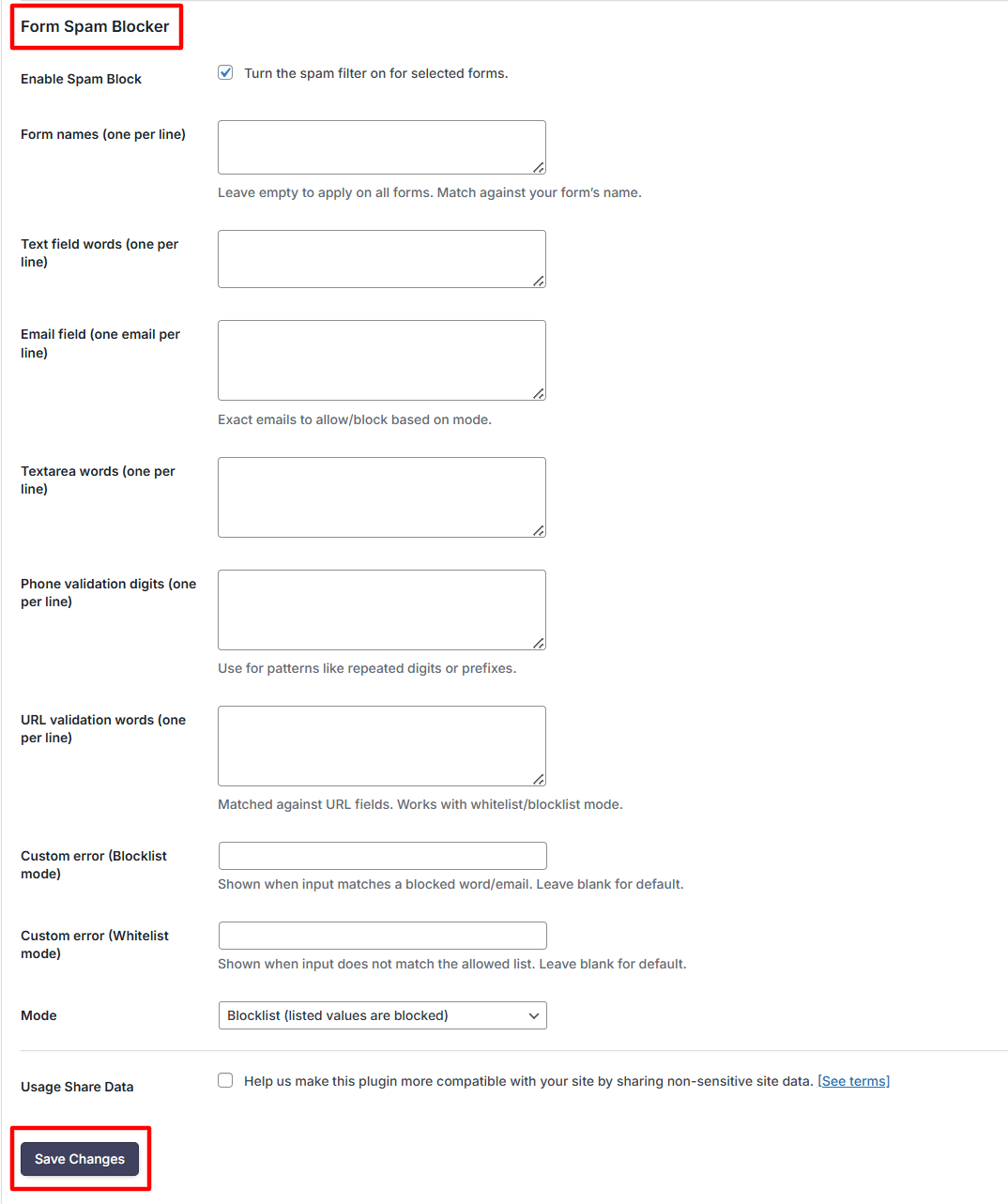
- Enable Spam Block: Turn on option to activate spam filtering for your forms. Once enabled, the plugin will start checking form submissions based on the rules you define.
- Form Names (one per line): Enter each form name to which you want to apply spam filter or leave this field empty to apply spam filter to all forms automatically.
- Text Field Words (one per line): Add specific words or phrases that you want to block or allow in text input fields based on the selected mode (blocklist or whitelist).
- Email Field (one email per line): Enter email addresses that you want to block or allow based on the selected mode (blocklist or whitelist).
- Textarea Words (one per line): Add words or phrases that you want to block or allow in textarea fields (such as message fields) based on the selected mode.
- Phone Validation Digits (one per line): Enter number patterns, repeated digits, or prefixes to validate phone number inputs and detect spam or invalid entries.
- URL Validation Words (one per line): Add keywords or domains to validate URLs submitted in form fields, based on the selected mode (blocklist or whitelist).
- Custom Error (Blocklist Mode): Enter a custom error message that will be shown when user input matches a blocked value.
- Custom Error (Whitelist Mode): Enter a custom error message that will be displayed when user input does not match the allowed values.
- Mode: Choose the spam filtering mode: Blacklist or Whitelist.
- In Blocklist mode, any value you add will be blocked, meaning if a user enters something that matches your list, the form will not be submitted.
- In Whitelist mode, only the values you add are allowed, and anything else will be rejected.
- Lastly, click save changes button.