
A Signature Field allows users to draw their signature directly within a form using a mouse, stylus, or touchscreen. You can easily add a signature field to your Elementor forms using Cool FormKit.

Why Use a Signature Field?
Signature field is useful for forms that require consent, verification, or authorization, such as service agreements, delivery confirmations, or waivers. Instead of requiring users to print, sign, scan, or upload documents, the Signature Field makes the process fast, digital, and legally recognized. It not only improves user convenience but also streamlines your workflow by keeping everything within your website.
Imagine you’re running a service-based business. Before scheduling the service, you can require users to sign a consent form agreeing to the terms and conditions. The Signature Field allows them to do this instantly, directly within the form, making the process quick and more reliable.
Follow these simple steps to add a signature field in Elementor forms:
Add Signature Field
* Firstly, make sure you have “Turned on“ the signature field feature in the WordPress Admin Panel >> Elementor >> Cool FormKit >> Form Elements Tab.
- Navigate to the Content section of your Form Field. From the Field Type dropdown, select Signature Field.
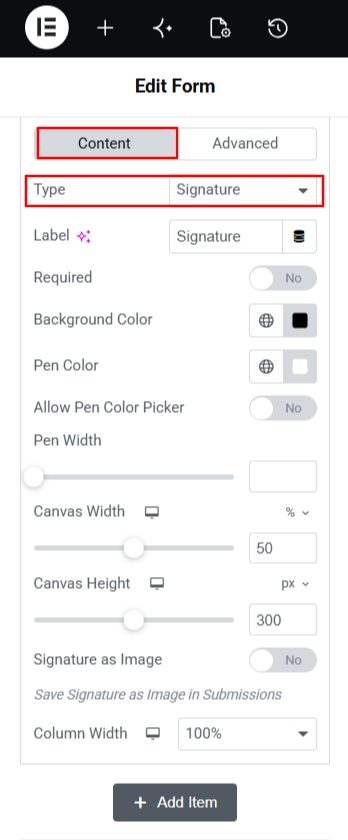
Once you’ve selected the Signature field, you can customize its behavior and appearance using the following options:
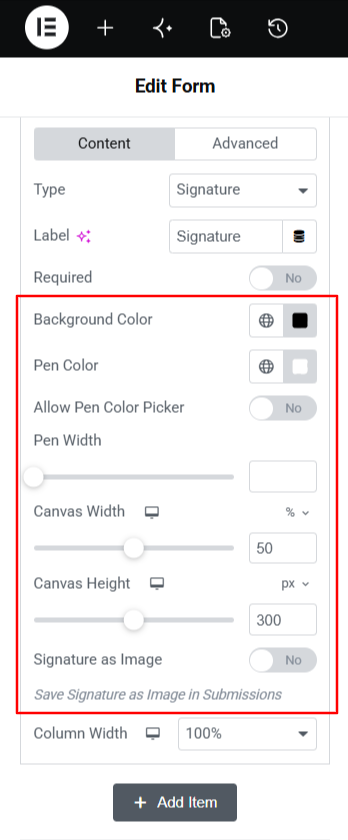
- Background Color: Adjust the background color of the signature pad.
- Pen Color: Adjust the pen color of the signature pad using the pen color setting.
- Allow Pen Color Picker: Enable users to choose their preferred pen color while signing.
- Pen Width: Adjust the thickness of the signature stroke using the pen width setting.
- Canvas Width: Adjust the overall width of the signature pad using the width setting.
- Canvas Height: Adjust the overall height of the signature pad by configuring the height setting.
- Signature as Image: Enable this option to save submitted signatures as image files.