










AutoTP – AI Translation for TranslatePress allows you to automatically translate SEO titles, meta descriptions, Open Graph details, Twitter Cards, image ALT text, image titles, and URL slugs into your selected language.
Follow the steps below to automatically translate SEO meta details:
Enable SEO Translation
- From your WordPress Dashboard, navigate to Settings > AI Translation [TranslatePress].
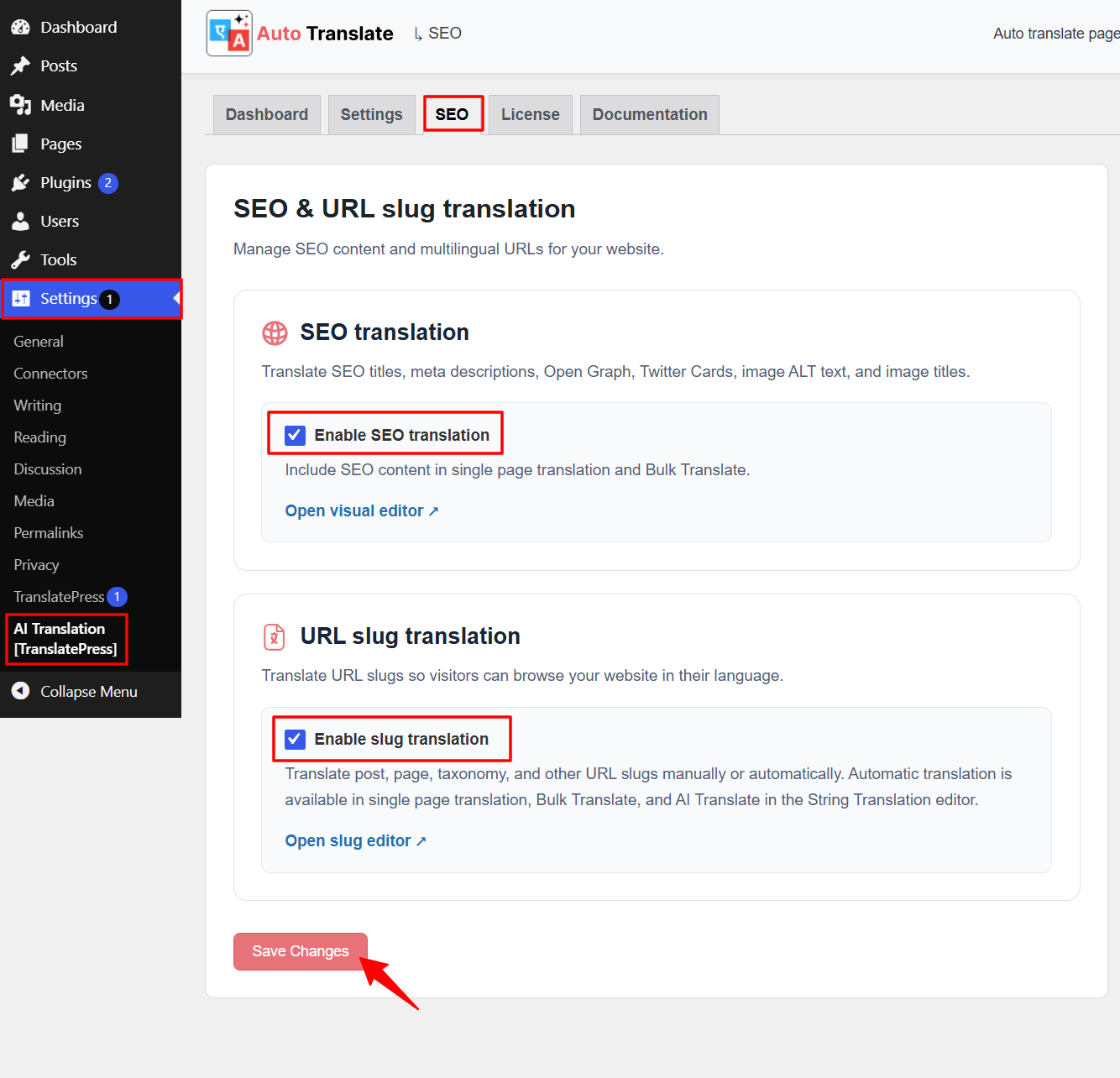
- Under the SEO translation section, check the Enable SEO translation option.
- Under the URL slug translation section, check the Enable slug translation option.
- Click Save Changes to enable both features.
Automatically Translate SEO Details and URL Slugs
Once both options are enabled, AutoTP will automatically translate supported SEO details and URL slugs whenever you translate your pages or posts.
You can translate your content using either of the following methods:
- Single Page Translation: Translate an individual page or post using AutoTP. Its supported SEO details and URL slugs will be translated automatically along with the page content.
- Bulk Translation: Select multiple pages or posts and start Bulk Translation using AutoTP. The supported SEO details and URL slugs will also be translated into your selected target language.
Note: Make sure both Enable SEO translation and Enable slug translation are checked before starting the translation process. Once enabled, AutoTP automatically includes supported SEO details and URL slugs during single-page and bulk translation.
Translate URL Slugs Separately
AutoTP lets you translate URL slugs using AI translation or enter manual translations for individual slugs. You can choose the method that best suits your website’s URL structure and SEO requirements.
Automatically Translate URL Slugs
- Open the page or post where you want to manage URL translations.
- From the translation editor, navigate to the String Translation section.
- Select the Slugs tab.
- Find the URL slug you want to translate, such as Taxonomy Slugs, Term Slugs, Post Slugs, Post Type Base Slugs, and Other Slugs.
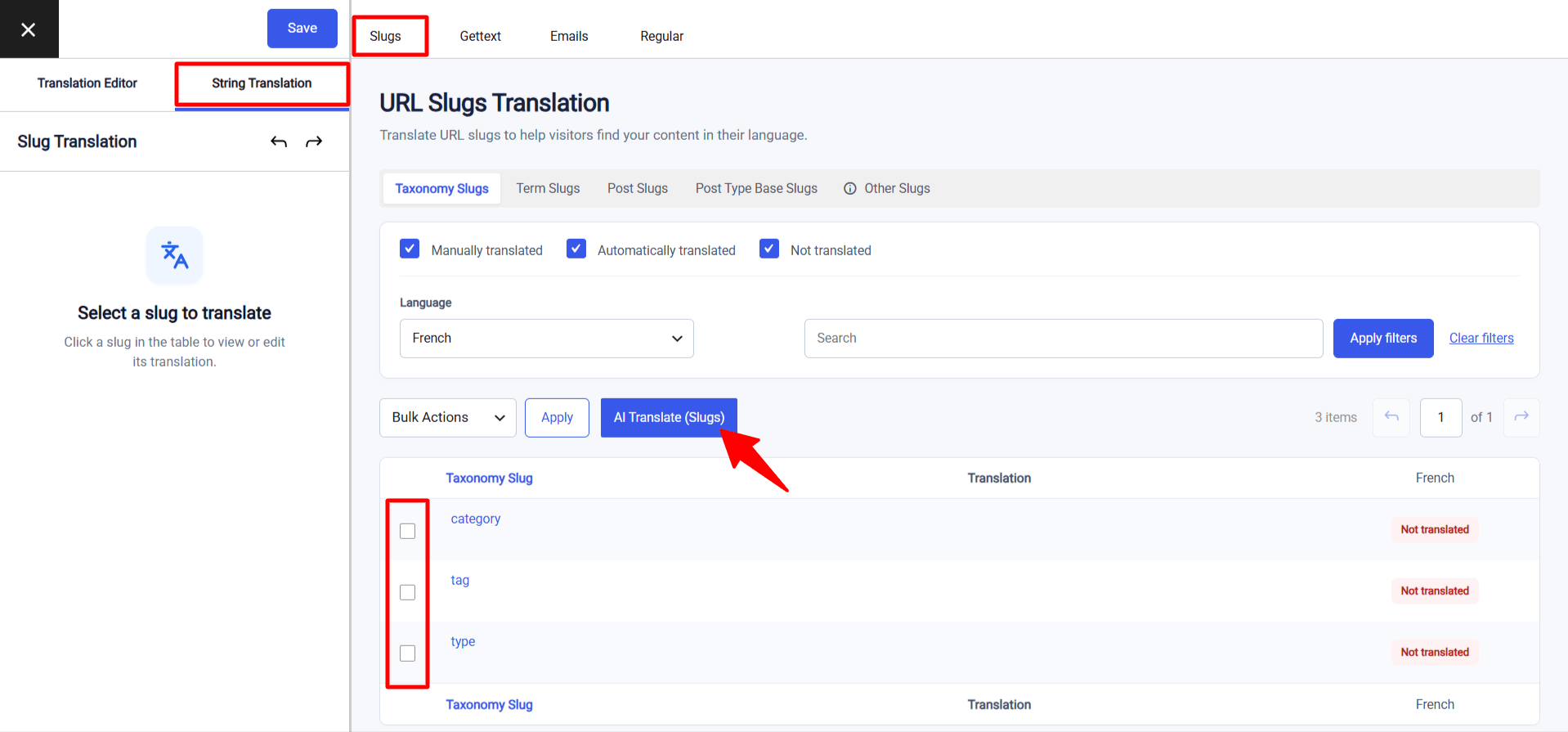
- Use the checkboxes to select one or more slugs you wish to translate.
- Click AI Translate to start the automatic translation process.
- A pop-up will appear, select the language and select the translation provider.
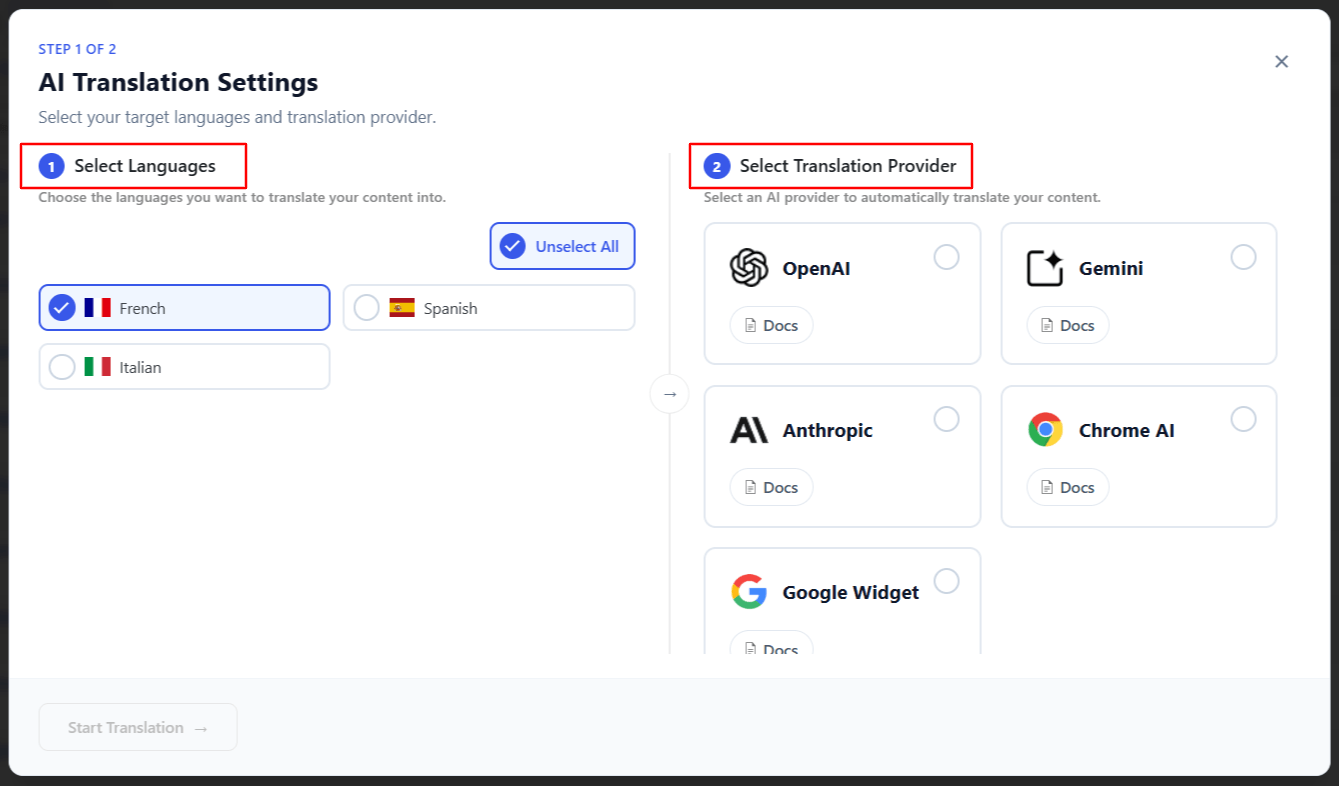
- The translation process will begin automatically.
- After the process complete, you can check the translated versions of the selected slugs.
Manually Translate URL Slugs
- Open the page or post where you want to manage URL translations.
- From the translation editor, navigate to the String Translation section.
- Select the Slugs tab.
- Find the URL slug you want to translate, such as Taxonomy Slugs, Term Slugs, Post Slugs, Post Type Base Slugs, and Other Slugs.
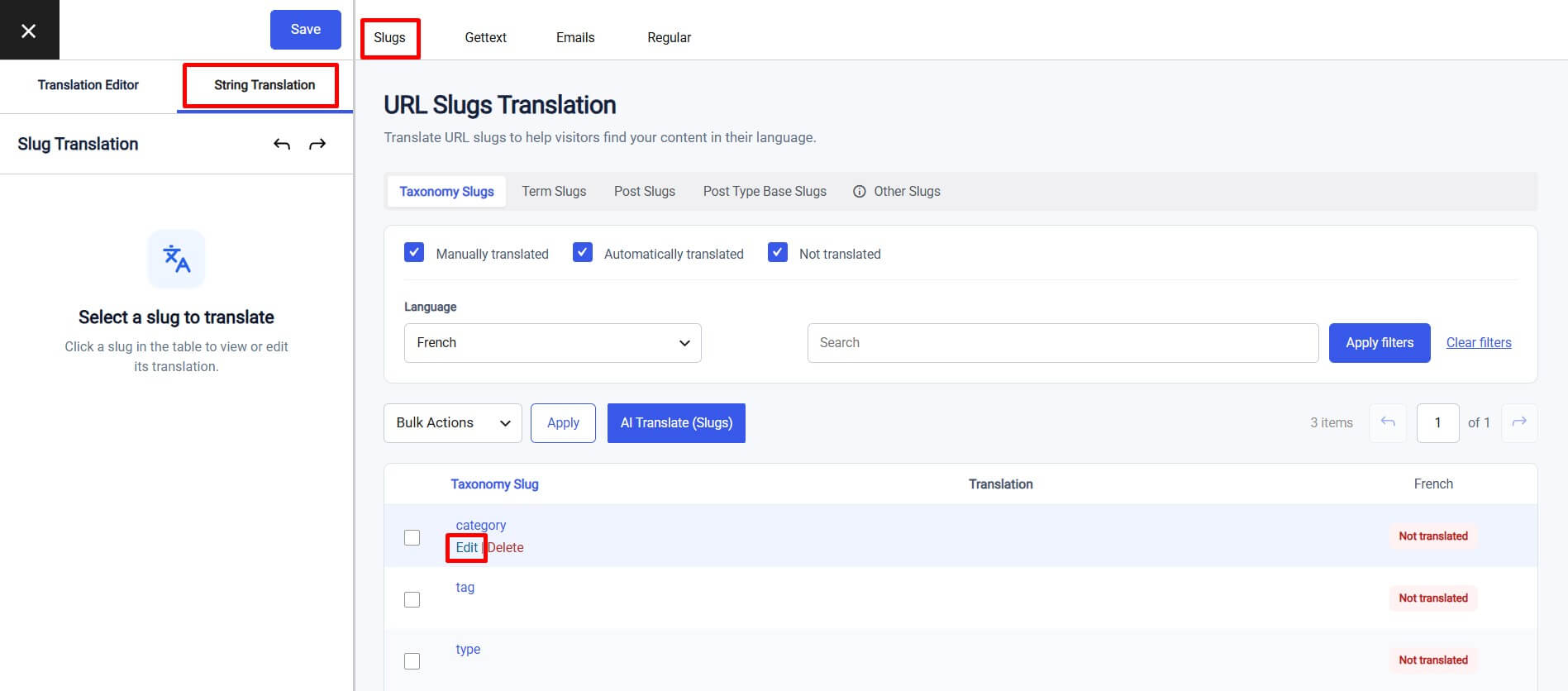
- Edit the URL slug you want to translate from the list.
- Enter your preferred translation in the translation field on the left side of the editor.
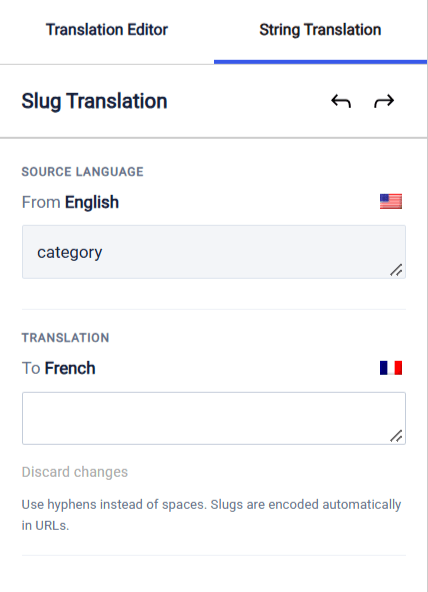
- After entering the translation, Click Save to save the translated slug.