

Using the Contact Form Extender for Divi plugin, you can easily add a Confirm Dialog Box directly inside the Divi contact form, which asks the user to confirm or cancel the action before submitting the form.
Why Use a Confirm Dialog?
A Confirm Dialog Box adds an extra layer of verification in forms by asking users to confirm their action before form submission. It is important in forms where the action cannot be reversed or involves sensitive information, such as payments, registrations, or data removal.
Imagine a user filling out a job application form, but the user accidentally clicks the submit button before uploading the correct file or completing all fields. A confirmation message, such as “Are you sure you want to submit your application?” appears. This gives the user a chance to go back, review their details, and upload the correct document before final submission.
This simple layer of confirmation enhances form accuracy, improves trust, and reduces errors.
Add Confirm Dialog Box
Follow these simple steps to add a confirm dialog box to your form:
* Firstly, make sure you have “Turned on“ the confirm dialog box feature in the WordPress Admin Panel >> Divi >> Contact Form Extender >> Form Elements Tab.
- After enabling the Confirm Dialog box, a new section labeled Confirm Dialog before submit will appear on your page.
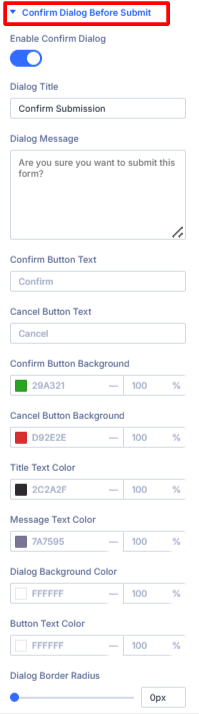
- Toggle on the confirm dialog option. When enabled, the form won’t submit immediately, it will first show a dialog box asking the user to confirm.
- Dialog Title: Set the main heading of the confirmation dialog box.
- Dialog Message: Enter the message prompt for users to review their input.
- Confirm Button Text: Define the label for the confirm button (e.g., “Confirm”, “Yes, Submit”).
- Cancel Button Text: Set the label for the cancel or back button (e.g., “Cancel”, “Go Back”).
- Confirm Button Background: Set a color for the confirm button according to your preferences.
- Cancel Button Background: Choose a color for the cancel button.
- Title Text Color: Customize the color of the dialog title.
- Message Text Color: Choose a color for the message text according to your form’s style.
- Dialog Background Color: Customize the background color of the pop-up.
- Button Text Color: Set the text color for the button.
- Dialog Border Radius: Adjust the radius of the dialog box.
- After being satisfied with all the changes, click Save to apply the changes to your form.