

Using AutoPoly – AI translation For Polylang, you can easily retranslate your Classic Editor, Gutenberg, or Elementor pages within a single click.
What is Retranslation?
Retranslation allows you to update already translated pages automatically when you make changes to the original (parent) page.
For example, if your website page is in English and you add a new line or fix a sentence, the translated version of the page does not update automatically, you have to make those changes in translated pages manually. However, Autopoly shows a Retranslate button on the translated page. You simply click it, and the new or changed content is translated for you.
Retranslate Classic Editor Page
Follow the steps below to retranslate your classic editor page:
- Open the translated page.
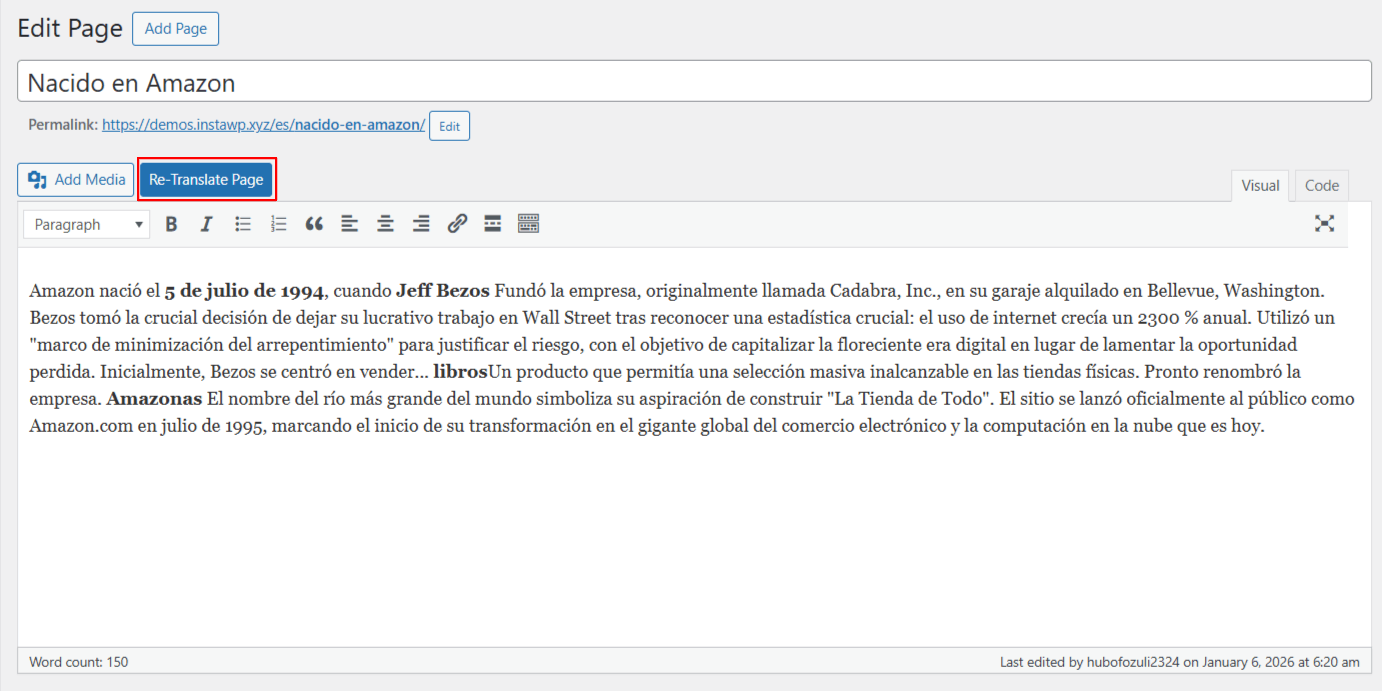
- A Retranslate button will appear at the top. Click Retranslate Page button.
- Next, you have to select the translation provider.
- Once selected, a tab containing both the source text and translation text will appear.
- Here, you can choose whether you want to retranslate title, content or both.
- Click Translate. The translation process will begin, and wait for a few minutes.
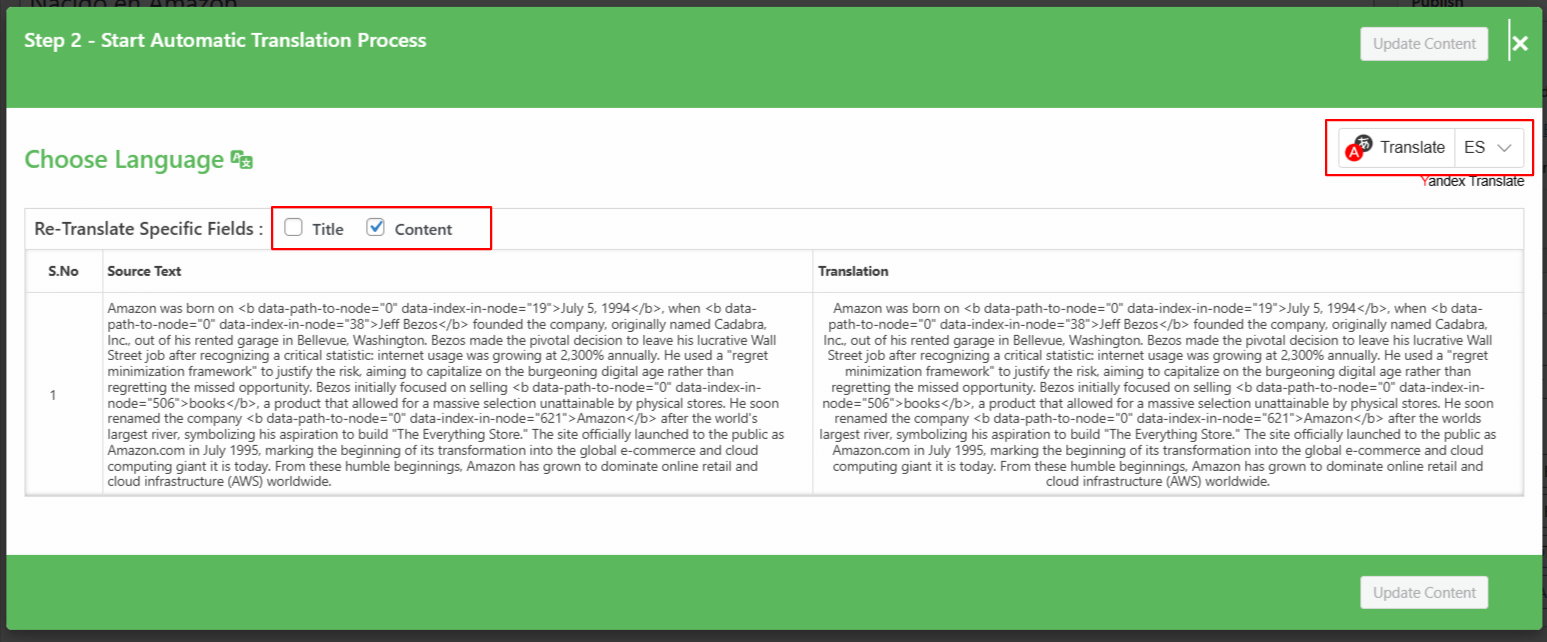
- After the translation completes, click Update Content and save your changes.
Retranslate Gutenberg Page
Follow the steps below to retranslate your Gutenberg page:
- Edit the translated page.
- On the right side of the page editor, there is a Automatic Translate tab.
- Here, click Retranslate Page button.
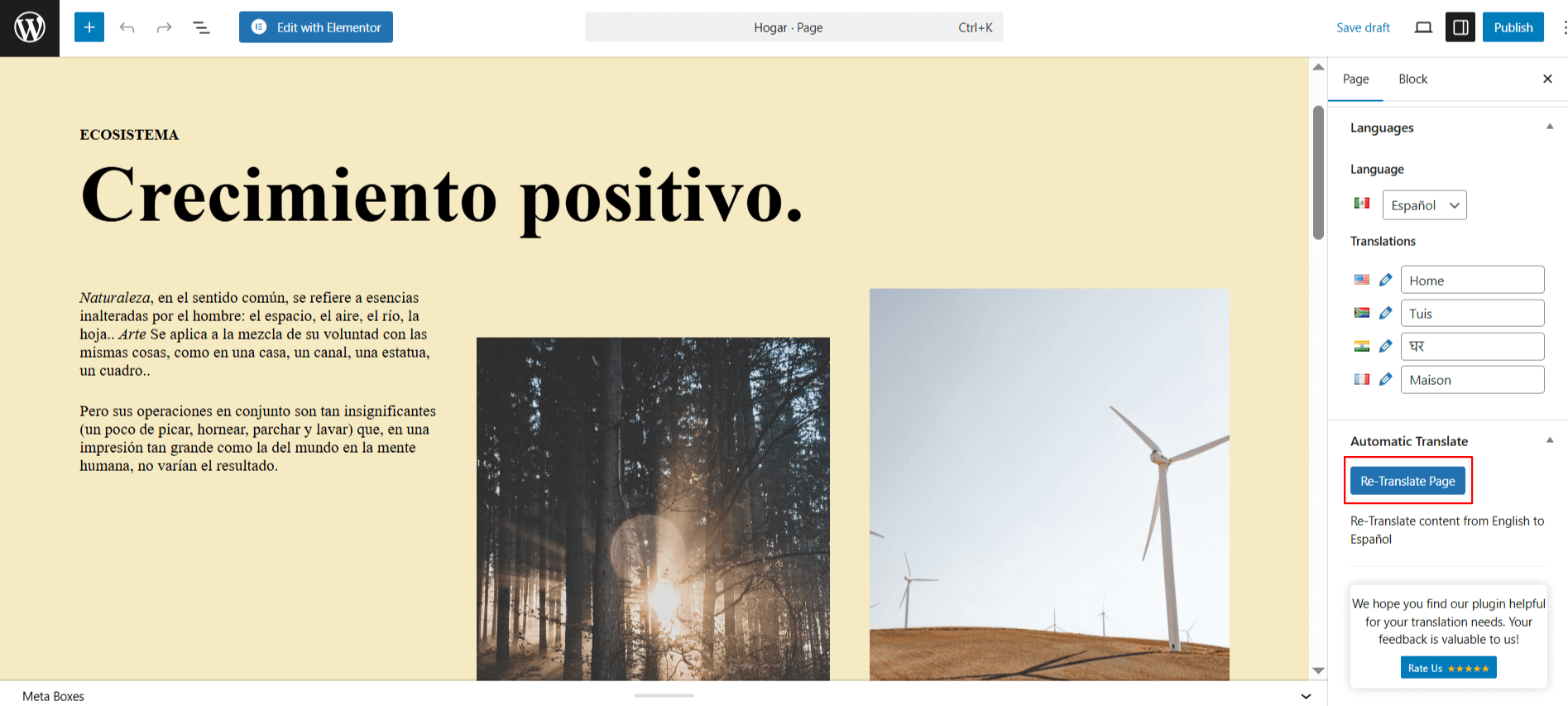
- Next, select the translation provider.
- Once selected, a tab containing both the source text and translation text will appear.
- Here, you can choose whether you want to retranslate title, content or both.
- Click Translate. The translation process will begin, and wait for a few minutes.
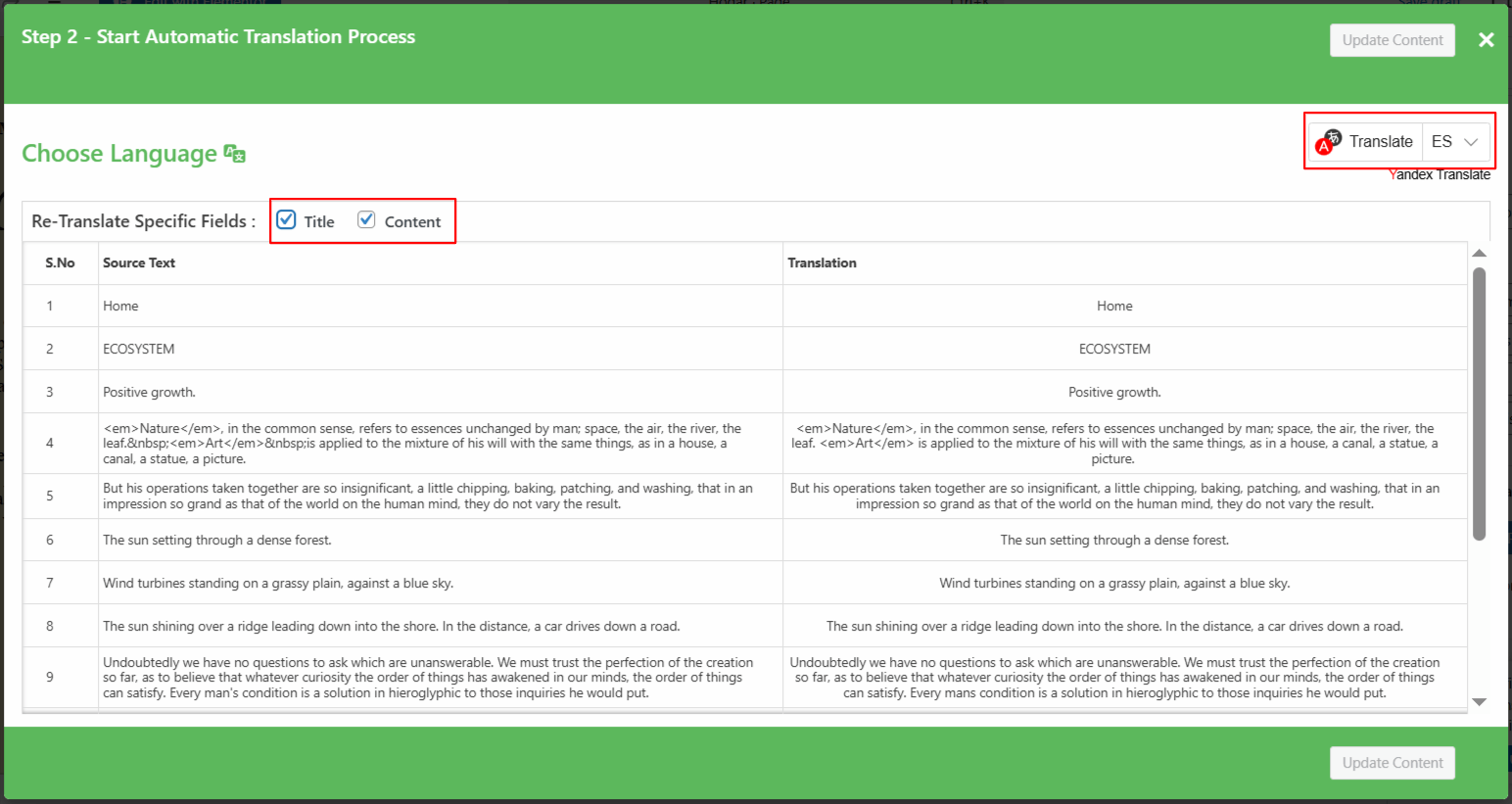
- After the translation completes, click Update Content and save your page.
Retranslate Elementor Page
Follow the steps below to retranslate your Elementor page:
- Edit the translated page with Elementor.
- A Retranslate button will appear at the top. Click Retranslate Page button.
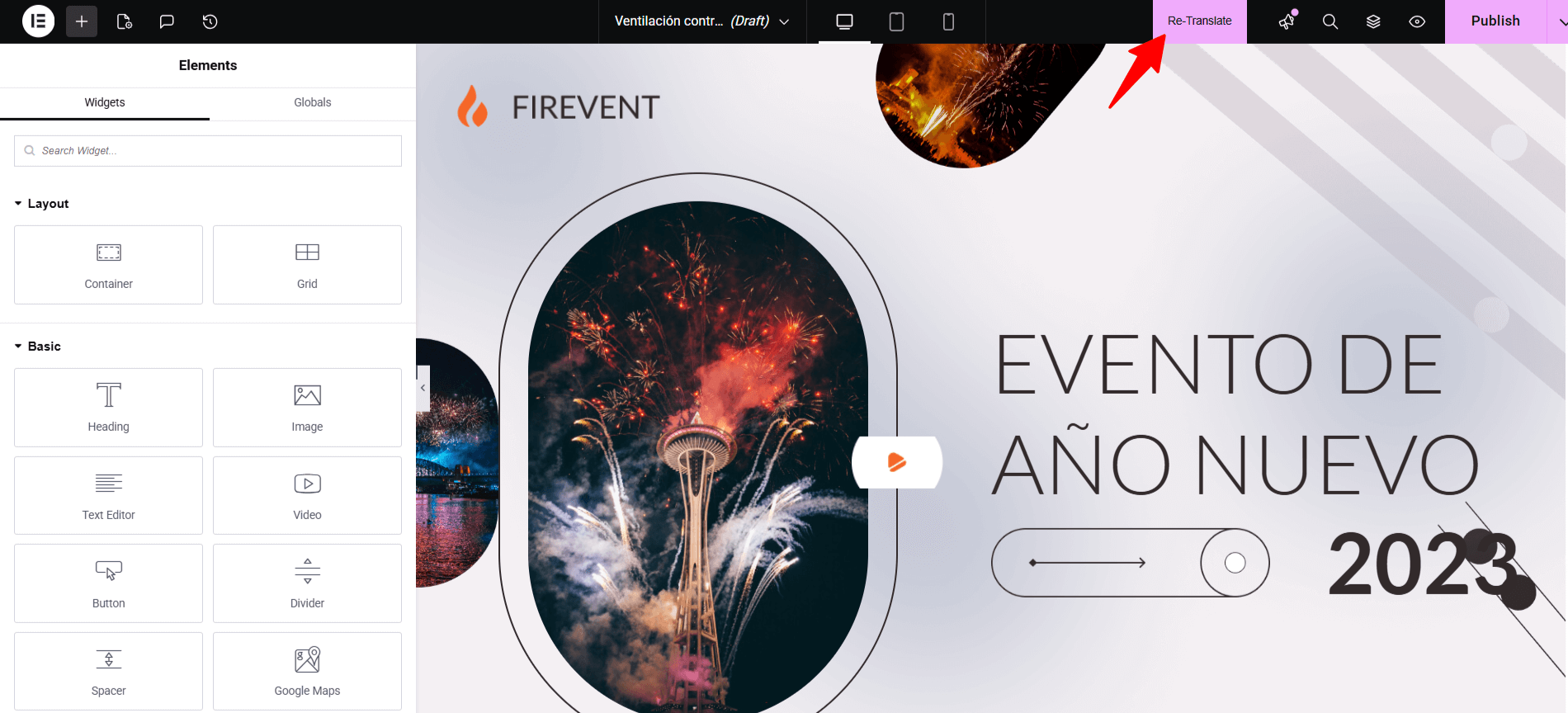
- Next, select the translation provider.
- Once selected, a tab containing both the source text and translation text will appear.
- Here, you can choose whether you want to retranslate title, content or both.
- Click Translate. The translation process will begin, and wait for a few minutes.
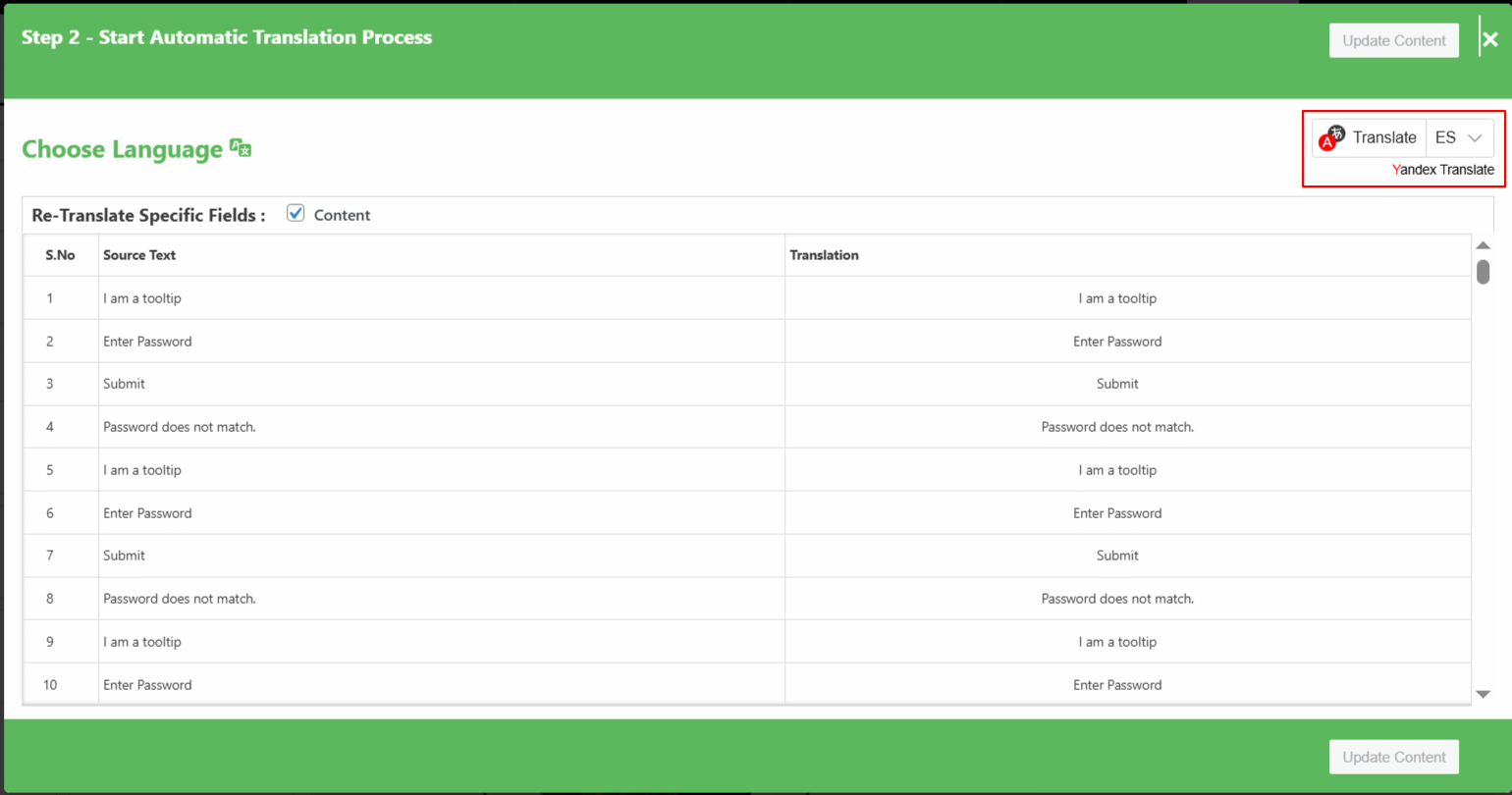
- After the translation completes, click Update Content and save your page.
Bulk Retranslation
If you want to retranslate your translated pages all at once, then follow the steps below:
- Use the checkboxes to select one or more pages you wish to retranslate.
- Click the “Bulk Translate” button.
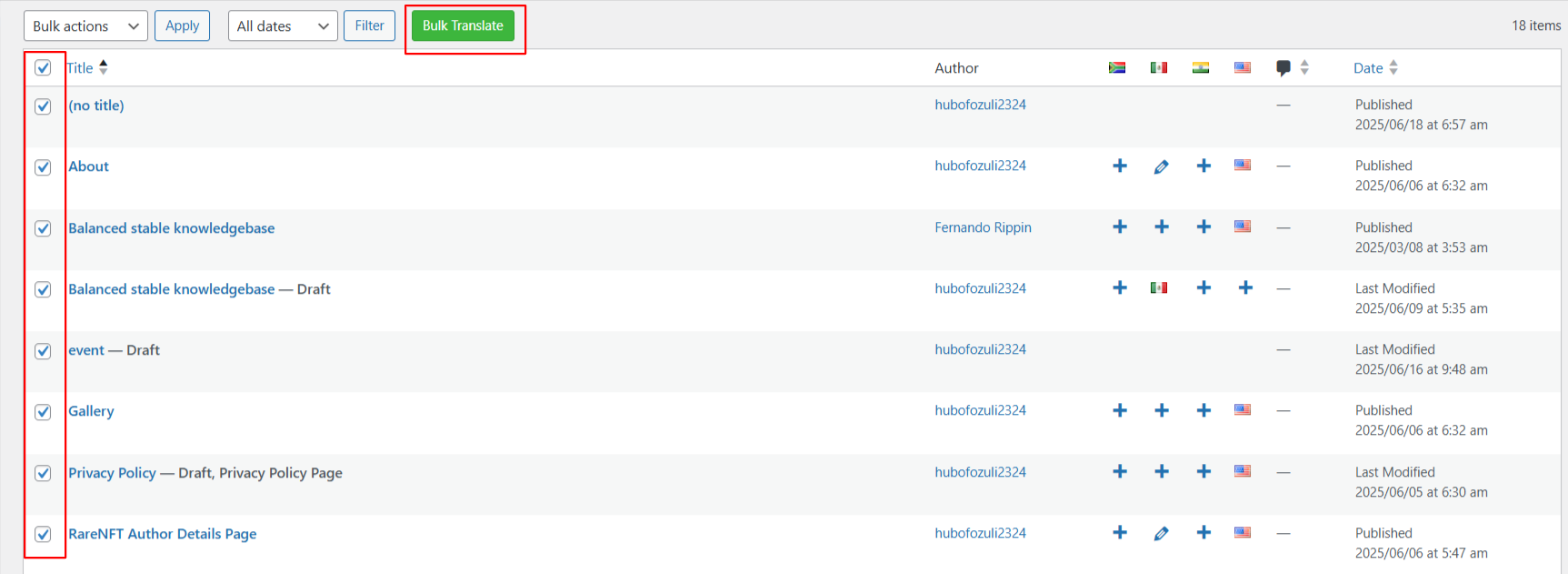
- A pop-up will appear, select the language you want to translate your content into.
- The translation process will begin automatically.
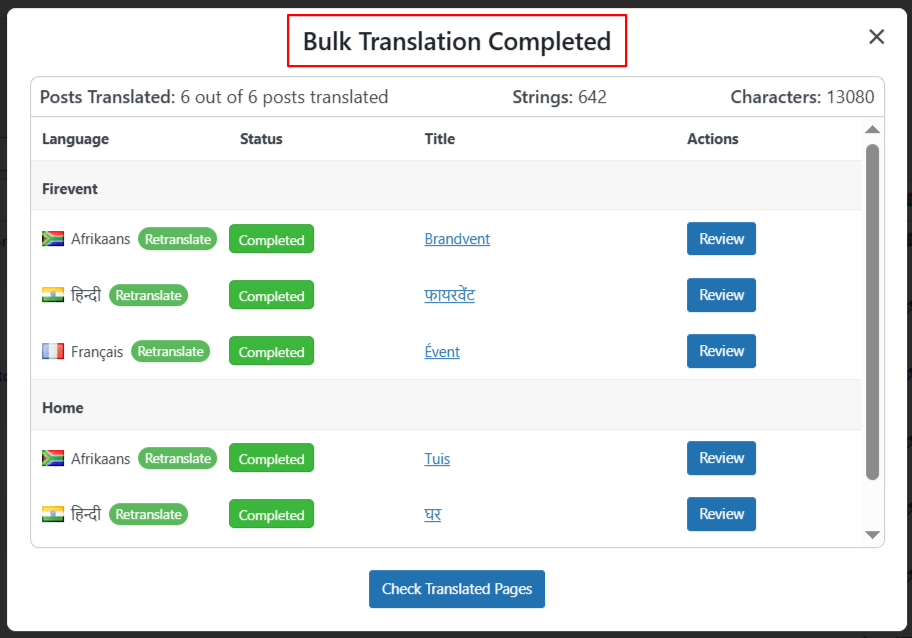
- After the process is complete, you can check the translated versions of the selected pages.