









If you’re using the Polylang plugin to translate your pages, you can use AutoPoly – AI Translation for Polylang to translate the content using the Google Translation Widget.
Automatically Translate Page Content
Follow the steps below to automatically translate your webpage content using Google Translate Widget:
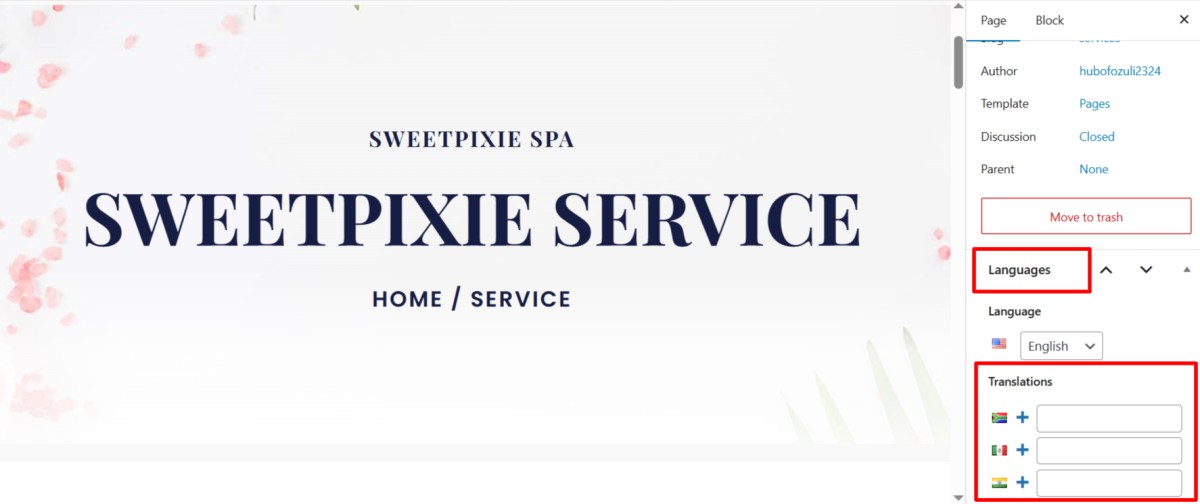
- On the right side of the page editor, there is a Languages settings tab. Under Translations, click the “+” icon.
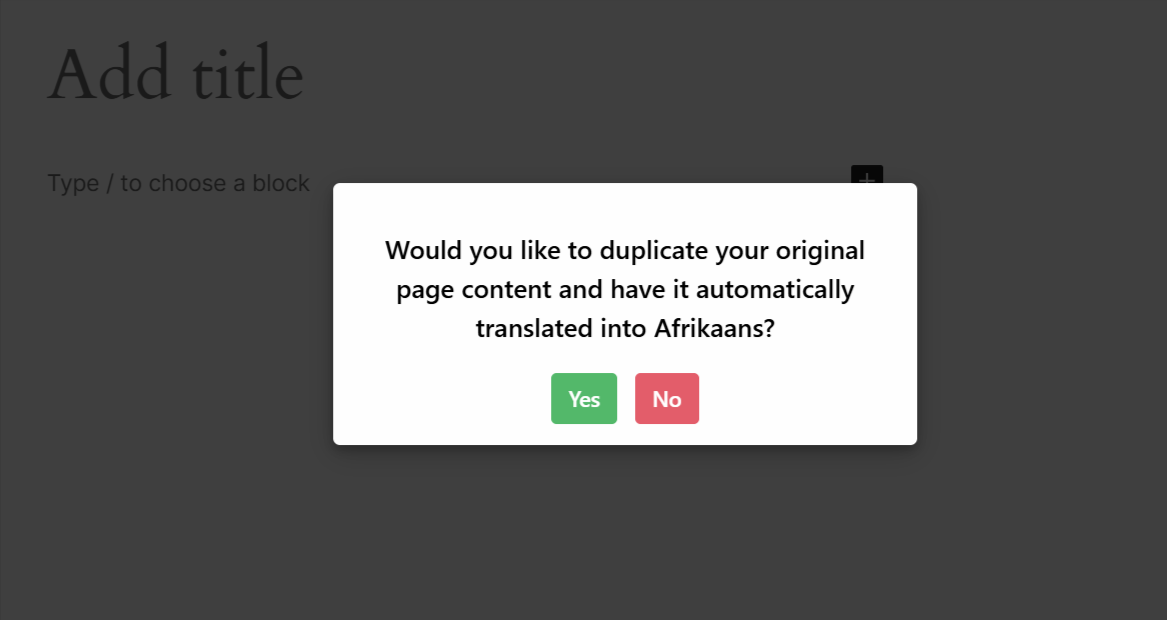
- A prompt will appear asking if you want to duplicate the original page content. Click “Translate Now” button.
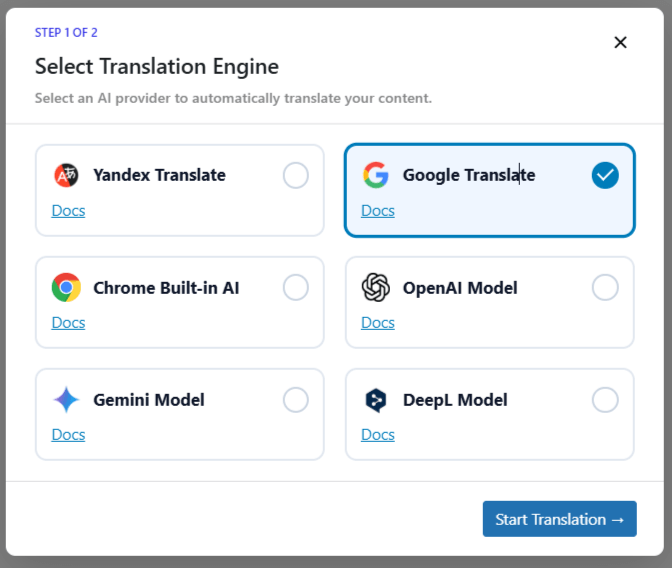
- Next, a new box titled Select Translation Engine will appear. Choose Google Translate as your translation provider.
- Alternatively, you can:
- Go to the settings tab and select the Automatic Translation tab.
- Click on Translate Content, and a pop-up box will ask you to select a translation provider. Select Google Translate.
- Once selected, a tab containing both the source text and translation text will appear.
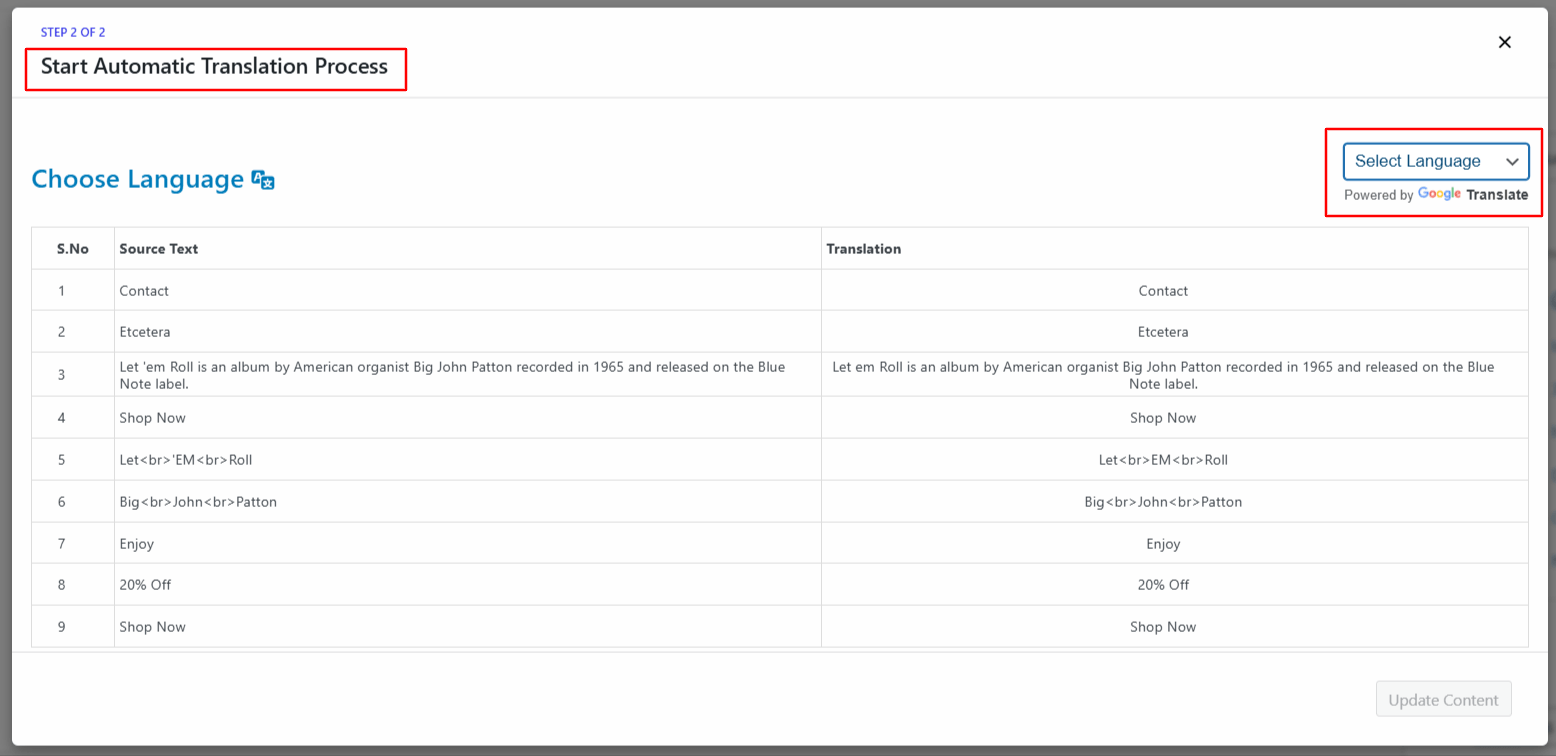
- Select the language for translation. The translation process will begin, and wait for a few minutes.
- After the translation completes, click Update Content.
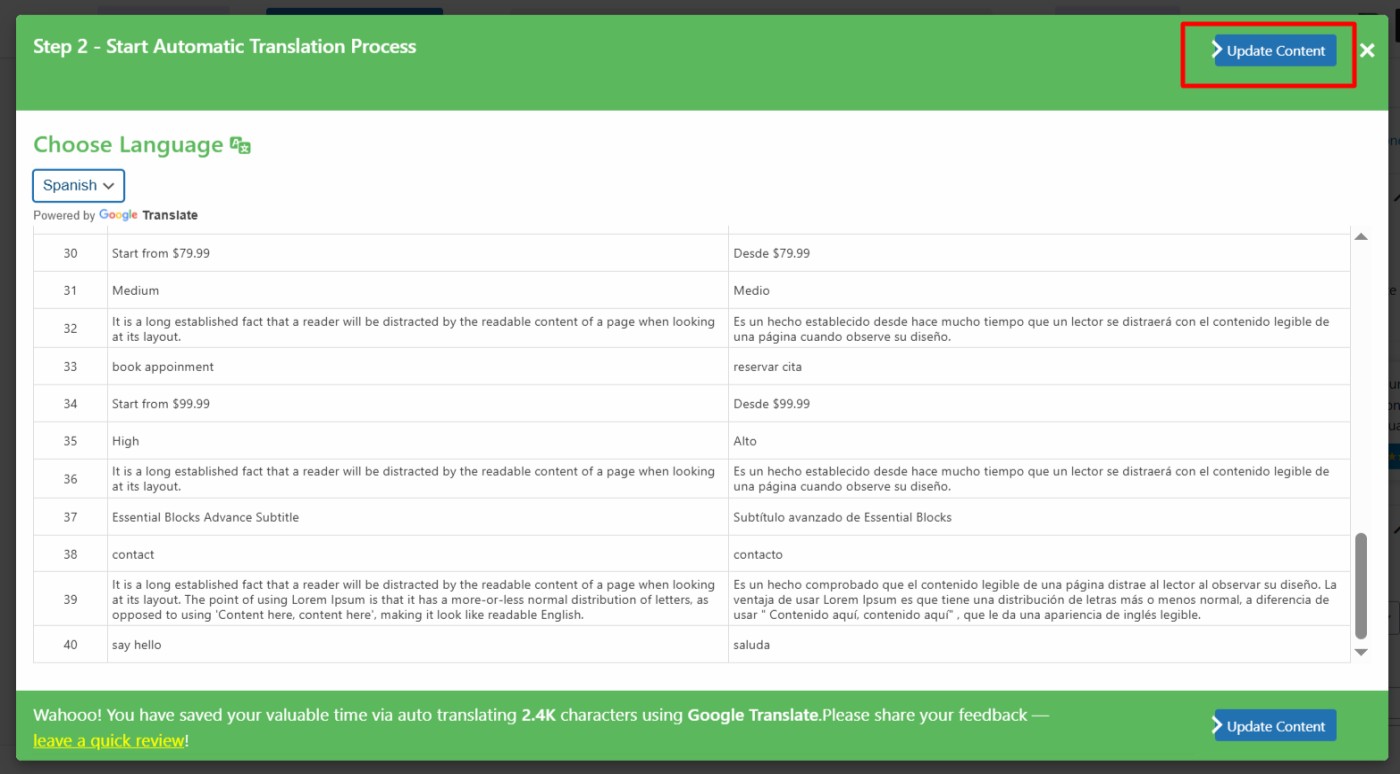
- All content of the website will be translated into a selected language in a single click. Now, preview it and make manual edits to adjust translations for better accuracy.
That’s it! You have successfully translated your webpage via Google Translate using the AutoPoly – AI Translation For Polylang.