









If you are using Polylang to create a multilingual WordPress website, AutoPoly makes it easier to translate your pages automatically.
The AI Translate option in AutoPoly free lets you translate a WordPress page directly from the Pages screen. You don’t need to open the page editor, copy the content, or create the translation manually.
However, if you have multiple pages to translate, AutoPoly Pro makes the process faster with the Bulk Translation feature.
AutoPoly Free: Translate individual pages using the AI Translate option.
AutoPoly Pro: Translate multiple pages at once using Bulk Translation.
Follow the steps below to automatically translate your pages:
Automatically Translate a WordPress Page
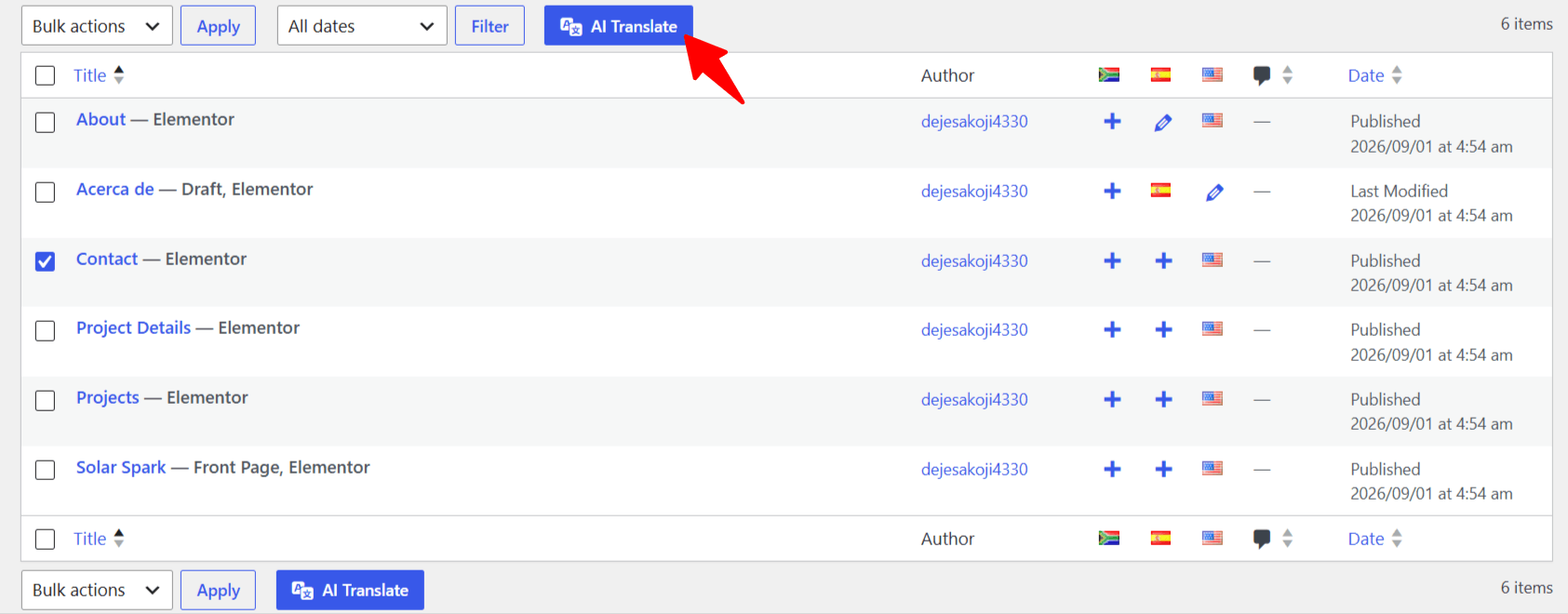
- From your WordPress dashboard, navigate to pages section.
- Here, choose the page you want to translate.
- Once done, click AI Translate to start the translation.
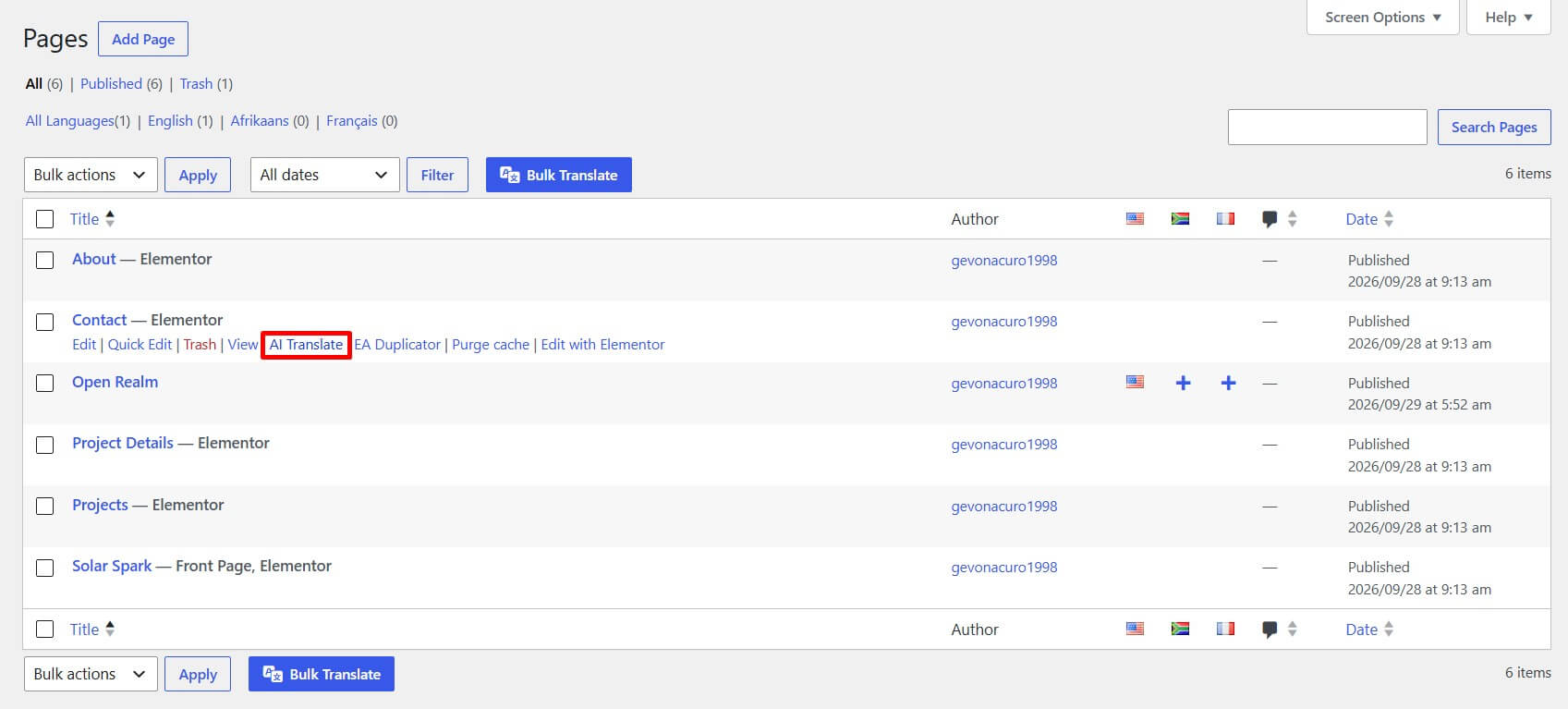
- Alternatively, you can:
- Find the page you want to translate and hover over its title.
- Click AI Translate button.
- A translation popup will appear.
- Here, choose the language you want to translate the page into.
- Next, select the translation provider you want to use.
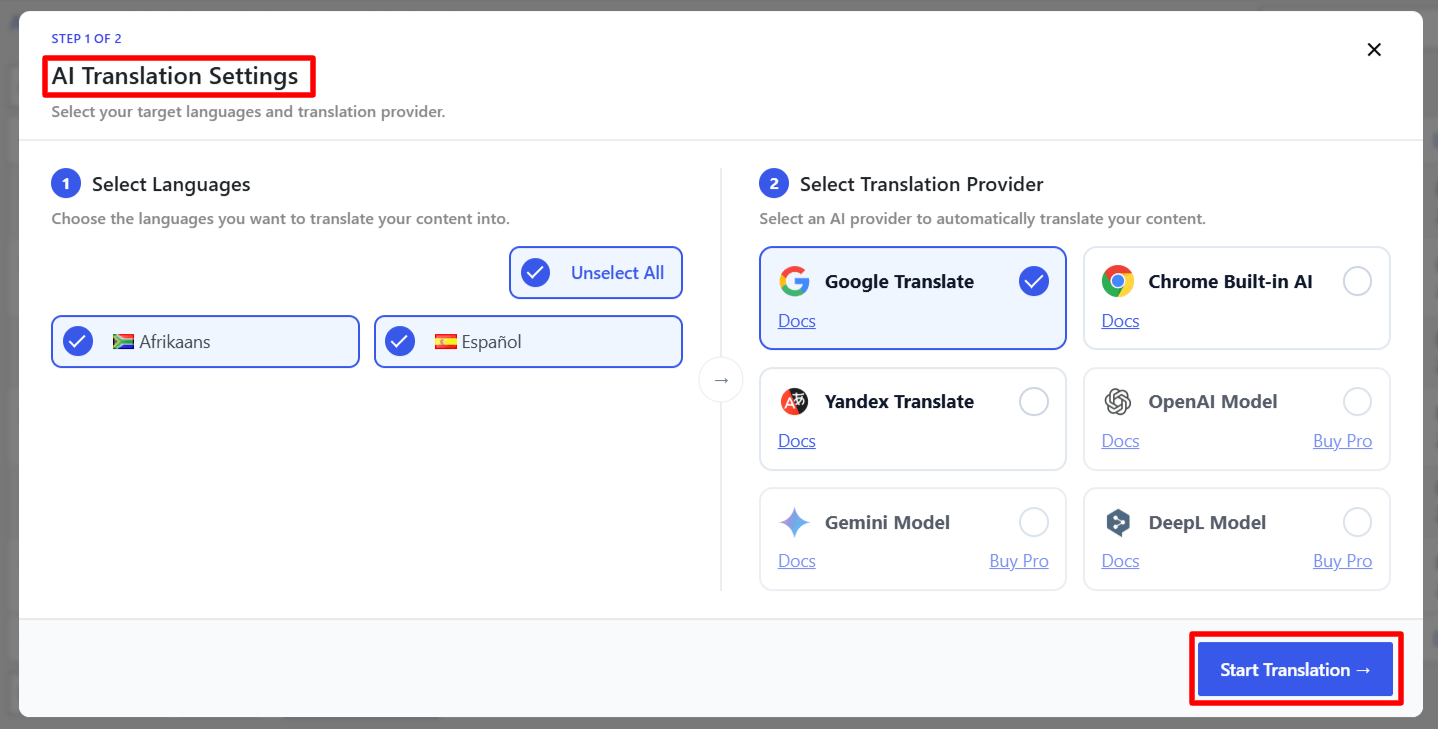
- Once you have selected the language and translation provider, click Translate.
- The translation will begin, the process may take some time depending on the amount of content on the page.
- Open the translated page and review the content. You can edit the translation if you want to make changes to the wording, formatting, or other content before publishing it.
Manage Translation Providers
AutoPoly lets you manage the translation providers you want to use for automatic translation.
For example, you can enable the providers you need, disable providers you don’t use, and choose a default translation provider:
- From your WordPress dashboard, go to Languages > AutoPoly.
- Scroll down to the Translation Providers section.
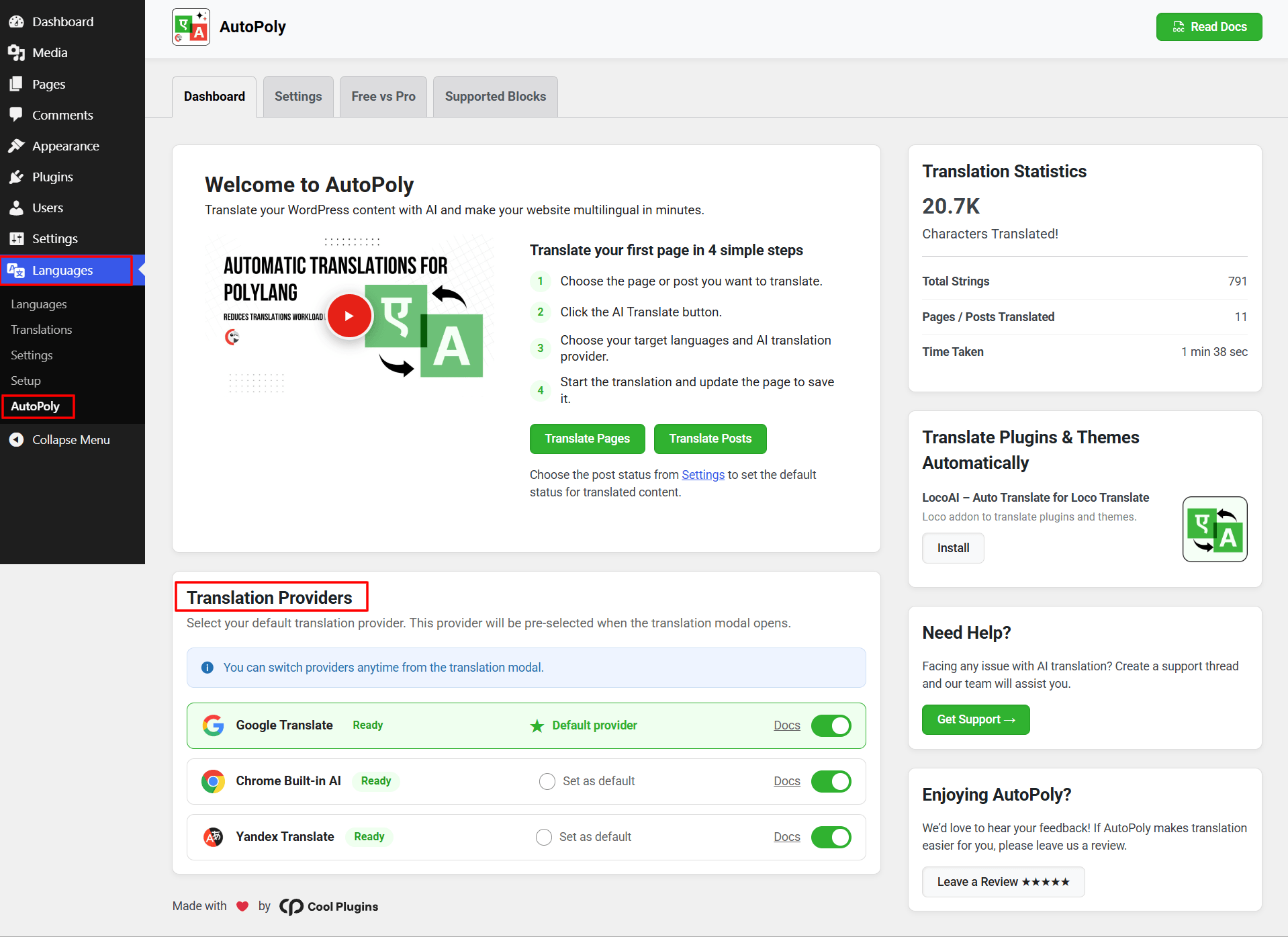
- Enable the translation providers you want to use.
- Disable any providers you don’t want to use.
- Select your preferred provider as the Default Translation Provider.
Your provider settings will then be available when you use the AI Translate option.