








When you create a multilingual WordPress website using Polylang, you may also need to translate image titles, alt text, captions, and descriptions into other languages.
AutoPoly – AI Translation for Polylang helps automate this process with its Media translation setting. When enabled, AutoPoly translates supported media text along with your page and post content. It can also remap in-content media to language-specific attachments when Polylang media support is enabled.
Note: To translate media text using AutoPoly, make sure the Media module is activated under Languages > Settings in Polylang.
Follow the steps below to enable media translation and translate your media content automatically:
Enable Media Translation
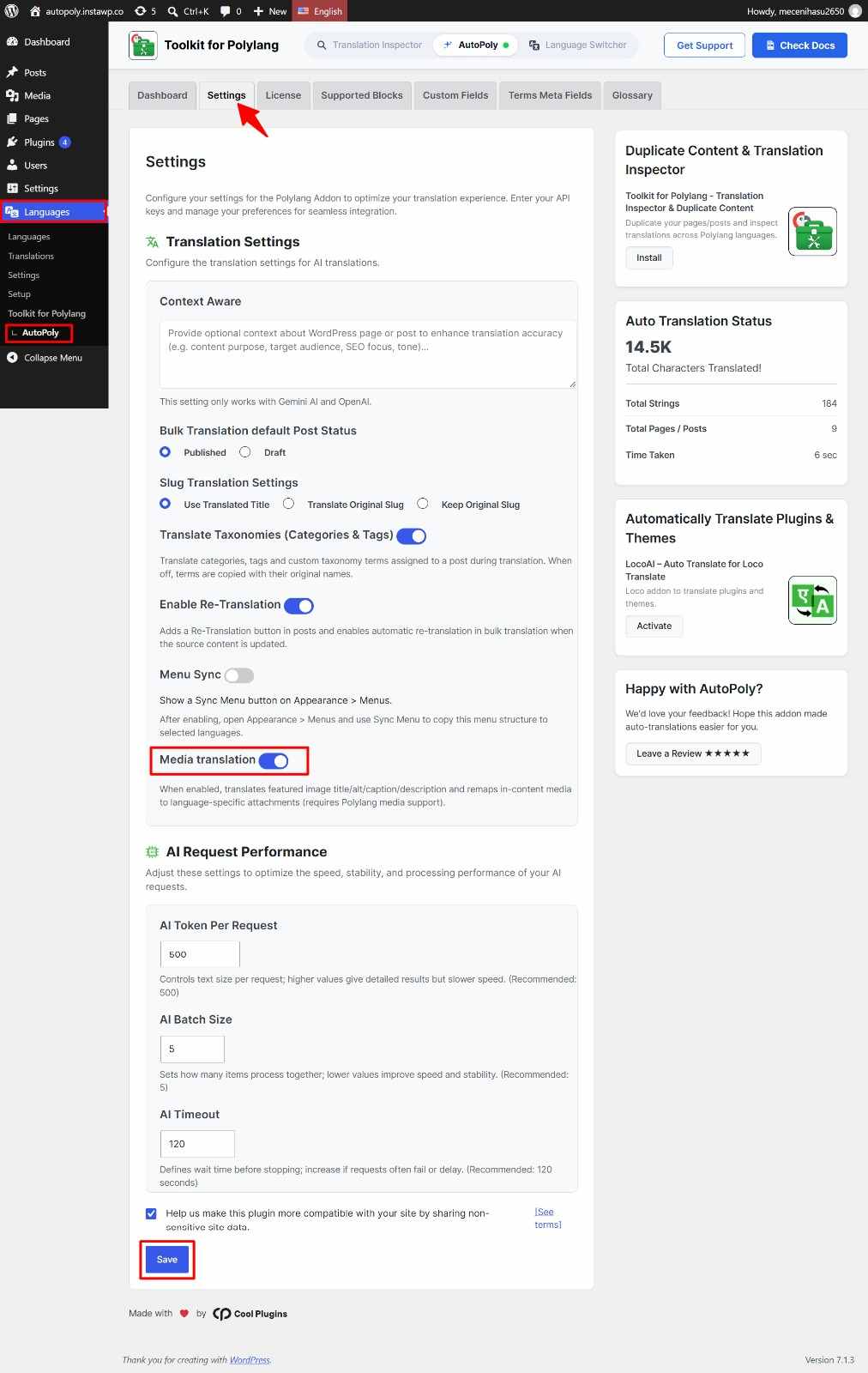
Before translating your content, make sure the Media translation setting is enabled in AutoPoly.
- From your WordPress dashboard, navigate to Languages > AutoPoly > Settings.
- Scroll down to the Media translation option.
- Enable the Media translation toggle.
- Click Save to apply your changes.
Translate Images and Media Text
- From your WordPress dashboard, navigate to Pages or Posts section.
- Find the page or post you want to translate and click AI Translate button.
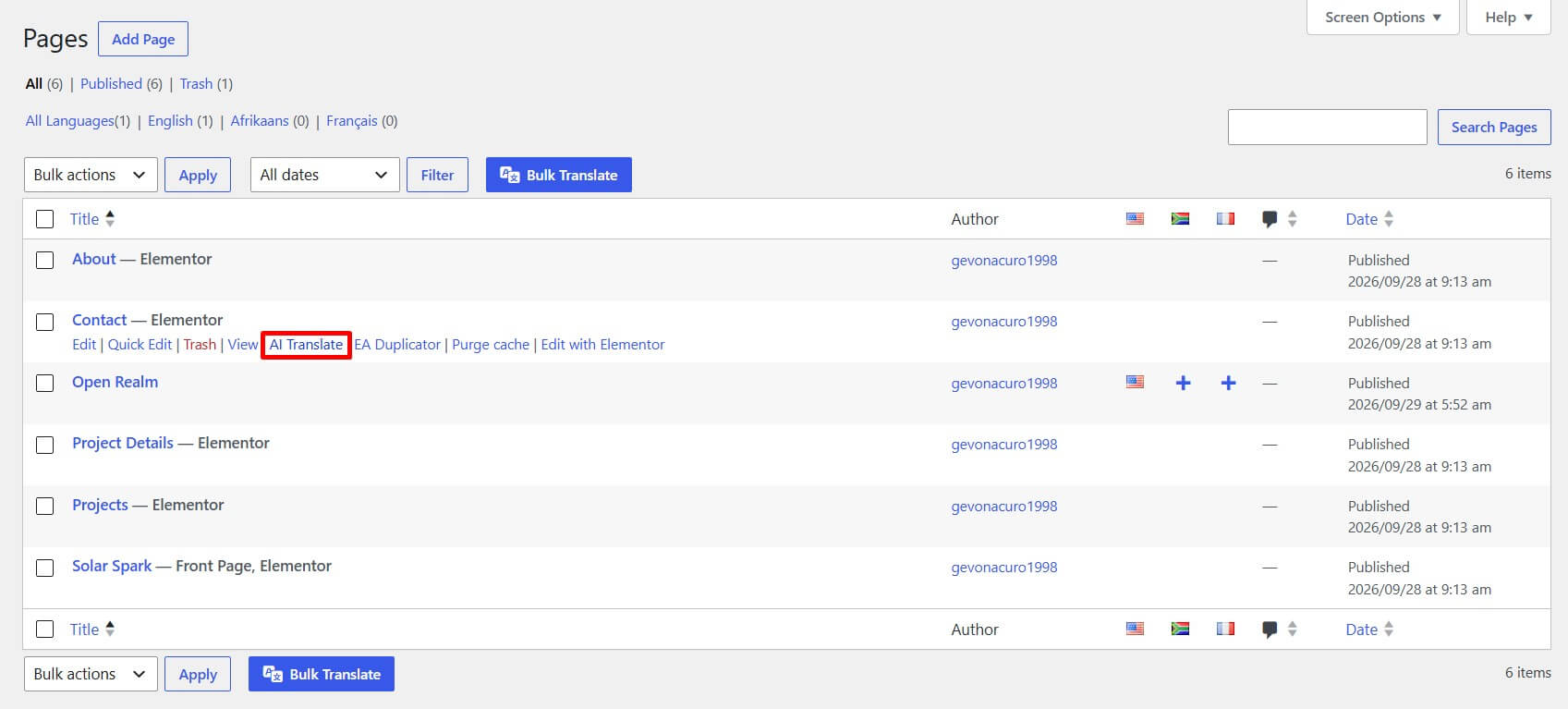
- Translation popup will appear, select the target language, and choose your preferred translation provider.
- Click Translate to start the translation process.
- Once the translation is complete, open the translated page or post and review the content.