

If you’re using WPML to translate your website, you can use AutoMLP – AI Translation for WPML to translate your web pages with Edge Built-in AI. This allows you to translate content directly in your browser without configuring an external AI API key.
Why Use Microsoft Edge Built-in AI?
Microsoft Edge Built-in AI provides a simple and convenient way to translate your WPML content without relying on external AI services or configuring API keys.
Since the AI capabilities are available directly within the Edge browser, you can start translating content more quickly and avoid the extra setup often required by third-party AI providers. This helps to reduce translation costs while still allowing you to use AI-powered translations within your existing WPML workflow.
Automatically Translate Page
Follow the steps below to automatically translate your webpage content using Edge Built-in AI:
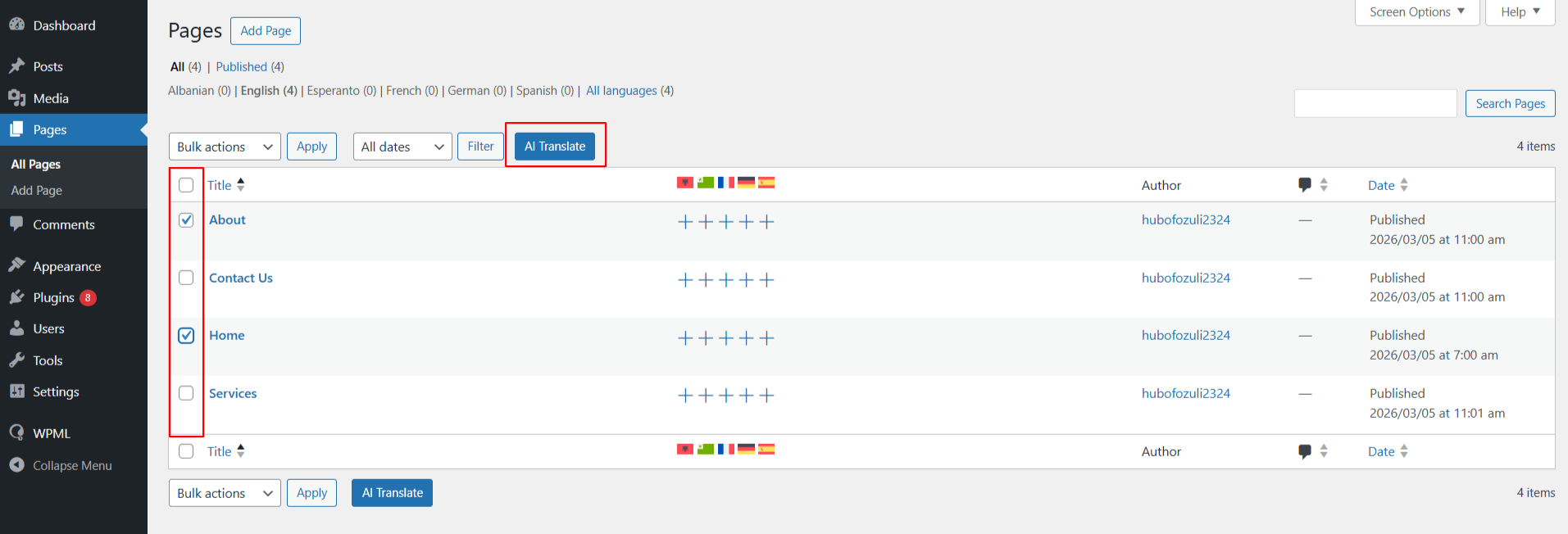
- From your WordPress Dashboard, navigate to the Pages section. Use the checkboxes to select one or more pages you wish to translate.
- Once selected, click the AI Translate button at the top.
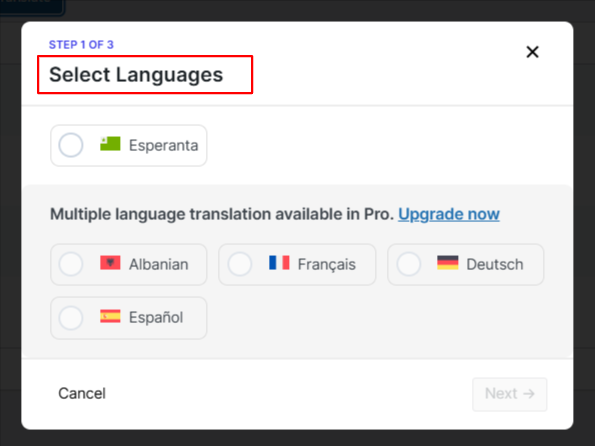
- A pop-up will appear, select the language you want to translate your page content into.
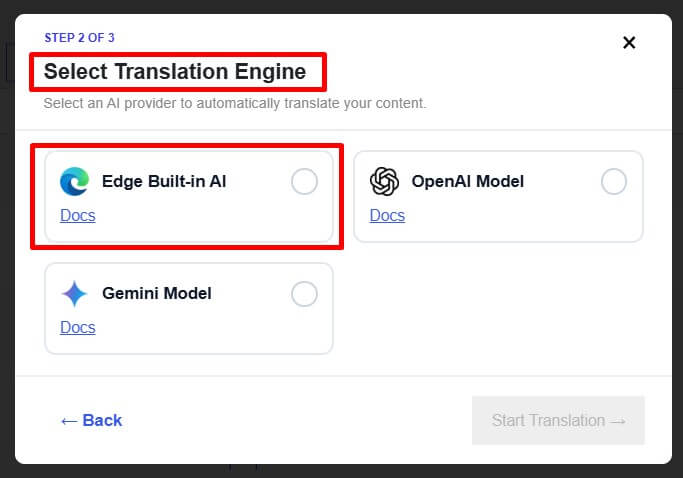
- Next, choose Edge Built-in AI as the translation engine.
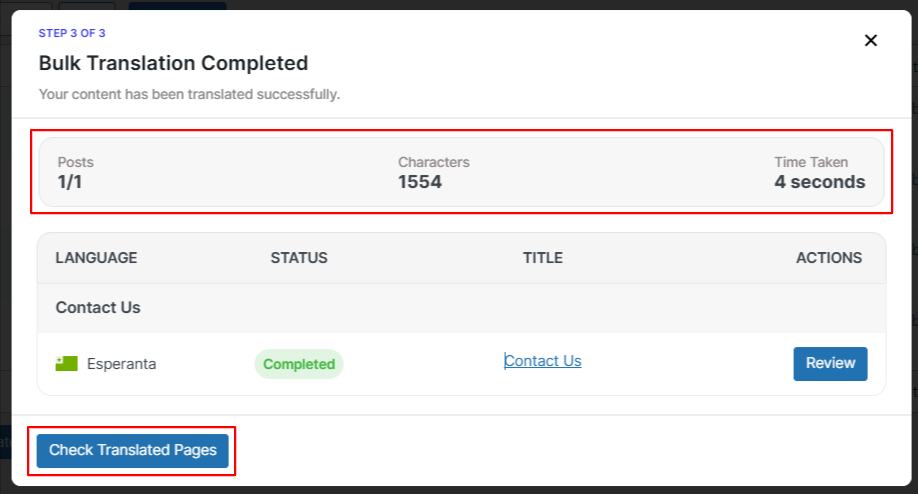
- The translation process will begin automatically. It will take a few minutes.
- After the process is complete, you can check the translated versions of the selected pages and make manual changes where required.