


AutoMLP allows you to translate WooCommerce products into multiple languages using AI-powered translation providers.
Follow the steps below to translate WooCommerce products using WPML AI.
Enable Product Translation in WPML
Before translating your products, you must first configure WPML to make WooCommerce product fields translatable.
- From your WordPress dashboard, navigate to WPML > Settings >Custom Fields Translation.
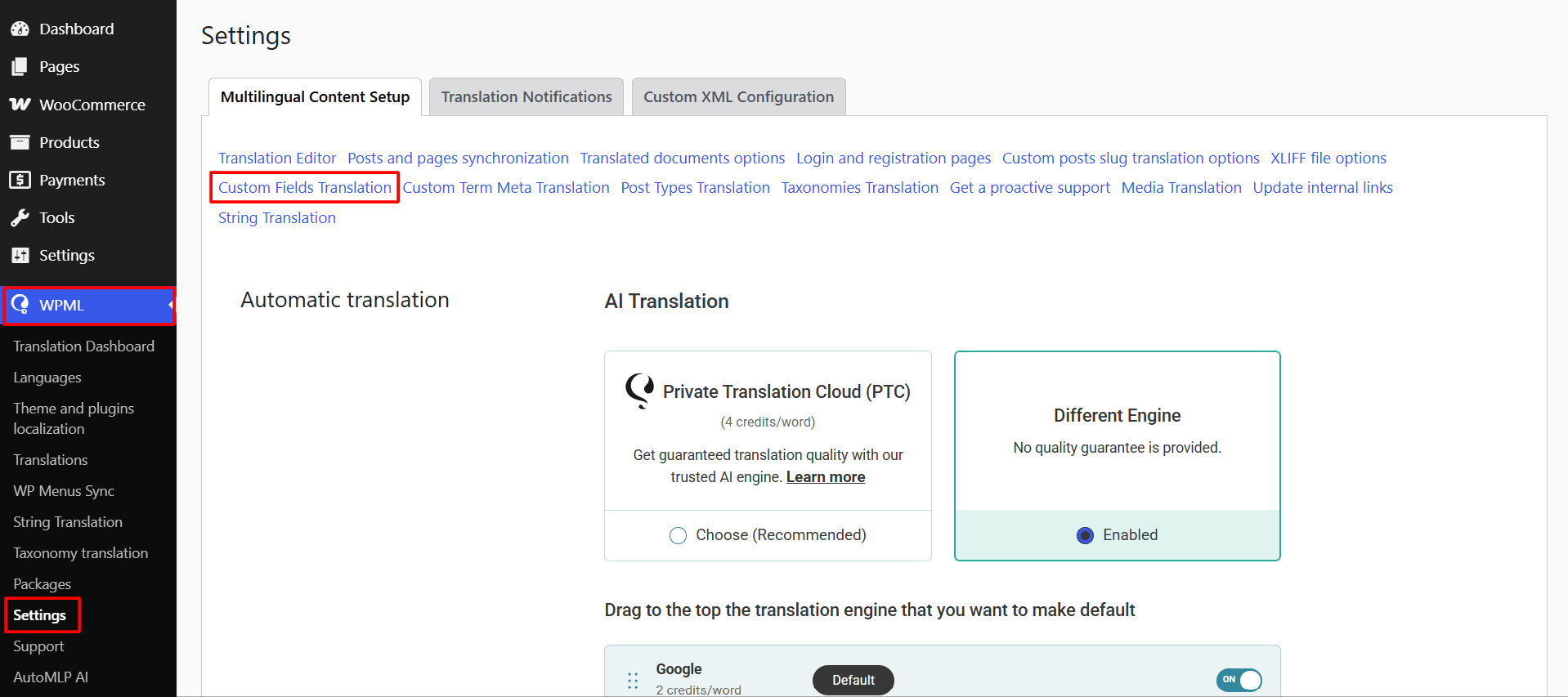
- Locate the WooCommerce product fields you want to translate.
- Set the required fields to Translate.
- Save your changes.
Once enabled, AutoMLP will be able to translate the selected WooCommerce product fields.
Translate a WooCommerce Product
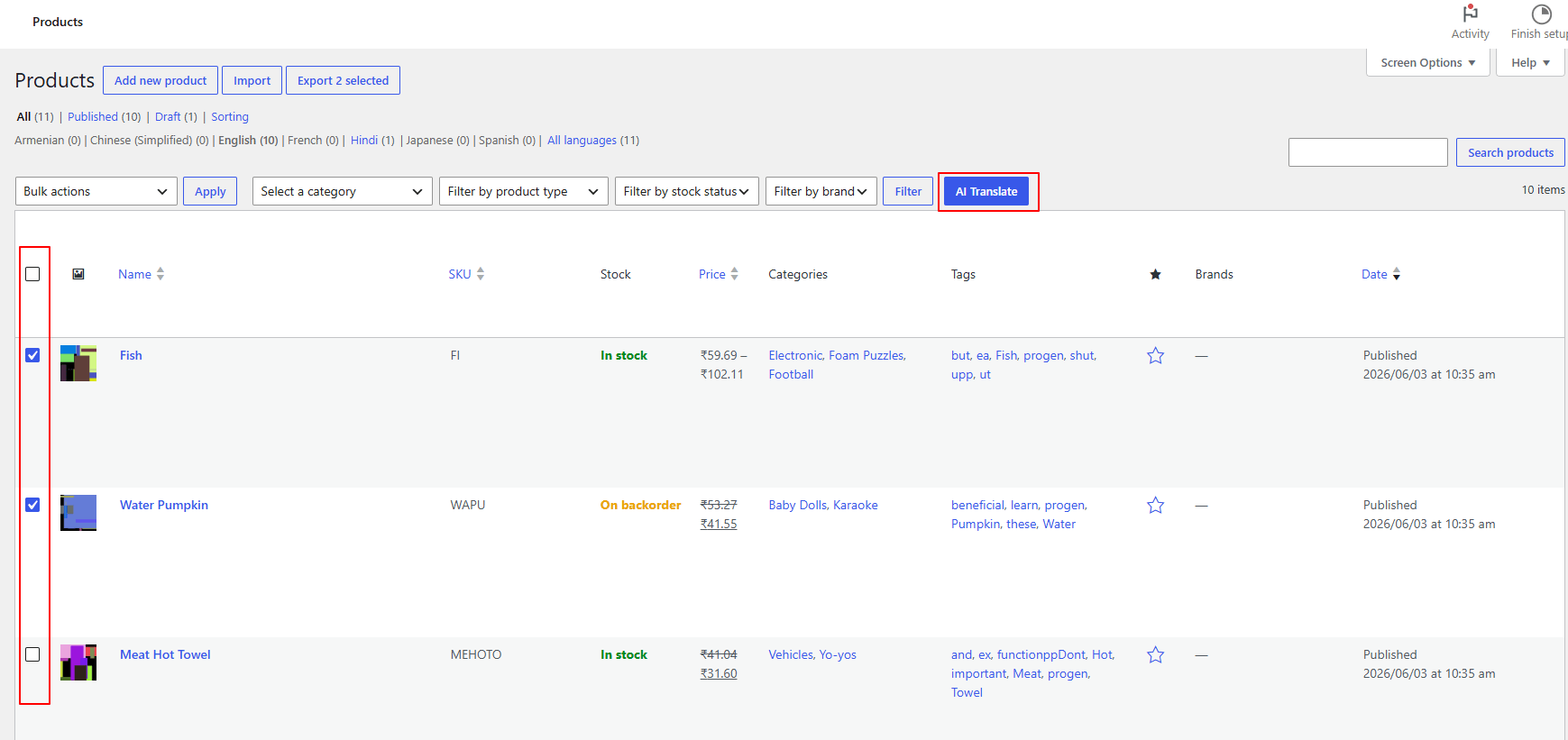
- From your WordPress dashboard, navigate to the Products section.
- Use the checkboxes to select one or more string you wish to translate.
- Once selected, click the AI Translate button at the top.
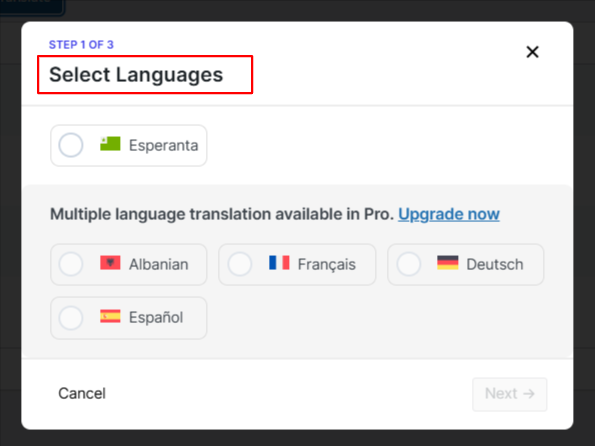
- A pop-up will appear, select the language you want to translate your products into.
- Next, choose the desired translation engine: Gemini AI, OpenAI, or Chrome built-in AI.
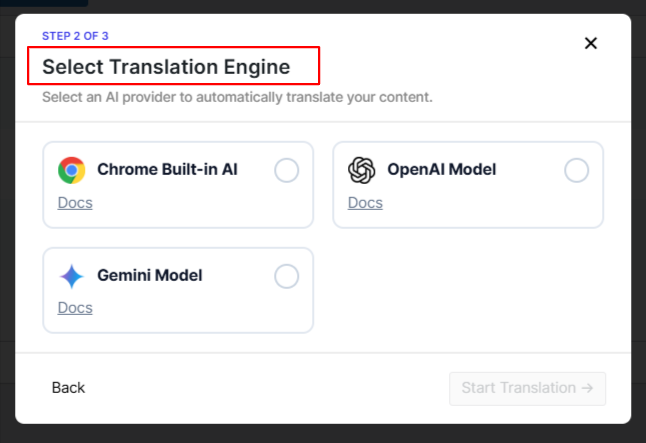
- The translation process will begin automatically.
- After the process is complete, you can review the translation.
That’s it, your WooCommerce products are now available in multiple languages, helping customers browse and purchase products in their preferred language.