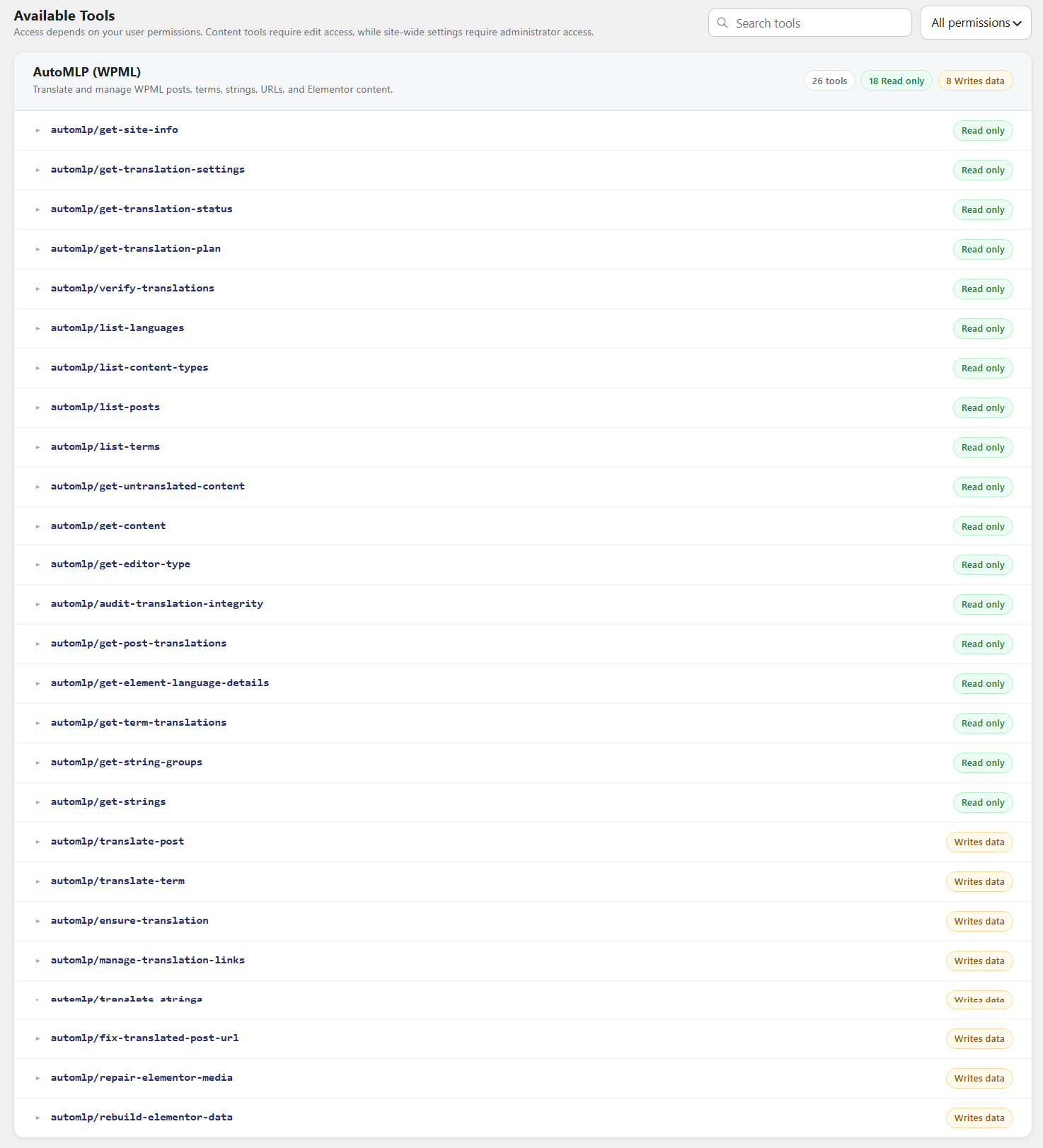










AutoMLP allows you to connect supported AI apps such as Claude Code, Claude Desktop, Codex, and Cursor to your WordPress website through MCP.
Once connected, the AI app can use the tools provided by AutoMLP based on your WordPress account permissions. You can then use natural-language prompts to check translation status, translate content, manage translated URLs, work with strings and terms, perform supported Elementor translation tasks, and more.
Follow the steps below to connect WPML with AI:
Note: Make sure WordPress MCP Adapter is installed and activated on your website.
Open AI Translation Tools
- From your WordPress dashboard, navigate to Tools > AI Translation Tools
- This page provides the information and settings needed to connect an AI app to your website.
- Abilities API: Shows whether the WordPress Abilities API is available.
- Active AutoMLP Toolset: Shows the AutoMLP tools registered on your website.
- Available Tools: Displays the number of tools available for your AI assistant.
- MCP Adapter: Shows whether the MCP Adapter is installed and active.
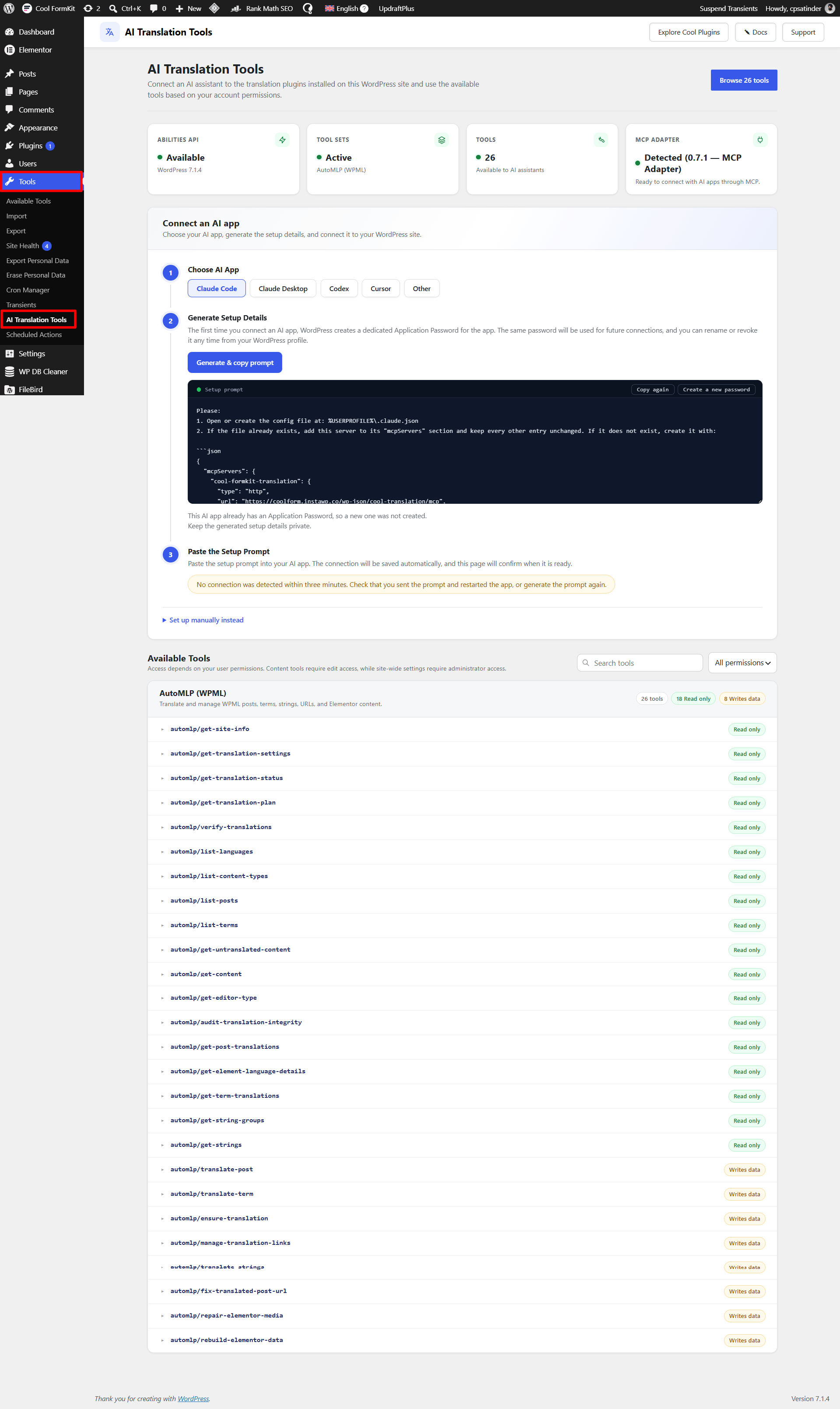
- Make sure the required components are available before continuing.
Generate the Setup Prompt
- Under Connect an AI App, select the AI client you want to connect from: Claude Code, Claude Desktop, Codex, Cursor or Other.
- Next, click Generate & copy prompt. WordPress will generate the connection details required by the selected AI app.
- The setup prompt will automatically include the MCP server information and authentication details needed for the connection.
If the automatic Application Password generation does not work, you can also create one manually using “Set up manually instead” option.
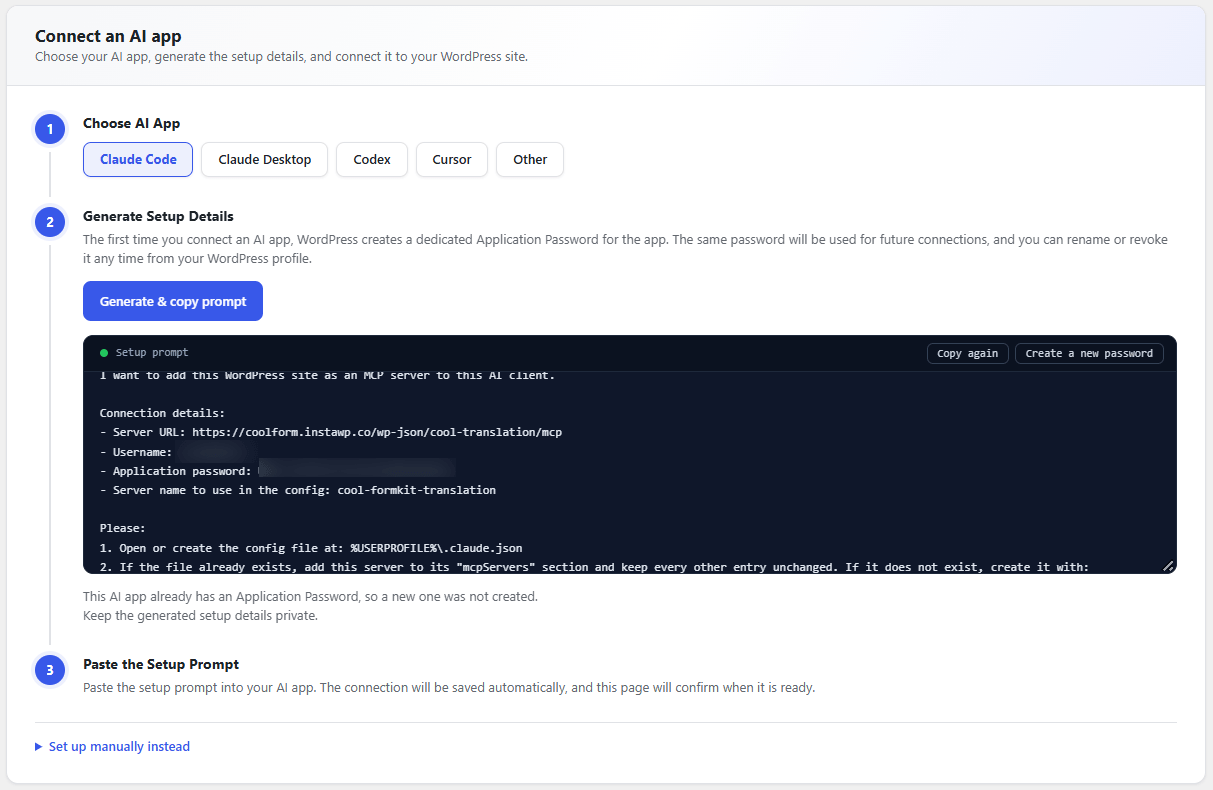
- The first time you generate the connection details, WordPress creates a dedicated Application Password for the connected AI app. You can reuse the same Application Password for future connections. You only need to create a new one if you want to replace the existing credentials or if the current password has been revoked.
Important: Keep the generated setup prompt and Application Password private. Do not share them publicly, as they contain authentication details for your WordPress website.
Paste the Prompt into Your AI App
- Now open the AI app you selected. For example, if you selected Claude Code, open Claude Code.
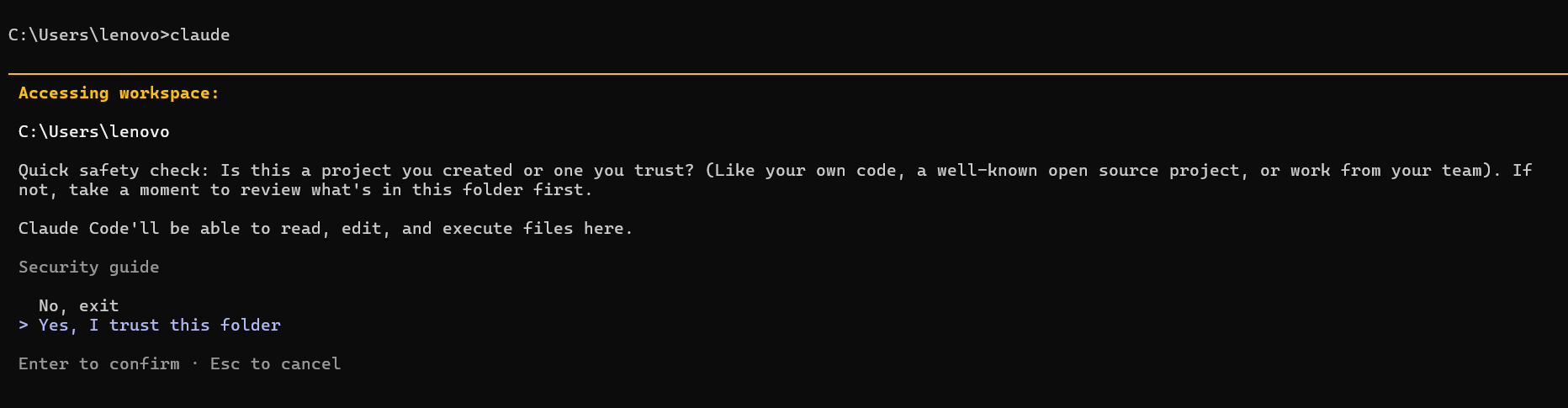
- If Claude Code asks whether you trust the current folder, review the location and choose Yes, I trust this folder if it is a folder you trust.
- Paste the setup prompt generated by AutoMLP and submit it.
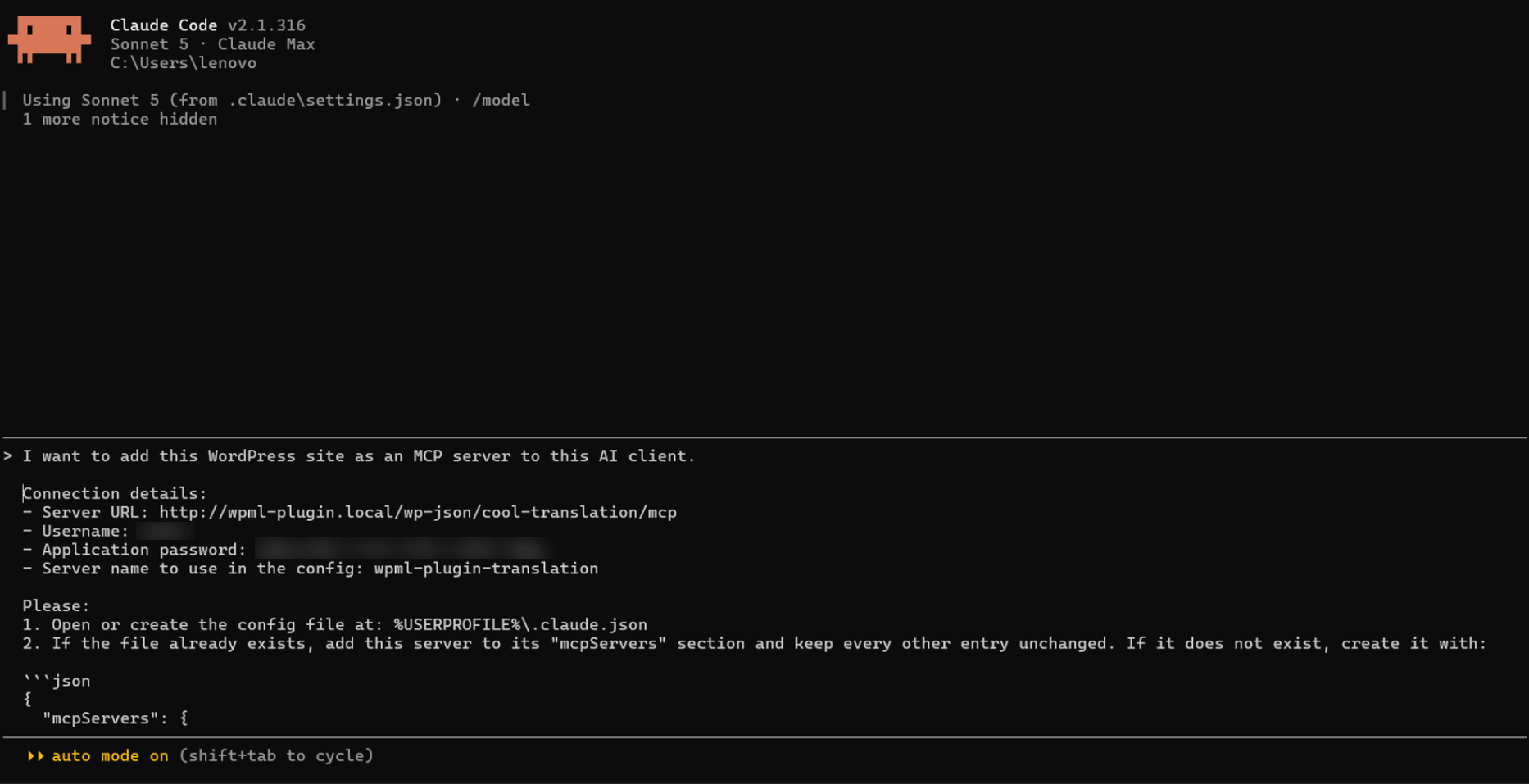
- The AI app will read the configuration instructions and add your WordPress site as an MCP server.
- Next, restart or reconnect the client after the configuration is added.
Confirm the Connection
- Navigate to your AI Translation Tools dashboard. If the connection is detected successfully, you will see a confirmation message such as:
Connected. Your AI app can now use the translation tools
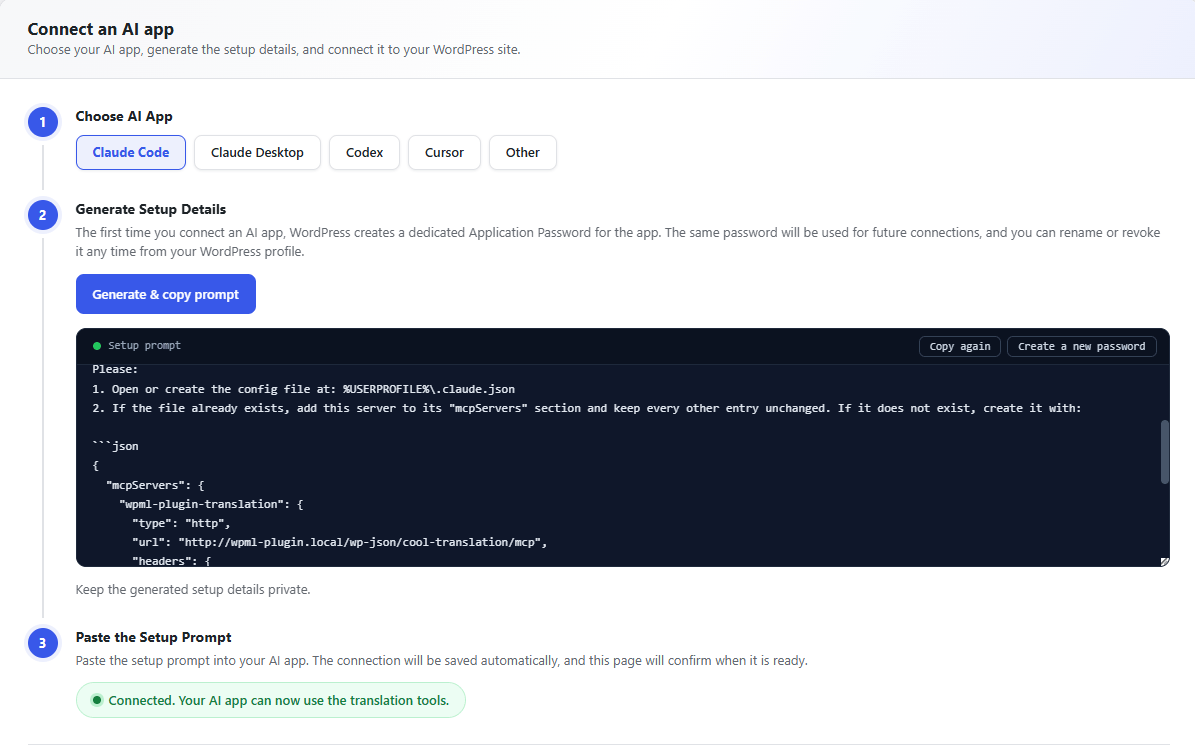
- You can also verify the connection directly from your AI app. For example, send a prompt such as:
Are you connected to my WordPress website? And list the AutoMLP translation tools you can access. - The AI assistant will confirm the connection and show the AutoMLP tools available to it.
- Once the connection is active, you do not need to manually call individual tools. Simply tell the AI assistant what you want to do, and it can choose the appropriate AutoMLP tool based on your request and fulfill it.
Available AutoMLP Tools
Once connected, your AI assistant can use the AutoMLP tools available to your WordPress account. The tools are divided into two types:
- Read only: These tools can check and return information without changing your website data.
- Writes data: These tools can update or modify supported content on your WordPress website.