


Microsoft Edge Built-in AI requires the required language packs to be installed before it can translate content.
Why Are Language Packs Required?
Microsoft Edge uses AI models that run directly in your browser to translate content. Because the translation happens on your device, the language packs for both the source language and target language must be available in Edge.
For example, if you want to translate content from English to French, you need to have both the English (en) and French (fr) language packs installed.
Translation Language Setup
Follow the steps below to set up the required language packs for Edge Built-in AI.
Step 1: Use a Secure Connection
- First, make sure your website is using a secure HTTPS connection. Edge’s Translation API may not work correctly on websites using
http://or on localhost. - If you are testing on an insecure site, you can add the website to Edge’s list of insecure origins treated as secure:
- Open the following URL in Microsoft Edge:
edge://flags/#unsafely-treat-insecure-origin-as-secure - Add your website URL to the required field.
- Restart the browser.
- Open the following URL in Microsoft Edge:
Step 2: Check the Edge AI Setup
You can check the Edge AI translation setup from the plugin dashboard:
- From your WordPress dashboard, go to WPML > AutoMLP AI > Settings.
- Find the Edge AI Configuration section.
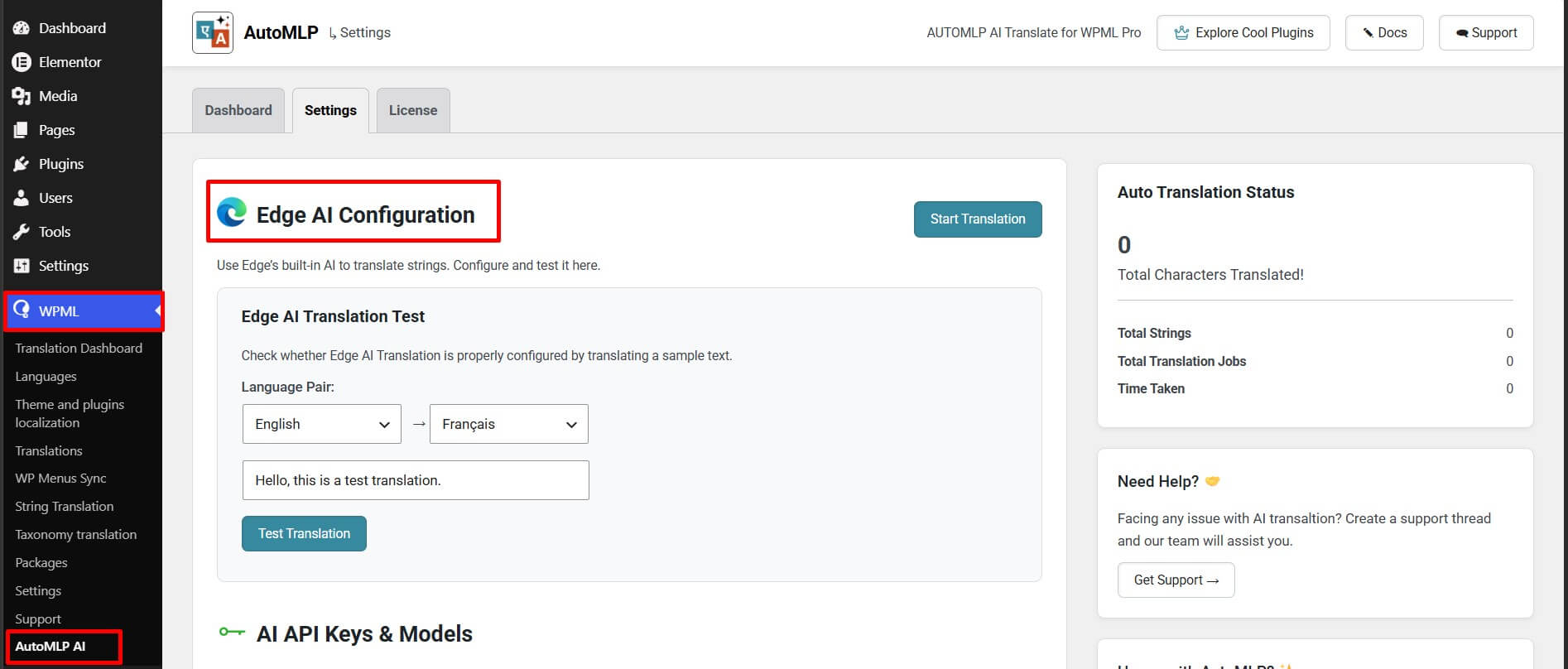
- Test translation using different language pairs.
- Check whether the language pair you want to use is supported.
Note: When you test a language pair, Edge may automatically download the required language packs.
Step 3: Install the Required Language Packs
If the required language packs are not installed, you can check and install them from Edge’s translation settings.
- Open the following URL in Microsoft Edge:
edge://on-device-translation-internals/ - Check the available language packs.
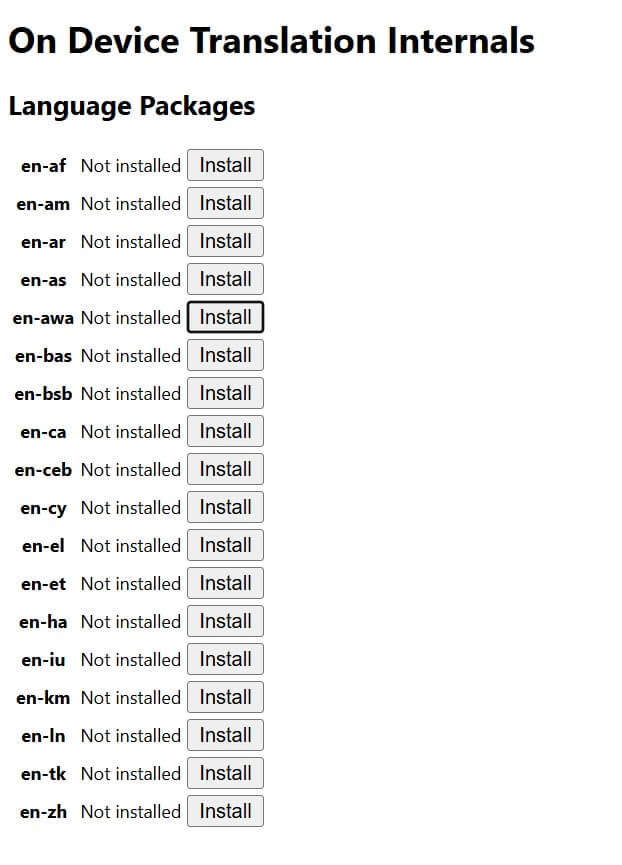
- Make sure both the source language and target language are available. For example, for English-to-French translation, make sure both
enand fr are available. - If a language pack is missing, install it from the available options.
- After installing the language packs, reload or restart Microsoft Edge.
Step 4: Add Languages to Edge
After installing the language packs, add the required languages to your Edge language settings.
- Open Microsoft Edge Settings.
- Go to Languages.
- Click Add languages.
- Add the languages you want to use for translation, such as English or French.
- Reload the page and try the translation again.
Once both language packs are installed and the languages are added to Edge, you can use AutoMLP to translate your WPML content with Microsoft Edge Built-in AI.