

The Duplicate Content tool in Toolkit for Polylang lets you copy the content of an existing post or page into a new language version.
This is useful when you want to keep the same layout, blocks, and media as the original content and then translate it into another language.
Follow the steps below to duplicate content into another Polylang language:
Duplicate a Page or Post
- Go to Pages or Posts from your WordPress dashboard.
- Find the post or page you want to duplicate.
Note: Duplicate Content works with posts and pages created using the Classic Editor and Gutenberg Block Editor. Elementor pages are not duplicated by Toolkit for Polylang, as Elementor handles duplication through its own workflow.
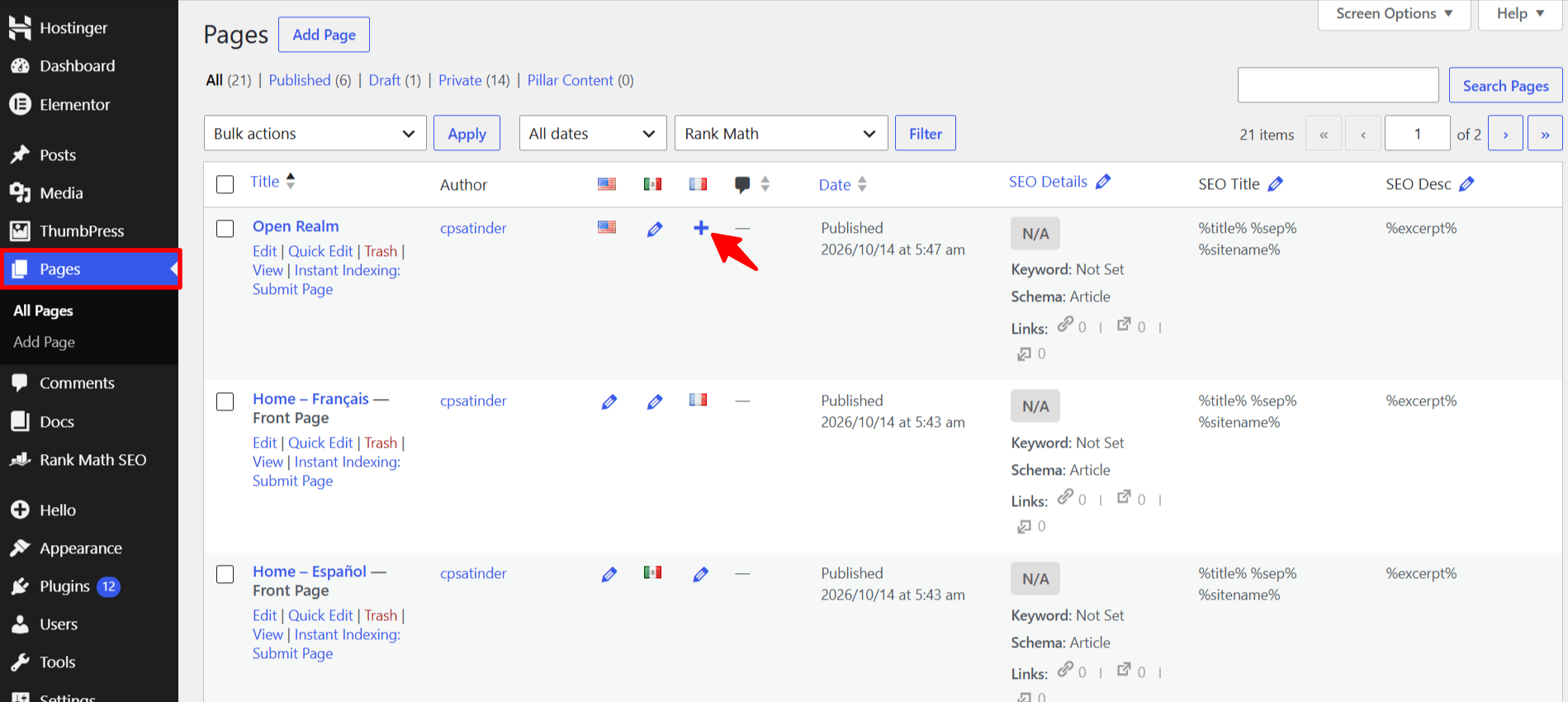
- From the Polylang language columns, click the + icon under the language you want to create.
- A Duplicate Content popup will appear.
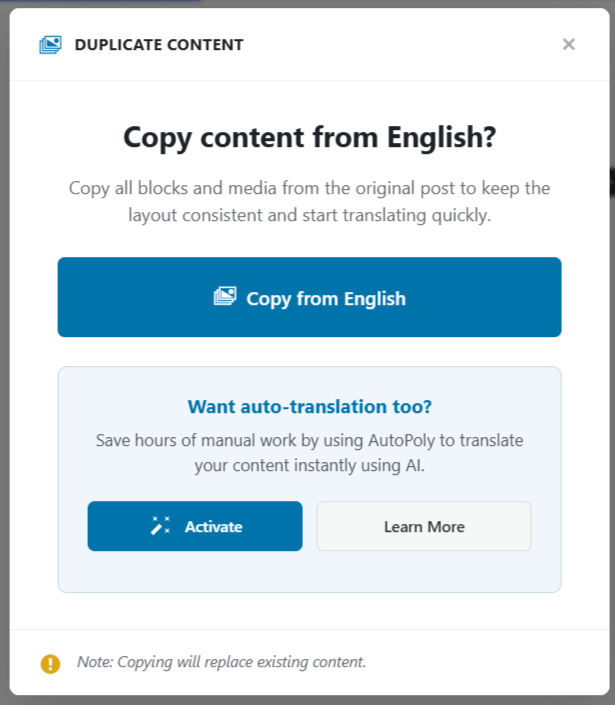
- Click Copy from English.
- Toolkit for Polylang will copy the existing content from the original post or page into the new language version.
- You can then start translating the duplicated content into the selected language.