

After activating Toolkit for Polylang, a setup wizard appears where you can choose which tools and addons you want to use on your multilingual website.
Choose the Tools You Want to Use
Built-in Tools
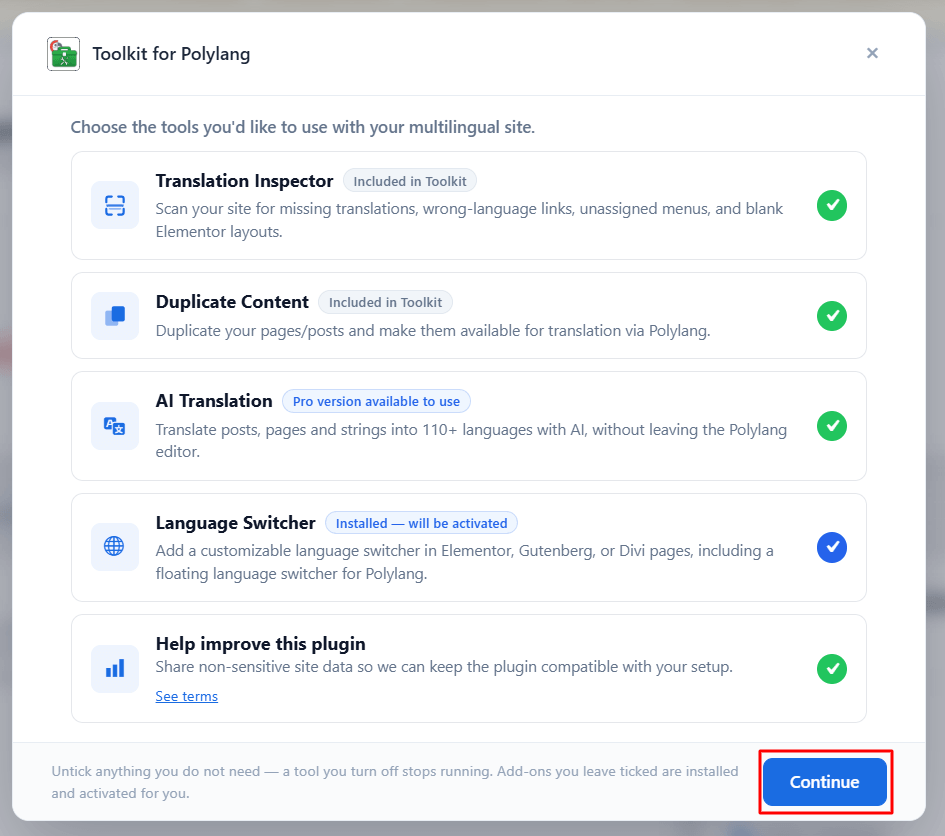
- Translation Inspector: Scans your multilingual website and helps identify translation, setup, routing, coverage, and related issues.
- Duplicate Content: Duplicates your page or post content and makes it available for translation through Polylang.
Note: You must keep at least one built-in tool enabled: Translation Inspector or Duplicate Content.
Additional Tools
You can also enable the following addons to extend your multilingual workflow:
- AI Translation for Polylang: Automates translation by integrating AI translation providers with Polylang. It supports content created with Gutenberg, Elementor, and Divi. If the plugin is not already installed, Toolkit for Polylang can install it for you during setup.
- Language Switcher for Polylang: Adds standard or floating language switchers to multilingual websites built with Gutenberg, Elementor, or Divi. If the plugin is not already installed, Toolkit for Polylang can install it for you during setup.
After selecting your preferred tools and addons:
- Click continue to proceed with the setup wizard.
- Toolkit for Polylang will complete the setup and prepare the selected tools for use.
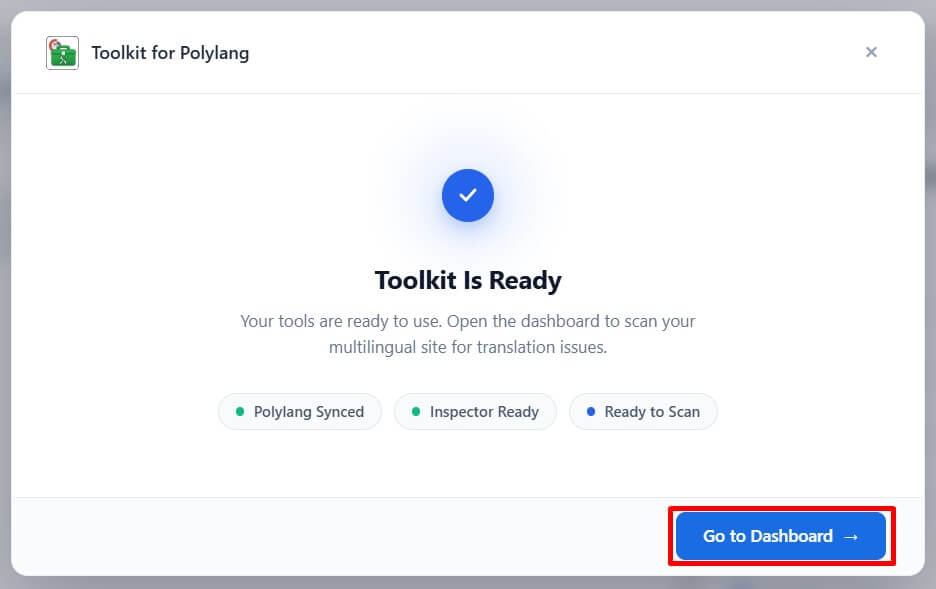
- Click Go to Dashboard to open the Toolkit for Polylang dashboard.