


The Language Switcher for Polylang addon adds a dedicated Language Switcher widget to Elementor.
You can place the widget anywhere in your Elementor layout and customize how available languages are displayed, including language names, codes, flags, layout, spacing, typography, colors, and other style settings.
Follow the steps below to add the language switcher in Elementor:
Add the Language Switcher Widget
- Edit the page or template with Elementor, where you want to display the language switcher.
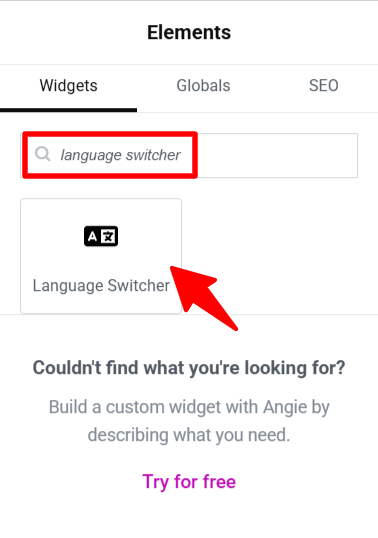
- From the Elementor widgets panel, search for Language Switcher.
- Drag and drop the Language Switcher widget into page.
Configure Language Switcher
The language switcher widget settings are divided into Content, and Style.
Content Settings
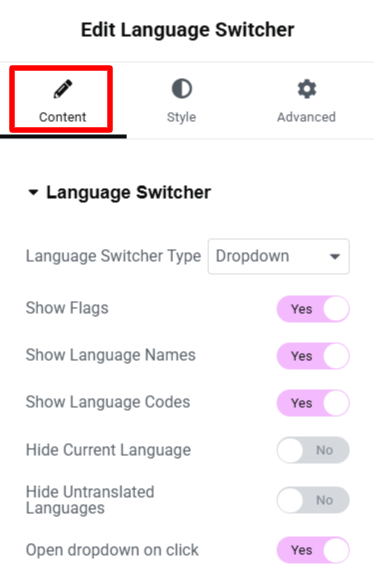
- Language Switcher Type: Choose how the language switcher should be displayed:
vertical,horizontal, ordropdown. - Show Flags: Enable this option to display a flag next to each language.
- Show Language Names: Enable this option to show language names in the switcher, such as
English,French, orSpanish. - Show Language Codes: Enable this option to display language codes, such as
EN,FR, orES. - Hide Current Language: Enable this option to hide the active language.
- Hide Untranslated Languages: Enable this option to hide languages that do not have a translated version of the page or post.
- Open dropdown on click: Enable this option to open the dropdown when the visitor clicks the language switcher.
Style Settings
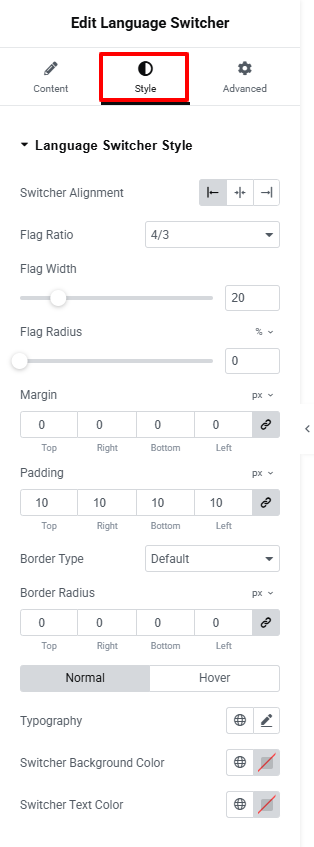
- Switcher Alignment: Set the alignment of the language switcher within the Elementor layout.
- Flag Ratio: Choose the aspect ratio used to display language flags.
- Flag Width: Set the width of the language flags.
- Flag Radius: Adjust the roundness of the flag corners.
- Margin: Adjust the space outside the language switcher.
- Padding: Adjust the space between the switcher’s content and its edges.
- Border Type: Choose the border style for the language switcher.
- Border Radius: Adjust the roundness of the switcher’s corners.
- Typography: Customize the appearance of language names and other text.
- Switcher Background Color: Set the background color of the language switcher.
- Switcher Text Color: Set the color of the language text.
- Normal / Hover: Customize the switcher’s appearance in its default state and when visitors hover over it.
Once you finish configuring the widget, save or update the page to apply your changes.