

The Translation Inspector in Toolkit for Polylang helps you scan your multilingual website and identify issues that may otherwise require manual checking. You can run a scan and review and fix issues from one dashboard.
Follow the steps below to run a scan and find polylang issues:
Run a Multilingual Website Scan
- After completing the setup wizard, you will be redirected automatically to the Translation Inspector dashboard.
- If not, alternatively you can:
- Navigate to Languages > Toolkit for Polylang > Translation Inspector from your WordPress dashboard.
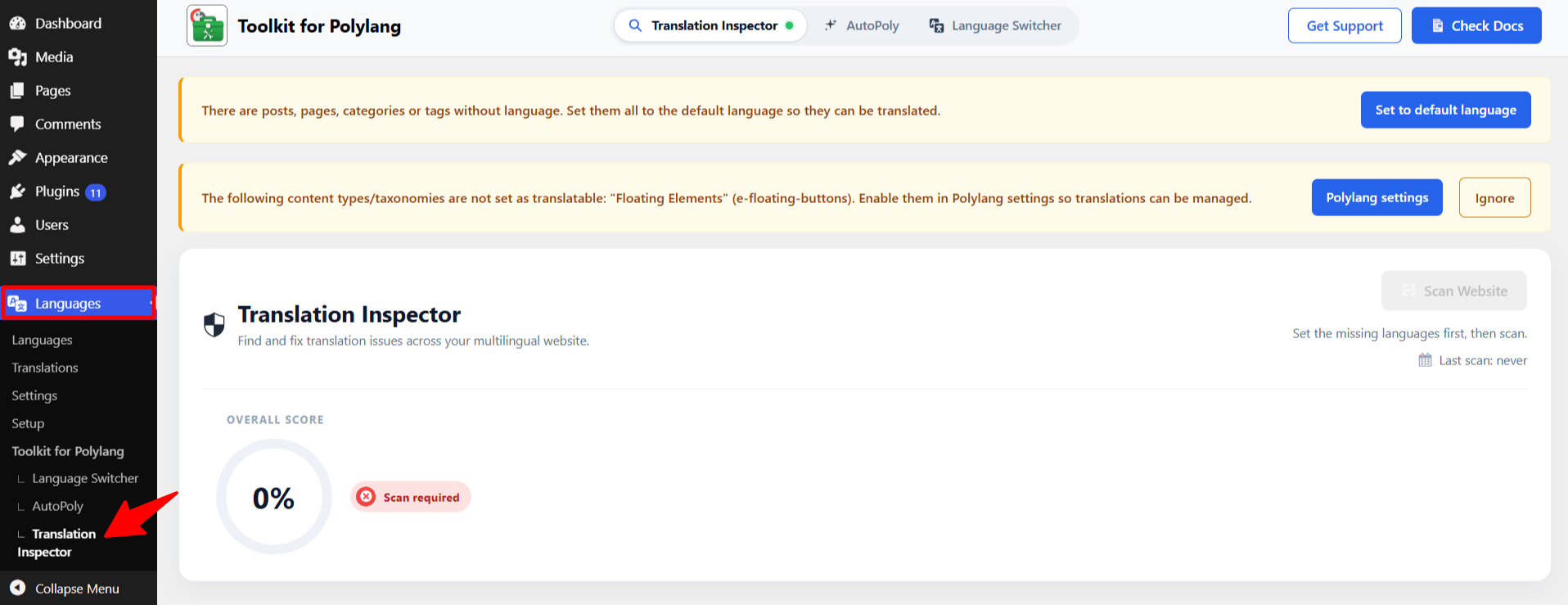
- Inside the Translation Inspector Dashboard. Click Scan Website.
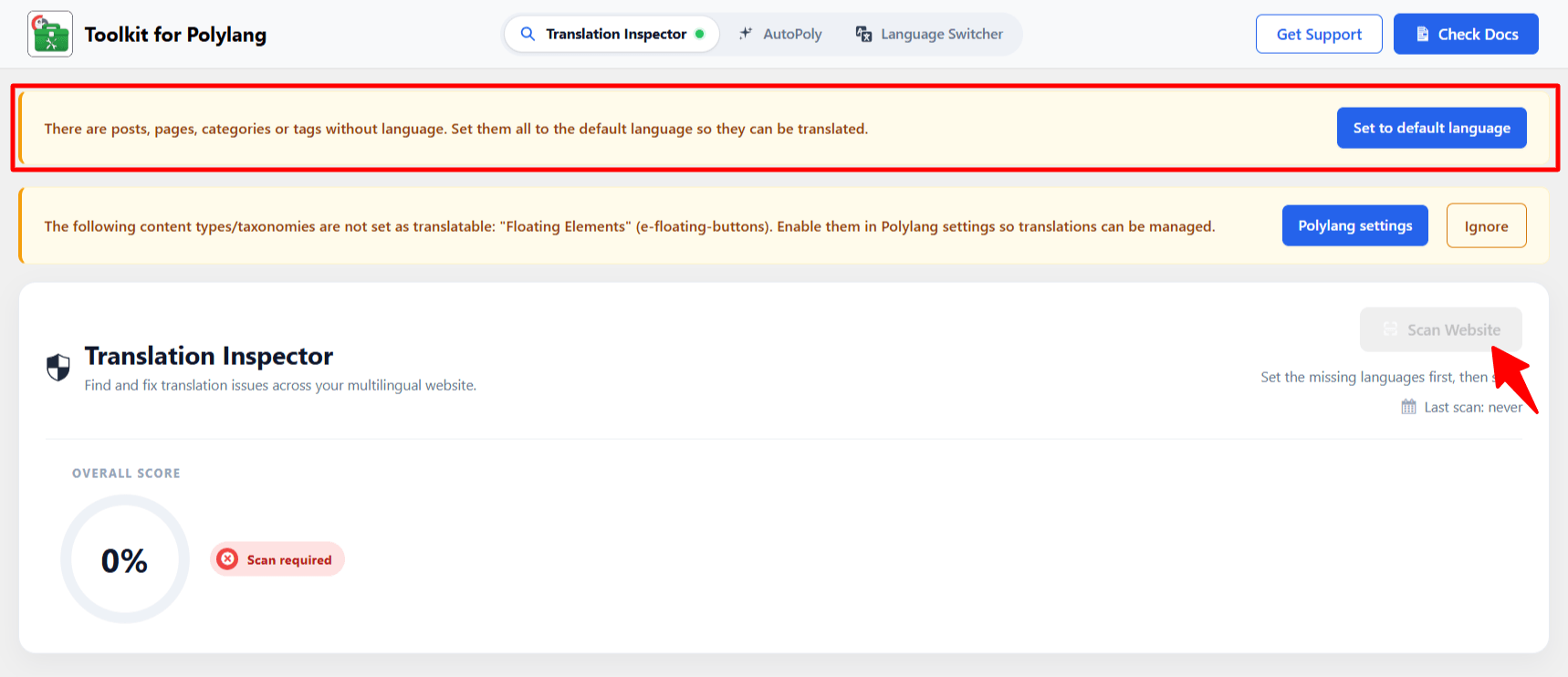
- If some content on your website does not have a default language assigned, the Scan Website button will remain disabled.
- To resolve this, click Set to default language button. Toolkit for Polylang will automatically assign the default language to the affected content, and will automatically start the scan.
- Once the scan is complete, analyze the detected issues, understand and fix them.
Translation Health Report
After the scan is complete, Translation Inspector organizes the results into different sections.
Overall Score and Issue Summary
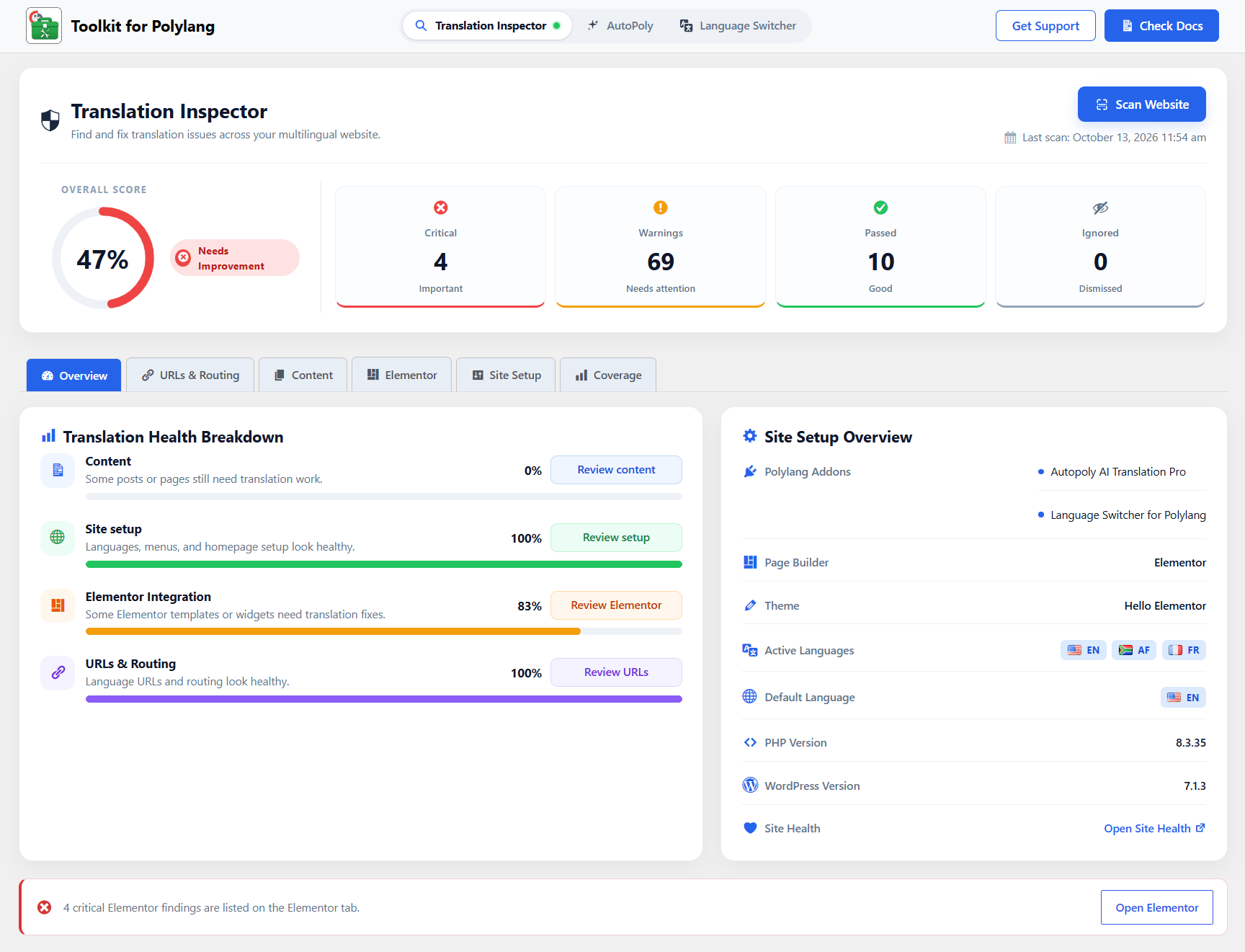
At the top of the Translation Inspector dashboard, you can see a quick summary of the latest scan.
- Overall Score: Shows the current health of your multilingual website based on the scan results.
- Critical: Shows the number of important issues that should be reviewed first.
- Warnings: Shows potential problems or incomplete configurations that require attention.
- Passed: Shows the number of checks that are resolved or where no issue was detected.
- Ignored: Shows findings you have intentionally chosen not to address.
Translation Health Breakdown
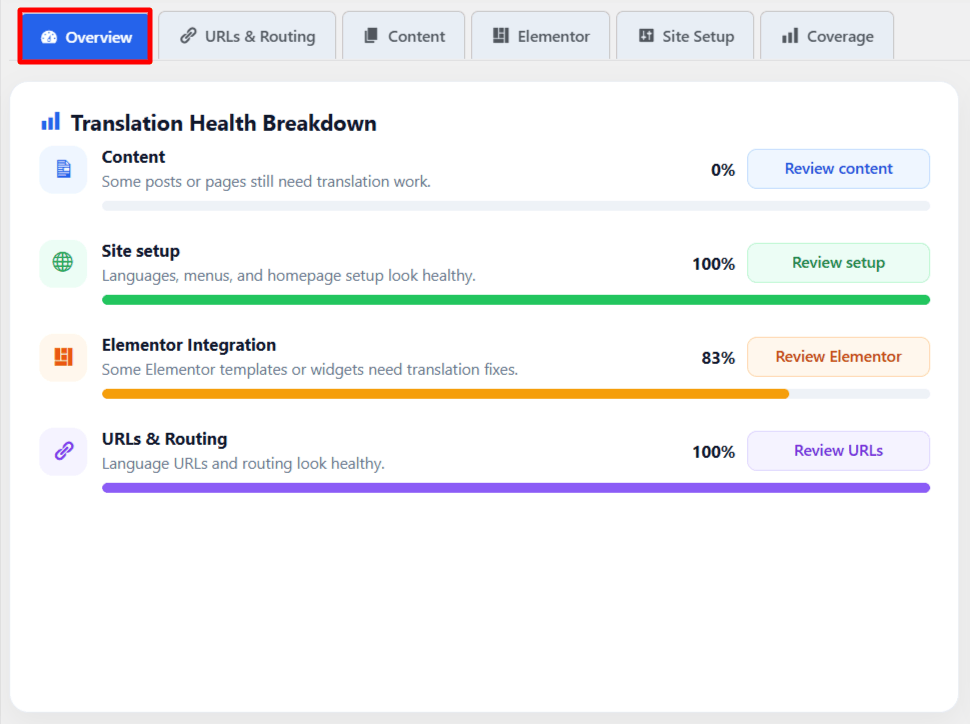
- Overview: The Overview tab provides a quick summary of your multilingual website’s translation health. It shows the health percentage for key areas such as content, site setup, Elementor integration, and URLs & routing
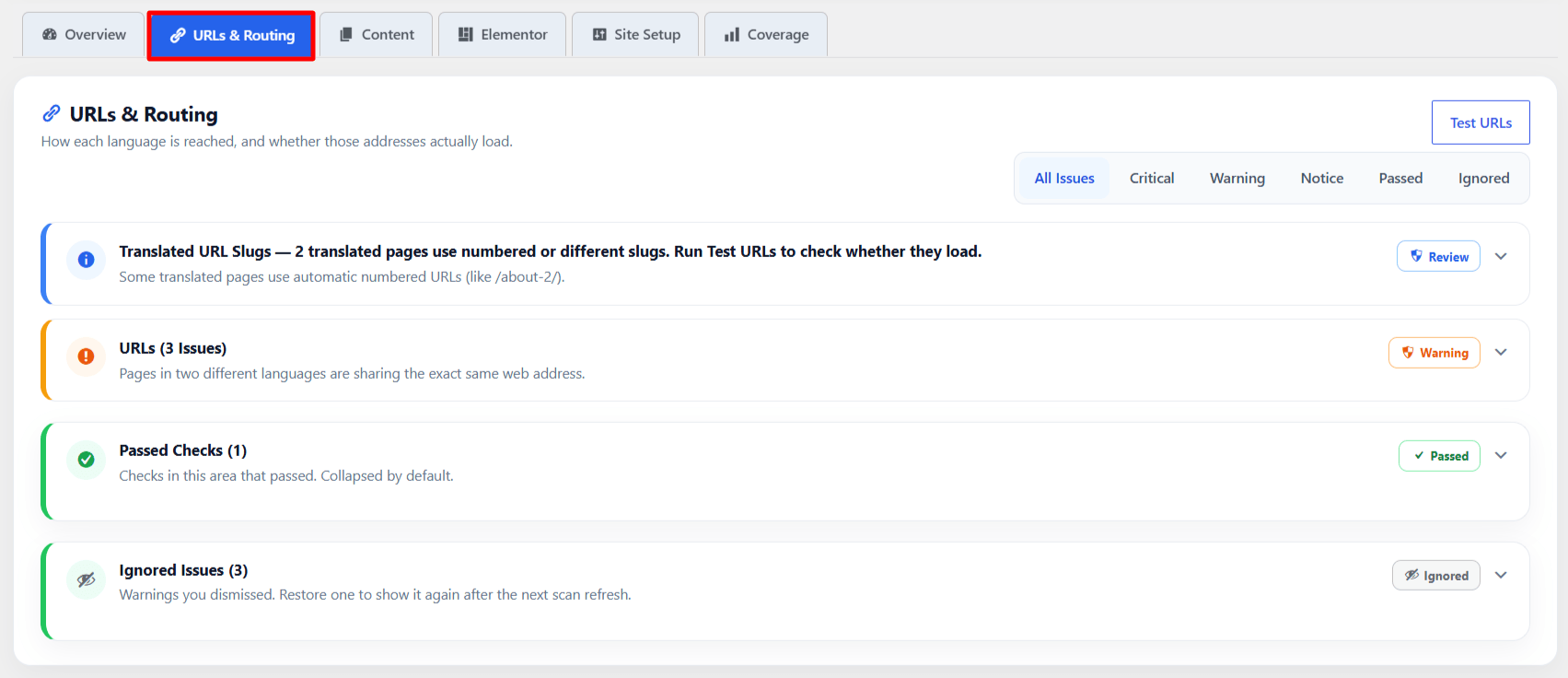
- URLs & Routing: The URLs & Routing section checks issues related to multilingual URLs, internal links, translated routes, and other routing-related problems.
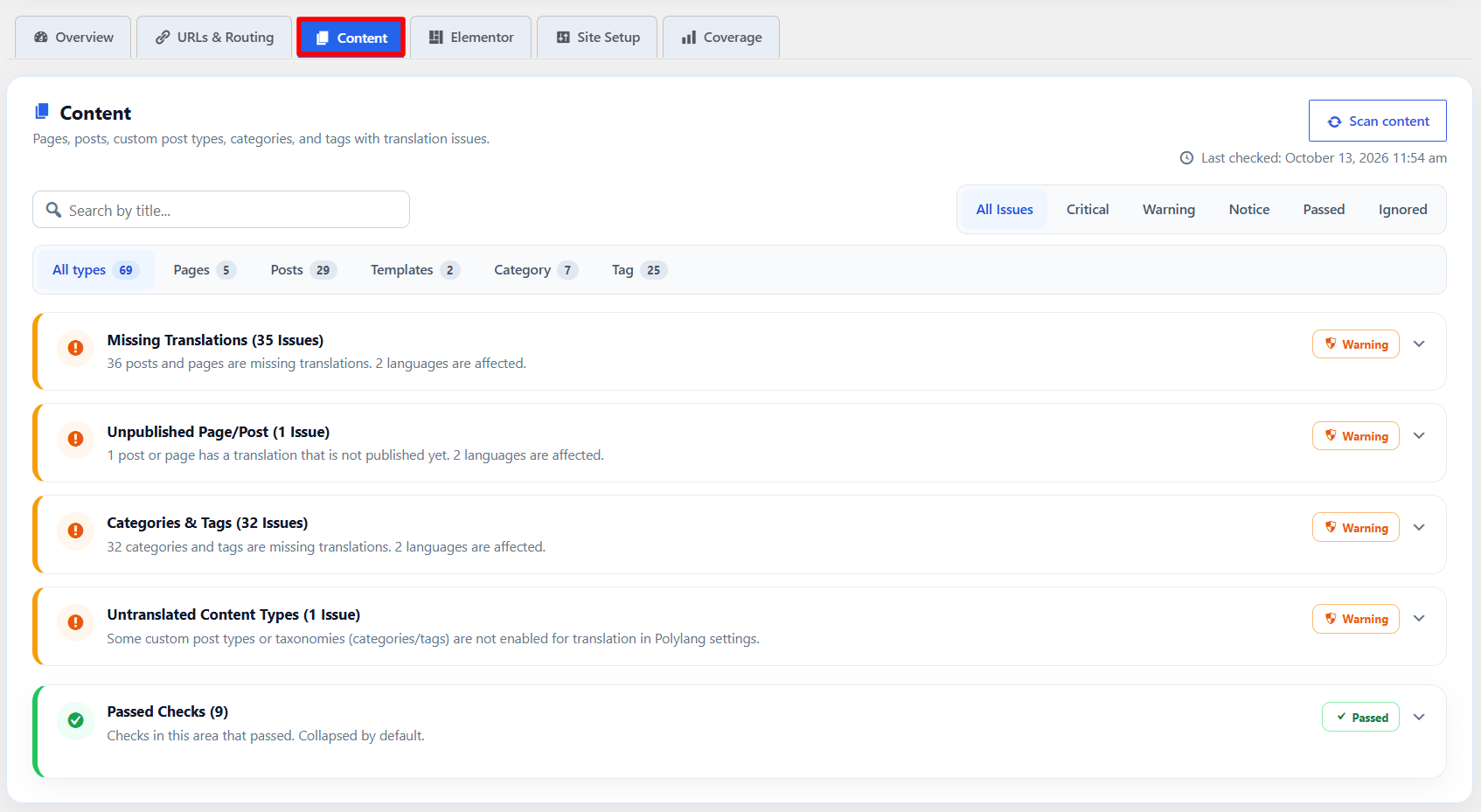
- Content: The Content section helps you review translation-related content issues, such as missing or incomplete translations and other content-level problems.
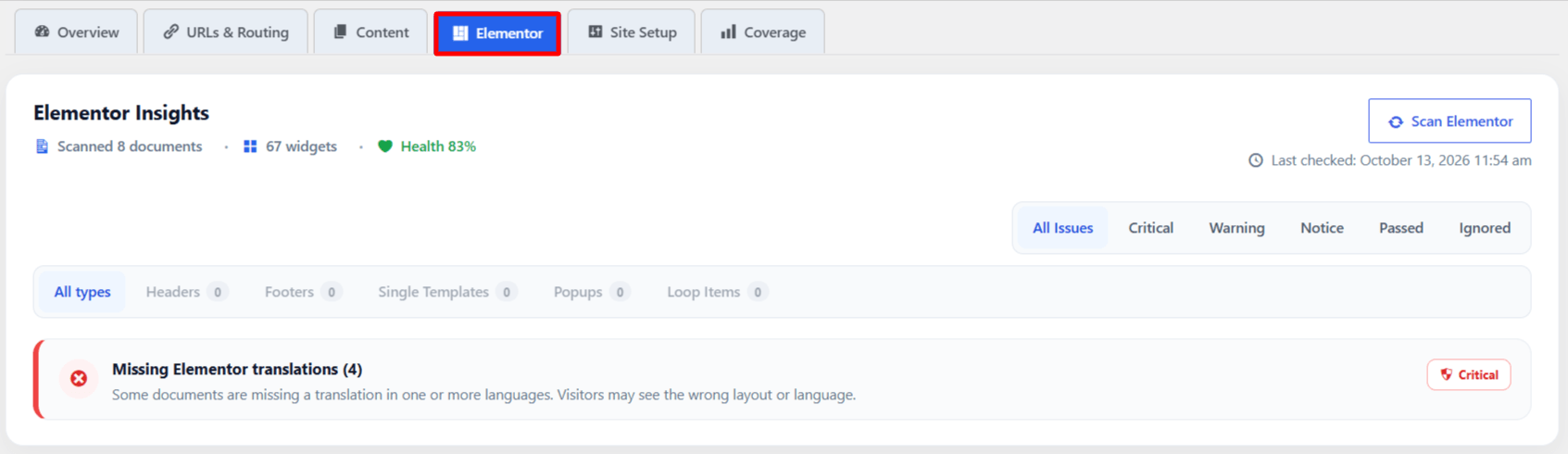
- Elementor: If your website uses Elementor, the Elementor section checks supported multilingual issues related to Elementor templates and their language setup.
- Site Setup: The Site Setup section reviews important multilingual configuration and Polylang-related setup issues.
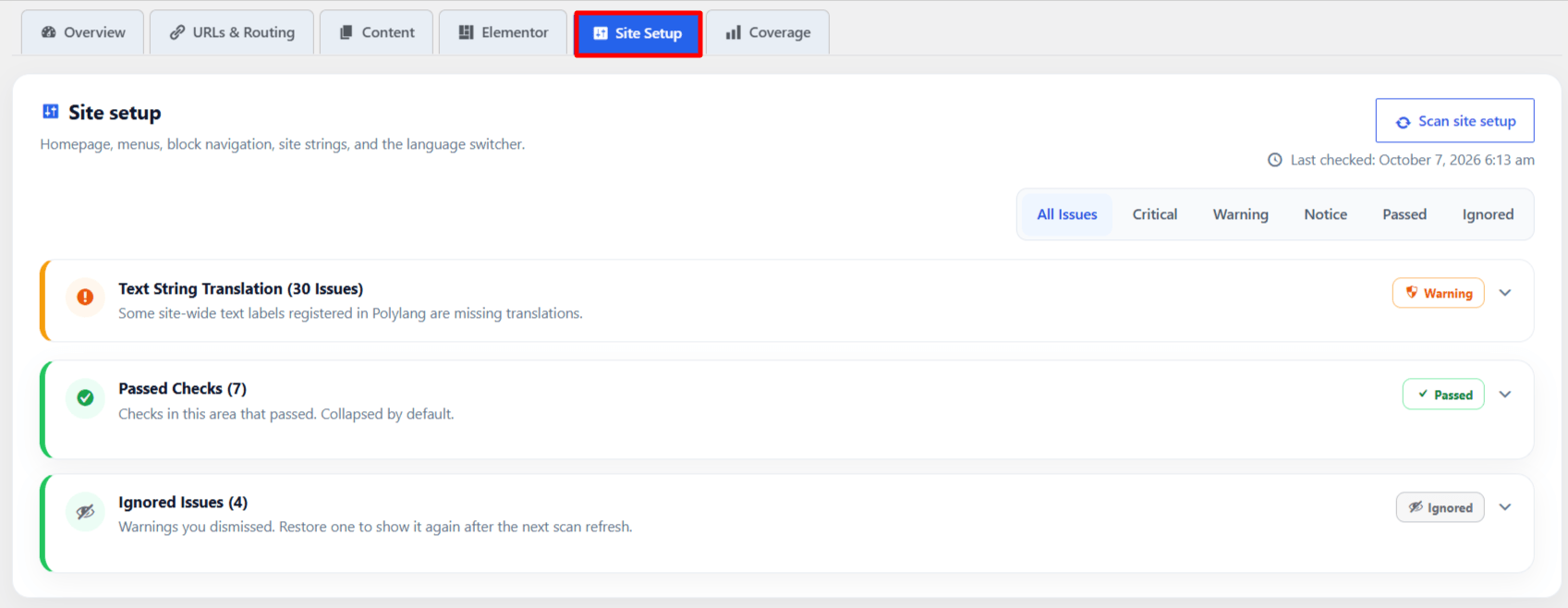
- Coverage: The Coverage section helps you understand how much of your website has been translated across the active languages.
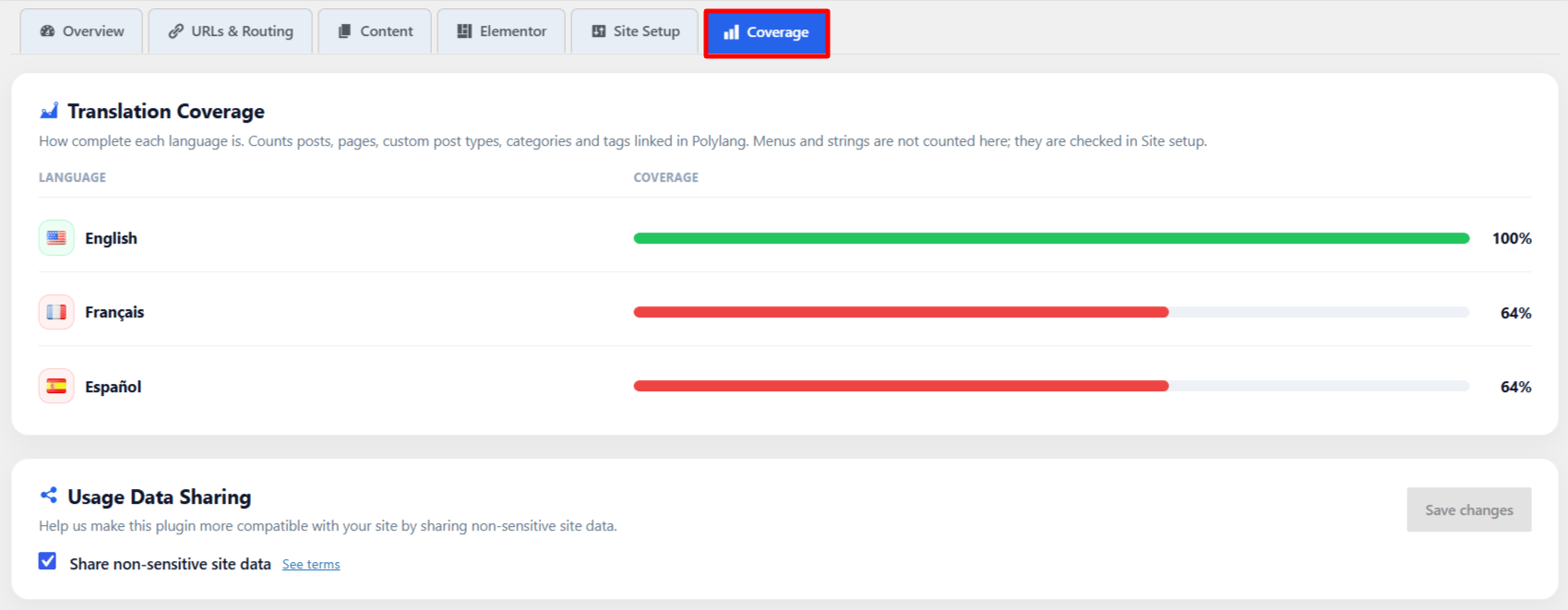
Resolve Polylang Issues
Start with the issues that need attention first. Review each finding to understand what the problem is, why it matters, and what needs to be changed.
To fix issues, click Edit to open the affected post, page, template, or related content directly and make the required changes. This helps you fix the problem without having to search for the affected item manually.
After making the changes, return to Translation Inspector and use the individual rescan option to check that specific issue again. This lets you confirm whether the problem has been resolved without rescanning the entire website after every change.
If the detected issue does not require any change, you can use Ignore to remove it from the active findings.
