

If you’re using Polylang to translate your website, you can also use AutoPoly – AI Translation For Polylang to automatically translate your website content using Microsoft Edge’s built-in AI.
Why Use Microsoft Edge Built-in AI?
Microsoft Edge Built-in AI makes it easy to translate your website content directly from your browser. It provides a quick and smooth translation experience without requiring any additional AI services or complex setup.
If you are using Microsoft Edge, you can start translating your Polylang content in just a few clicks. It’s a convenient option when you want a simple, browser-powered translation while still having the flexibility to review and edit translations before publishing.
Automatically Translate a Page
Follow these steps to translate your webpage using Microsoft Edge’s built-in AI:
- Open the page you want to translate in the WordPress editor.
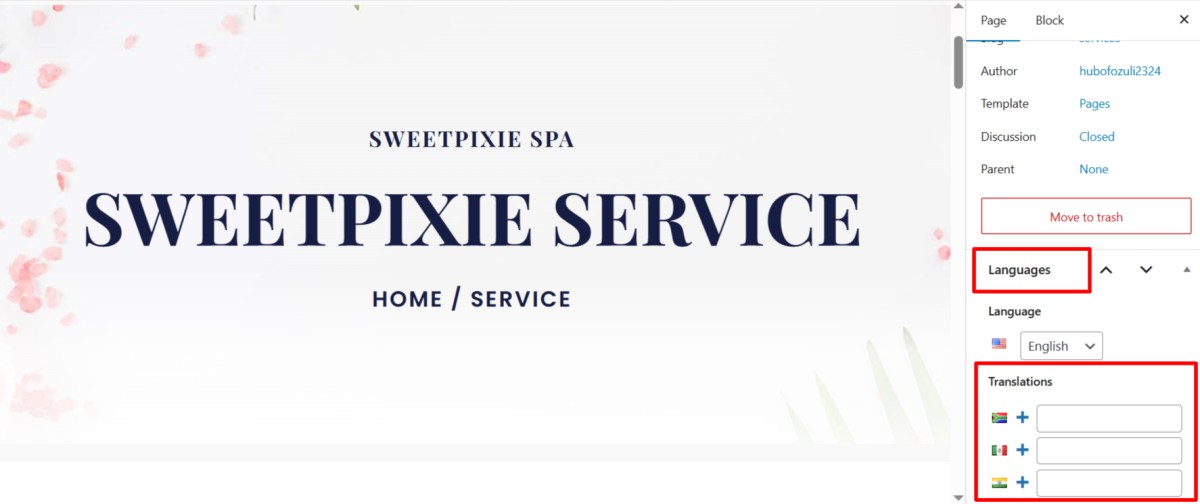
- In the right sidebar, open the Languages settings panel. Under Translations, click the “+” icon next to the language you want to translate.
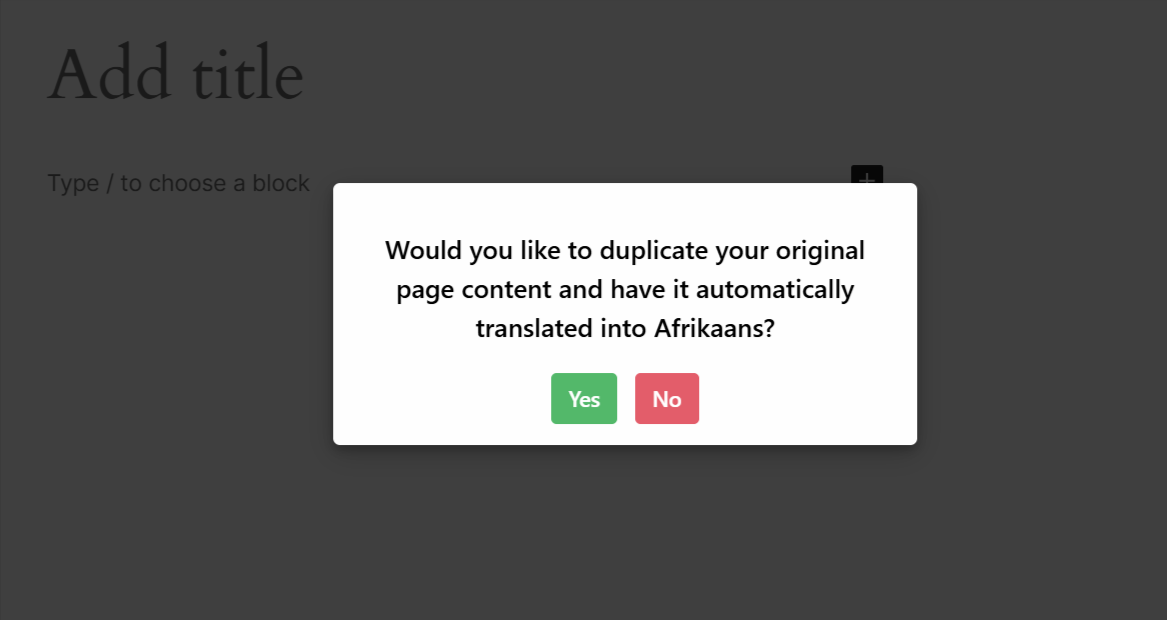
- A prompt will ask whether you want to duplicate the original page content. Click the Translate Now button.
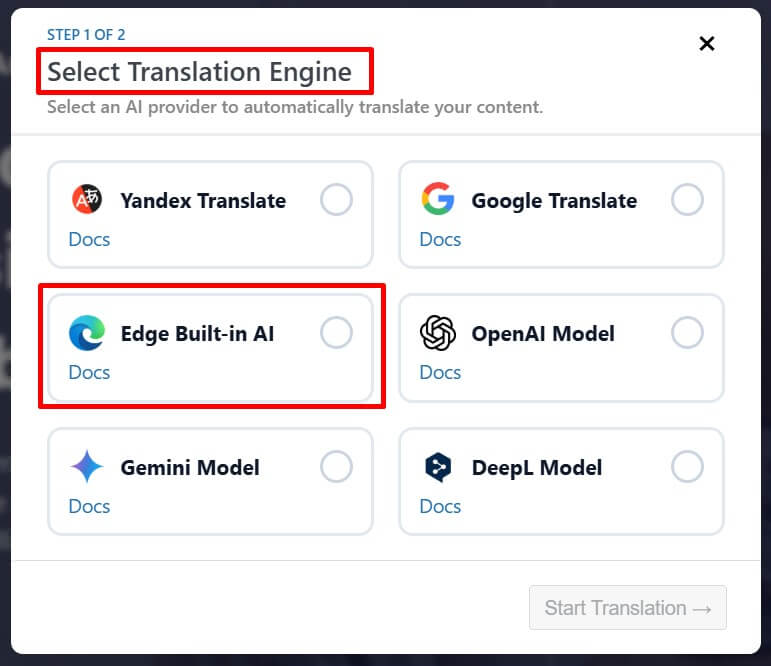
- A Select Translation Engine dialog will appear. Choose Microsoft Edge Built-in AI as the translation provider.
Alternatively, you can also start the translation from the Automatic Translation panel:
- Go to the settings tab and select the Automatic Translation tab.
- Click on Translate Content, and a pop-up box will ask you to select a translation provider. Select Edge Built-in AI Translator.
- Once selected, a tab containing both the source text and translation text will appear.
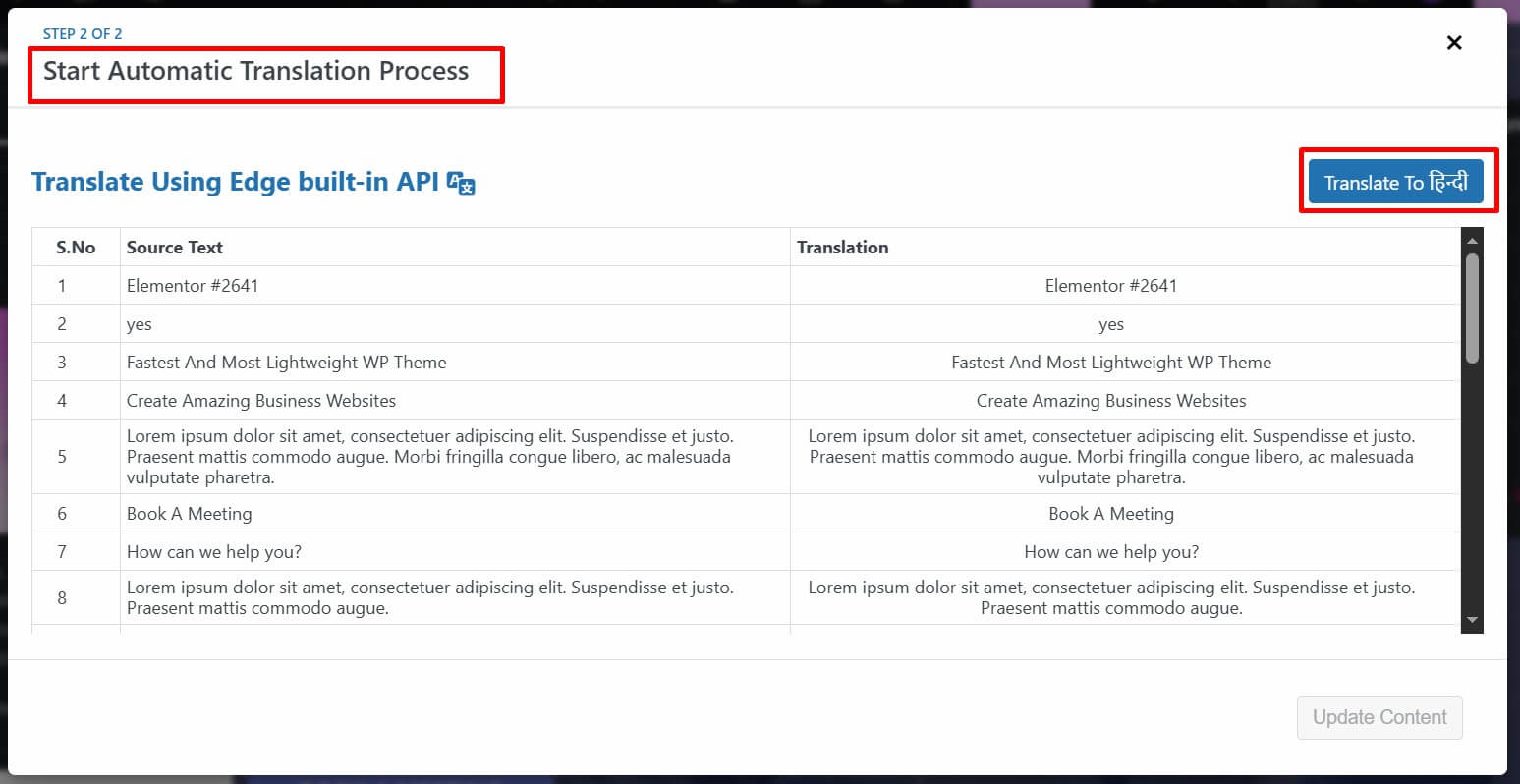
- Click Translate to begin the translation process. Depending on the amount of content, the translation may take a few moments.
- Once the translation is complete, click Update Content.
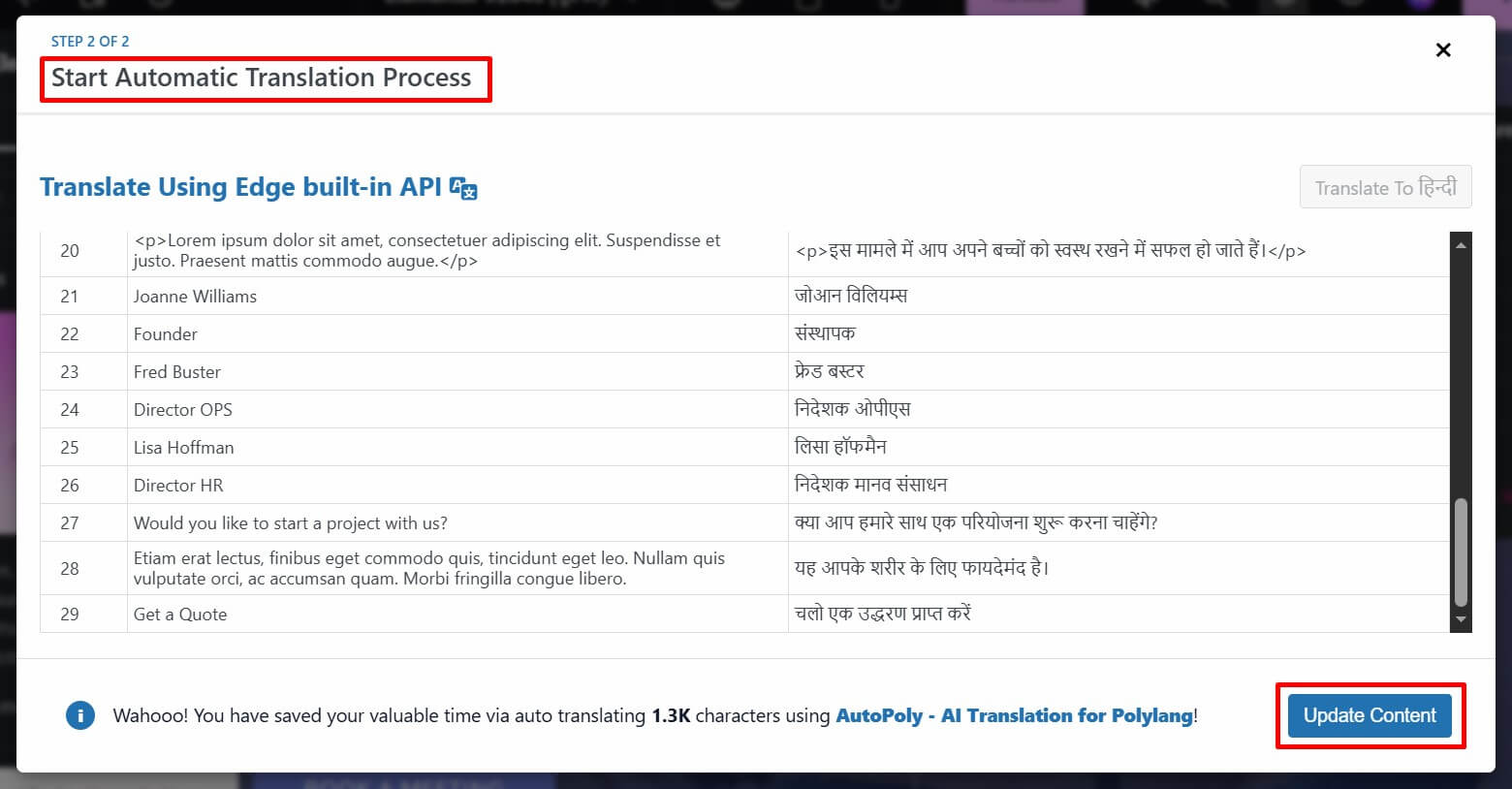
- Your webpage will now be translated into the selected language using Microsoft Edge’s built-in AI.
- Preview the translated page and make any manual adjustments if needed to improve translation quality.
That’s it! You have successfully translated your webpage using Microsoft Edge Built-in AI with AutoPoly – AI Translation For Polylang.