

Using the AutoPoly – AI Translation For Polylang, you can easily translate your Elementor website automatically via Yandex Translation Widget, Google, Gemini, OpenAI, DeepL, or Chrome’s built-in AI.
Note: If your original Elementor template or pages are assigned to a specific category, you must assign the translated version of the page or template to the corresponding translated category.
It is highly recommended to translate categories, tags, or custom taxonomies before translating your website content. This ensures that all taxonomy or category terms are already available in the target language, preventing the need to manually update categories, tags, or custom taxonomies for each translated page or template one by one.
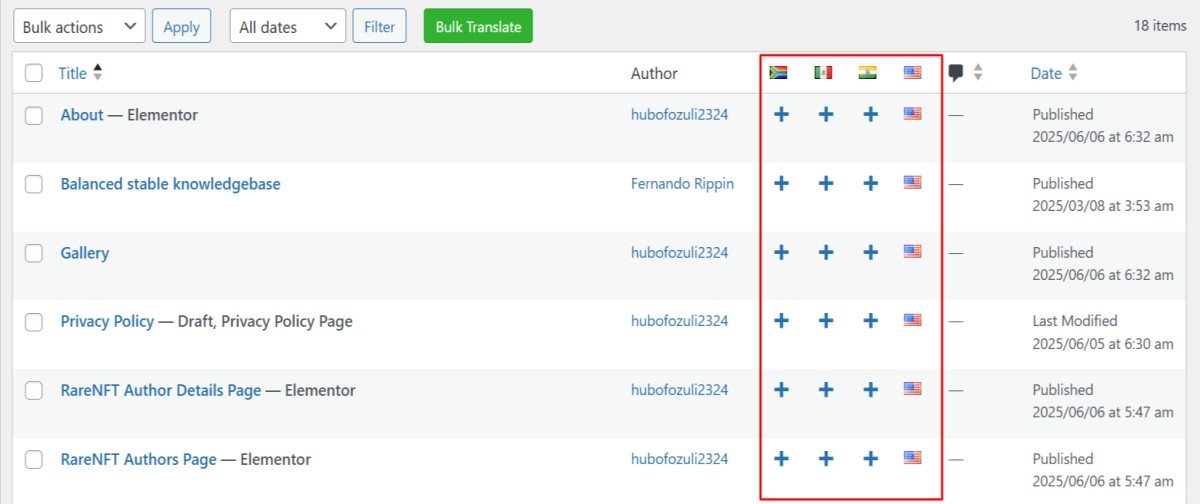
- Install and activate the
Polylang pluginand theAutoPoly - AI Translation For Polylangon your WordPress website. - Navigate to the pages section and select the target translation language from the list of available languages provided by Polylang.
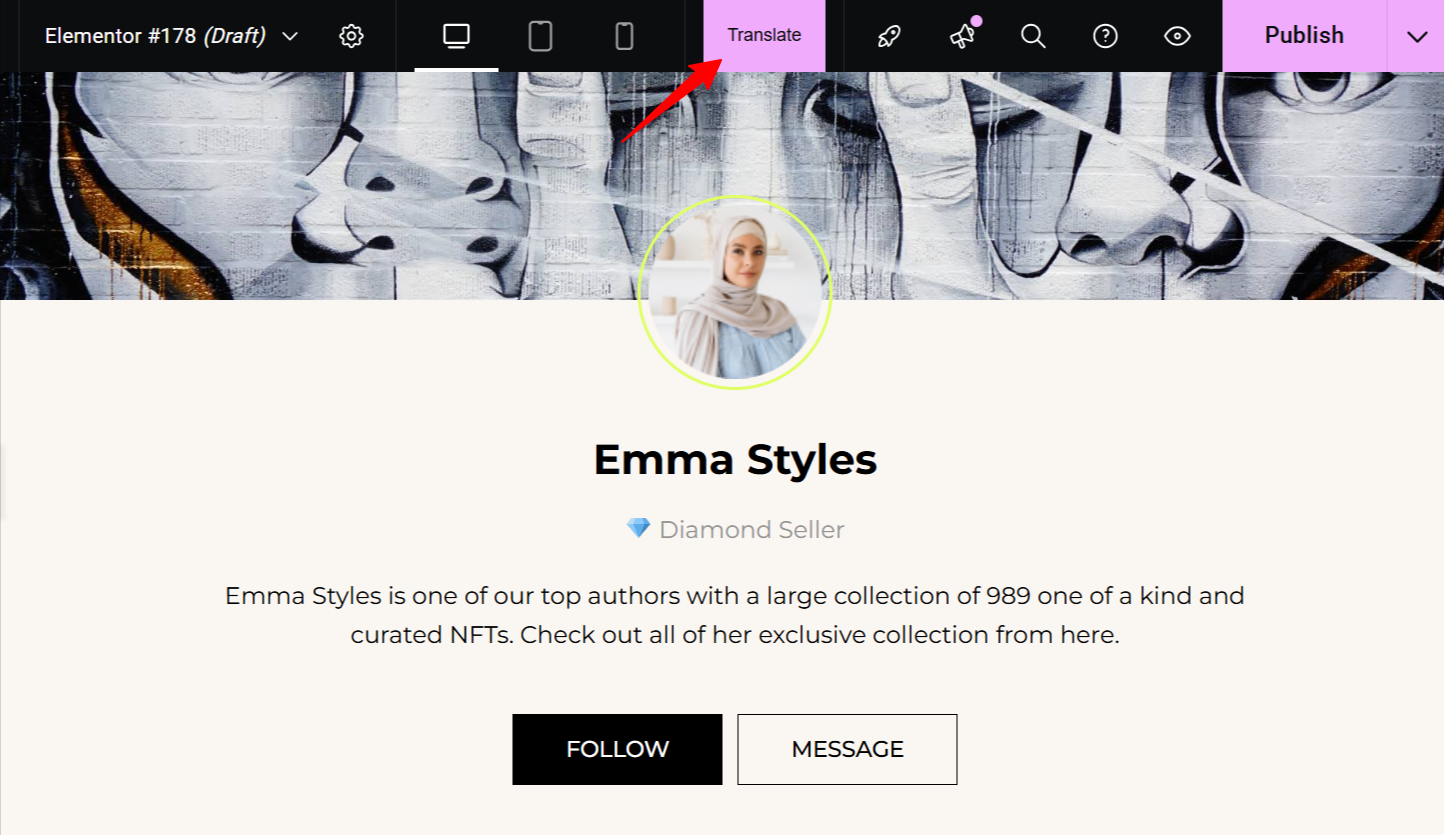
- Now, click on the “Edit with Elementor” option.
- Click on the Translate button within the Elementor editor interface.
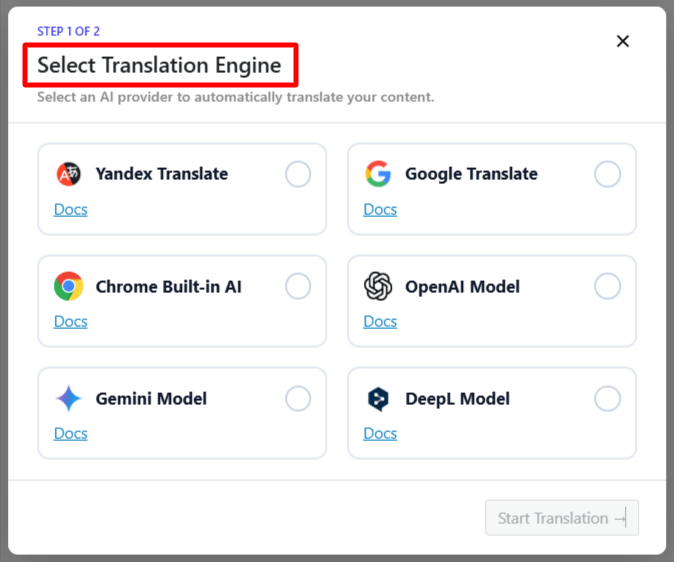
- A prompt will appear to select the Translation Engine. Choose one according to your preferences.
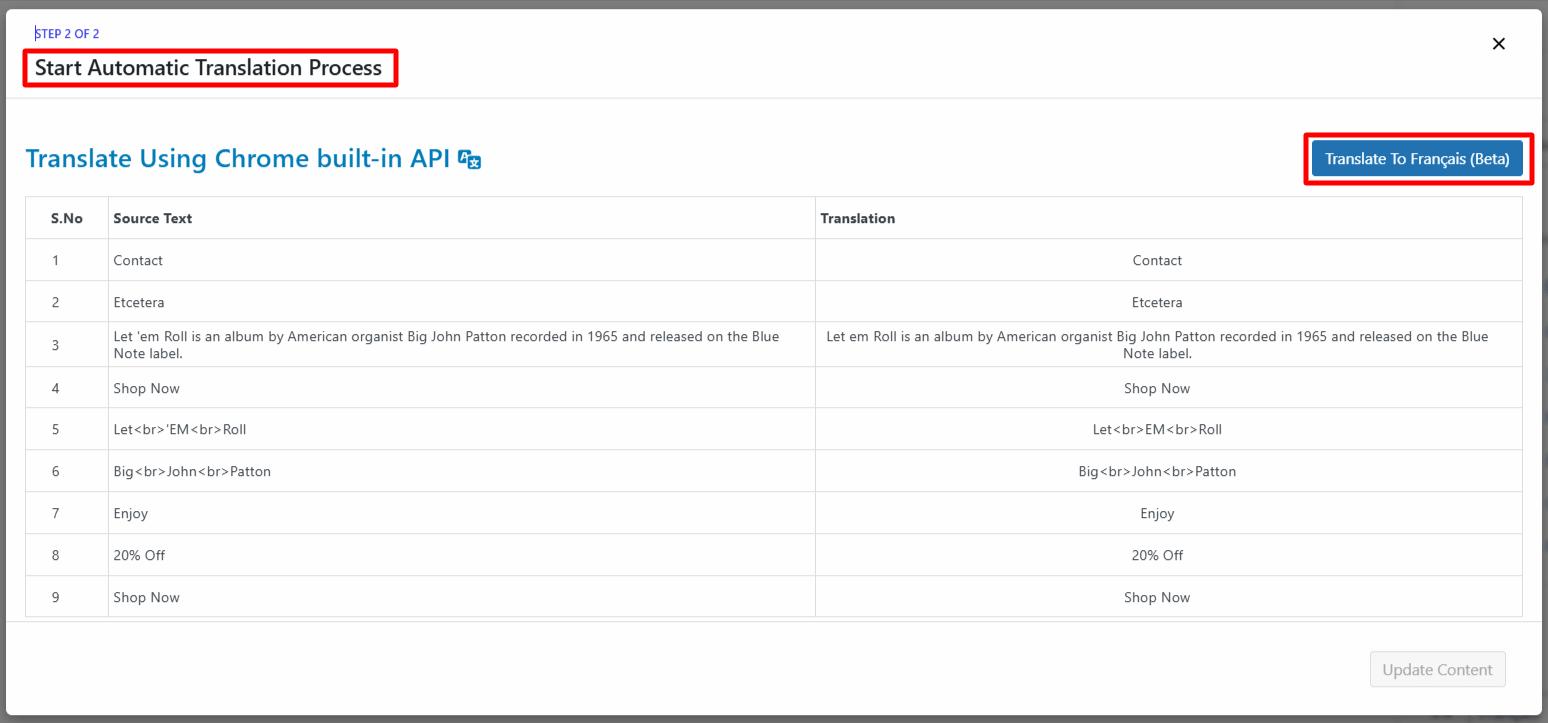
- Once selected, a tab containing both the source text and translation text will appear.
- Click Translate. The translation process will begin, and wait for a few minutes.
- After the translation completes, click Update Content.
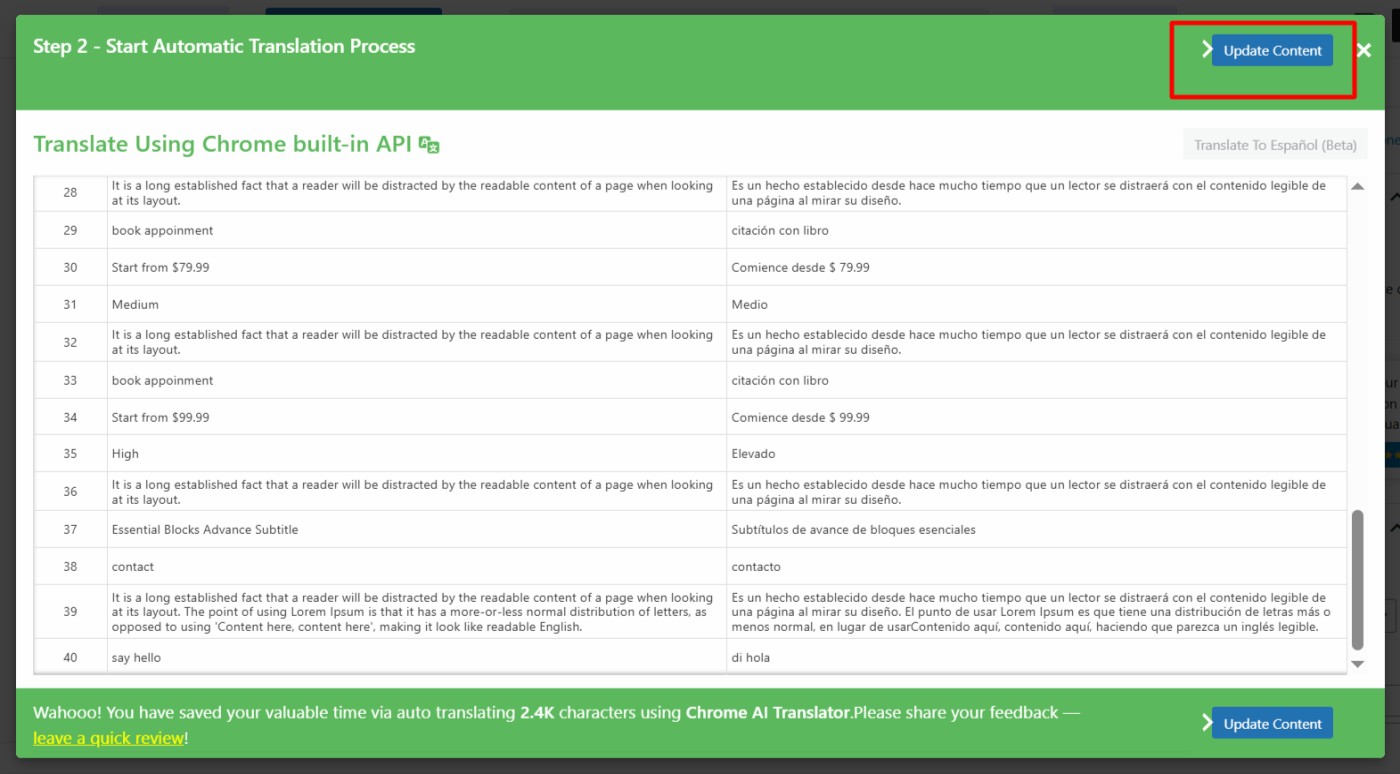
- All content of the website will be translated into a selected language in a single click, now preview it and make manual edits to adjust translations for better accuracy.
That’s it! You have successfully translated your Elementor webpage using the AutoPoly – AI Translation For Polylang.