

AutoPoly-AI Translation For Polylang allows you can easily create and manage glossary terms to keep your translations consistent across your entire website.
What is the Glossary Feature?
The Glossary feature is a powerful tool used in translation and localization platforms (such as Google Translate API, DeepL, or Polylang AI Translator) to ensure consistent and accurate translations of specific words or phrases across your entire website or project.
Why It’s Important
Certain words can have multiple meanings or translations depending on context. By adding them to your glossary, you can define how these terms should always be translated helping maintain clarity and consistency.
For example:
- The term “Apple” could refer to either the technology company (Apple Inc.) or the fruit.
- In French, the WooCommerce term “cart” might be translated as “Panier”, “Chariot”, or “Caddie
By adding these terms to your glossary with your preferred translation, you ensure that the correct meaning is always used in every translation. Once glossary entries are created, translation engines automatically apply your defined translations, and human translators get helpful context to avoid mistakes.
How to Add Glossary Terms in AutoPoly
There are still two types of glossary entries, Names and General Terms. The new system simply makes managing them much easier for both users and the AI translation process.
To create a glossary entry:
- Open the AutoPoly Dashboard.
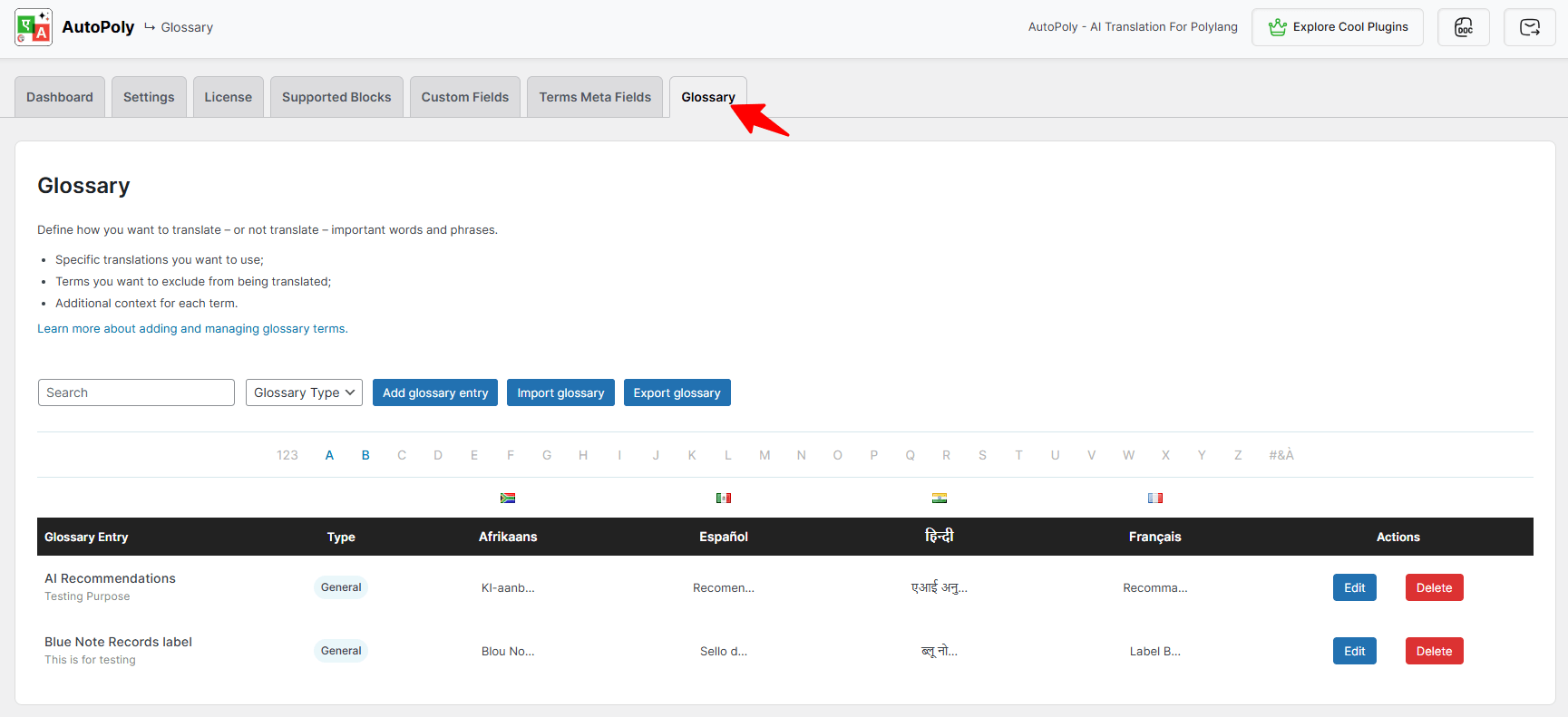
- Navigate to the Glossary tab.
- Click Add Glossary Entry.
- Enter your term, description, and translations.
- Click Add Term to save your entry
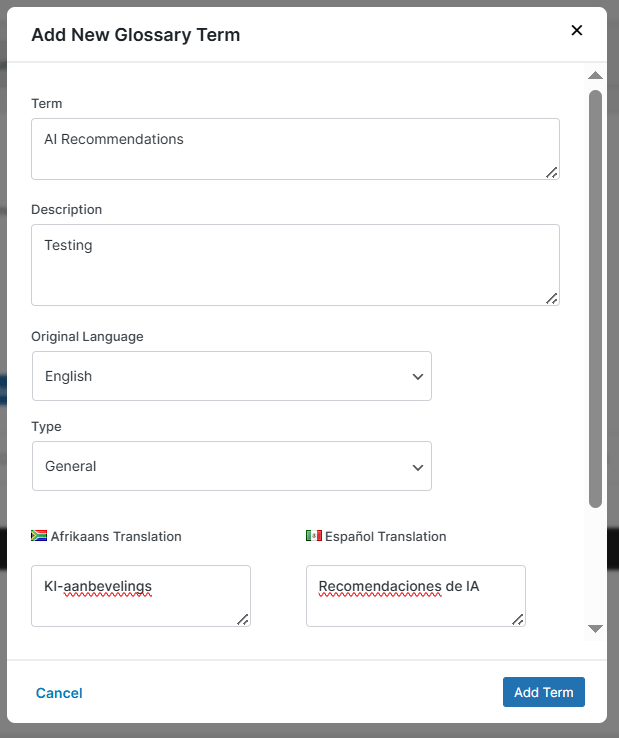
Once you add your glossary, AutoPoly automatically applies your terms during bulk translations — helping keep your website’s content accurate and consistent.
For single-page translations done through Yandex, Google, DeepL, OpenAI, Gemini or Chrome’s built-in AI translator, you’ll need to apply the glossary terms manually.
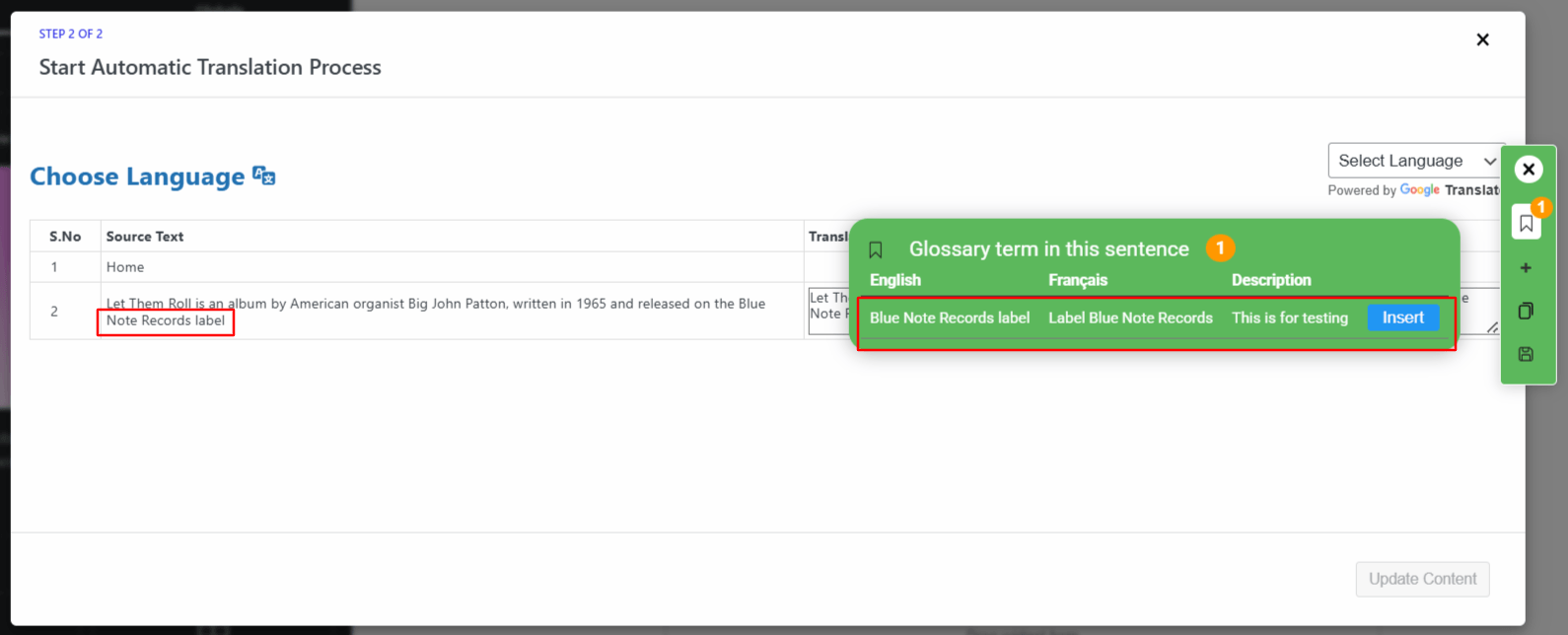
Create Glossary Entries from a Selected Row
You can also create glossary entries directly from your translated rows:
- Create Glossary Entries from Selected Text
- You can also create glossary entries directly from your translated rows:
- Click the “+” icon next to a selected row.
- The source text will automatically populate in the glossary form.
- Select the specific term from the source text.
- Add a description and translations as needed.
- Click Save to create and store the glossary entry.
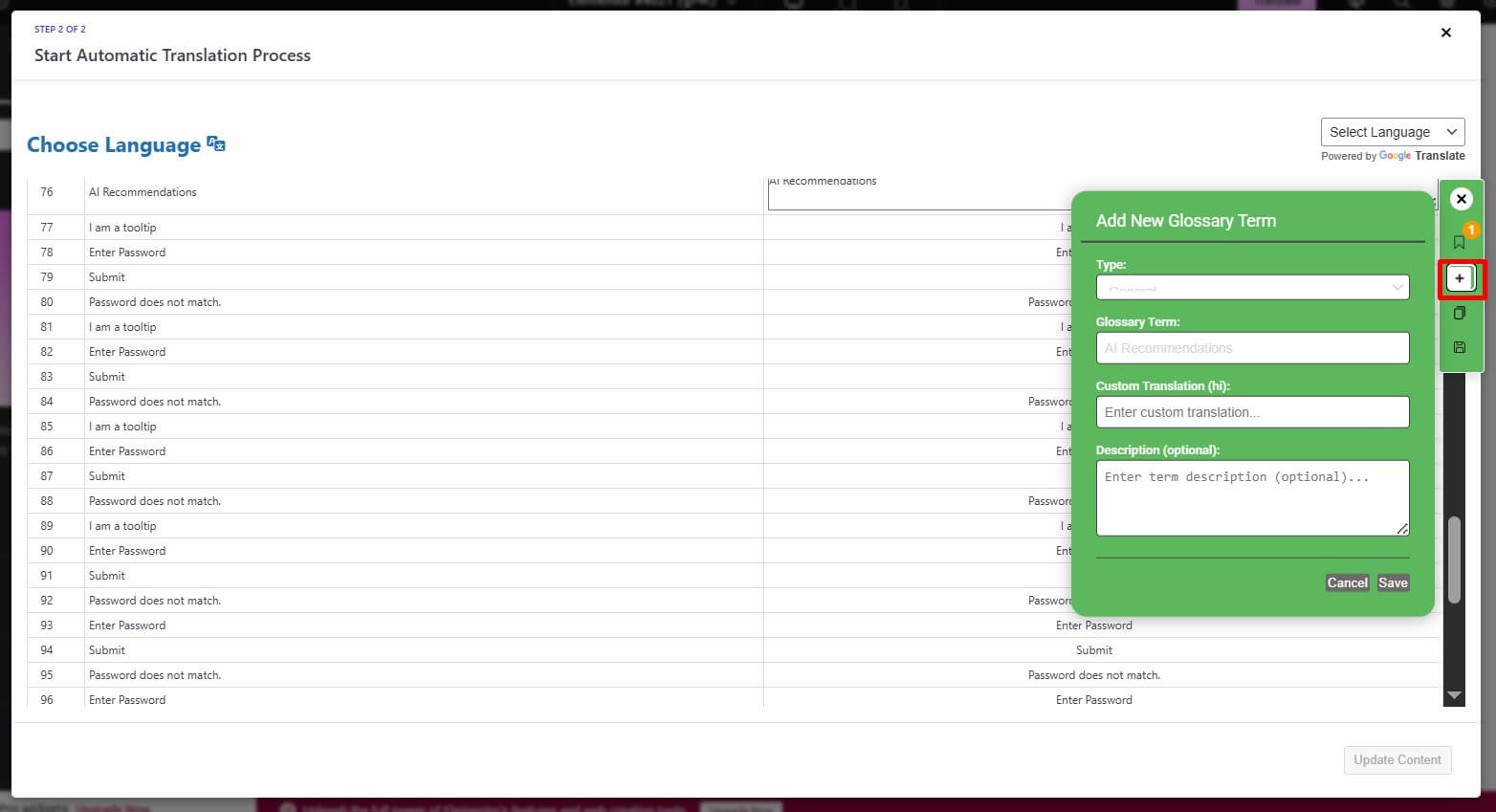
This quick method saves time and makes it easy to build your glossary as you work.
Best Practices for Adding Terms to Your Glossary
Before adding new terms to your glossary, keep these recommendations in mind:
- Add Only Essential Terms
Use the glossary thoughtfully—include only the terms that are truly important. Focus on words that may confuse both human and AI translators, especially those with multiple meanings. - Keep Terms Clear and Simple
Add each term exactly as it should appear in translations. Avoid adding extra details, such as text in parentheses, unless they are an intentional part of the term. - Prevent Duplicate Entries
Make sure every term you add is unique. Repeated or duplicate entries can lead to errors and inconsistencies during AI translation.
Import & Export Glossary Entries
The Import/Export feature allows you to easily manage and transfer your glossary terms across different websites or projects.
- Export: Download your existing glossary as a CSV file to back it up or share it with your team.
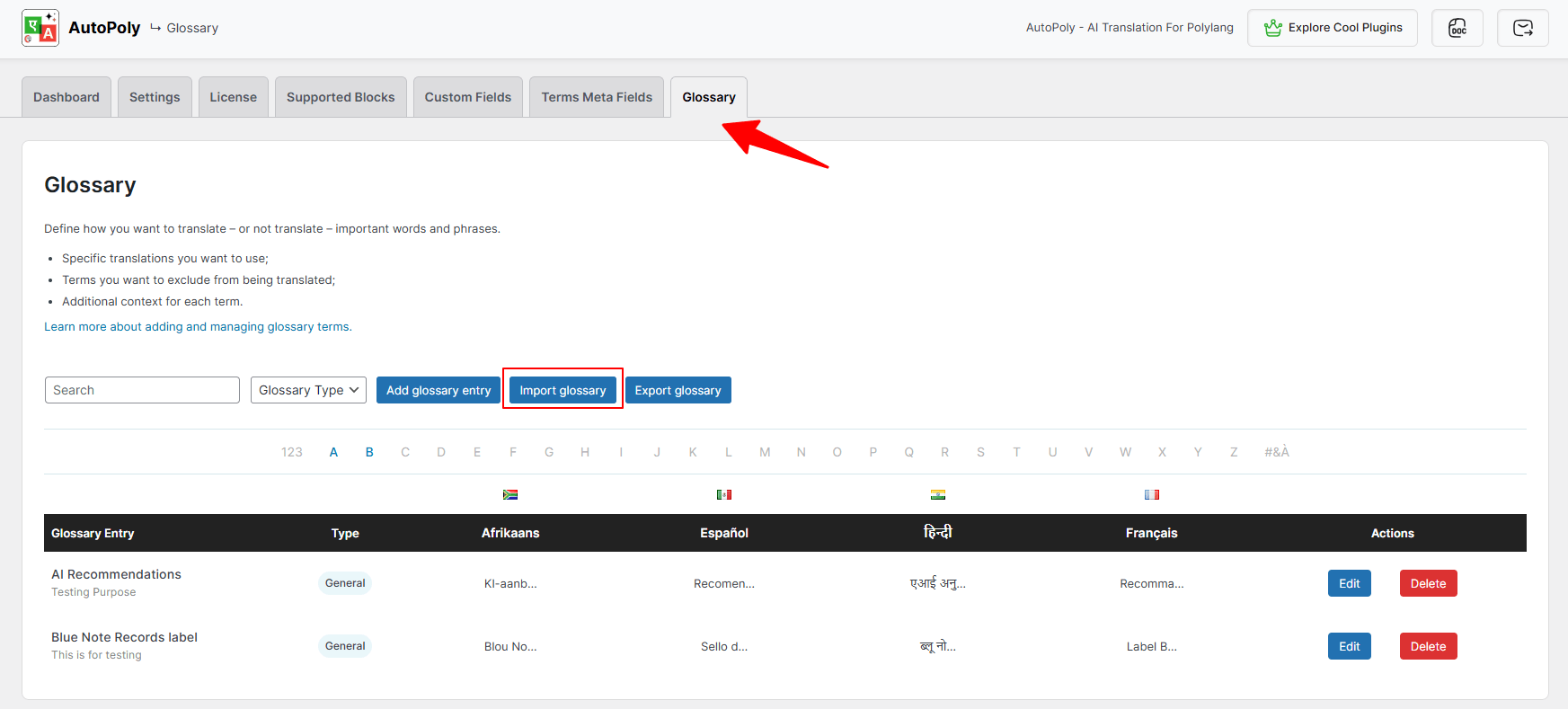
- Import: Upload a CSV file to quickly add multiple glossary terms at once — saving time and ensuring consistency across all your translations.
To use it:
- Go to the AutoPoly Dashboard.
- Open the Glossary tab.
- Click Import to upload a CSV file containing your glossary terms, or Export to download your current glossary list.